Claude Code Sandbox Setup: Keep SSH Keys and Tokens Out
Claude Code's sandbox is off by default and still reads ~/.ssh when on. Turn it on, verify it, keep keys and tokens out, with real results from a Mac.
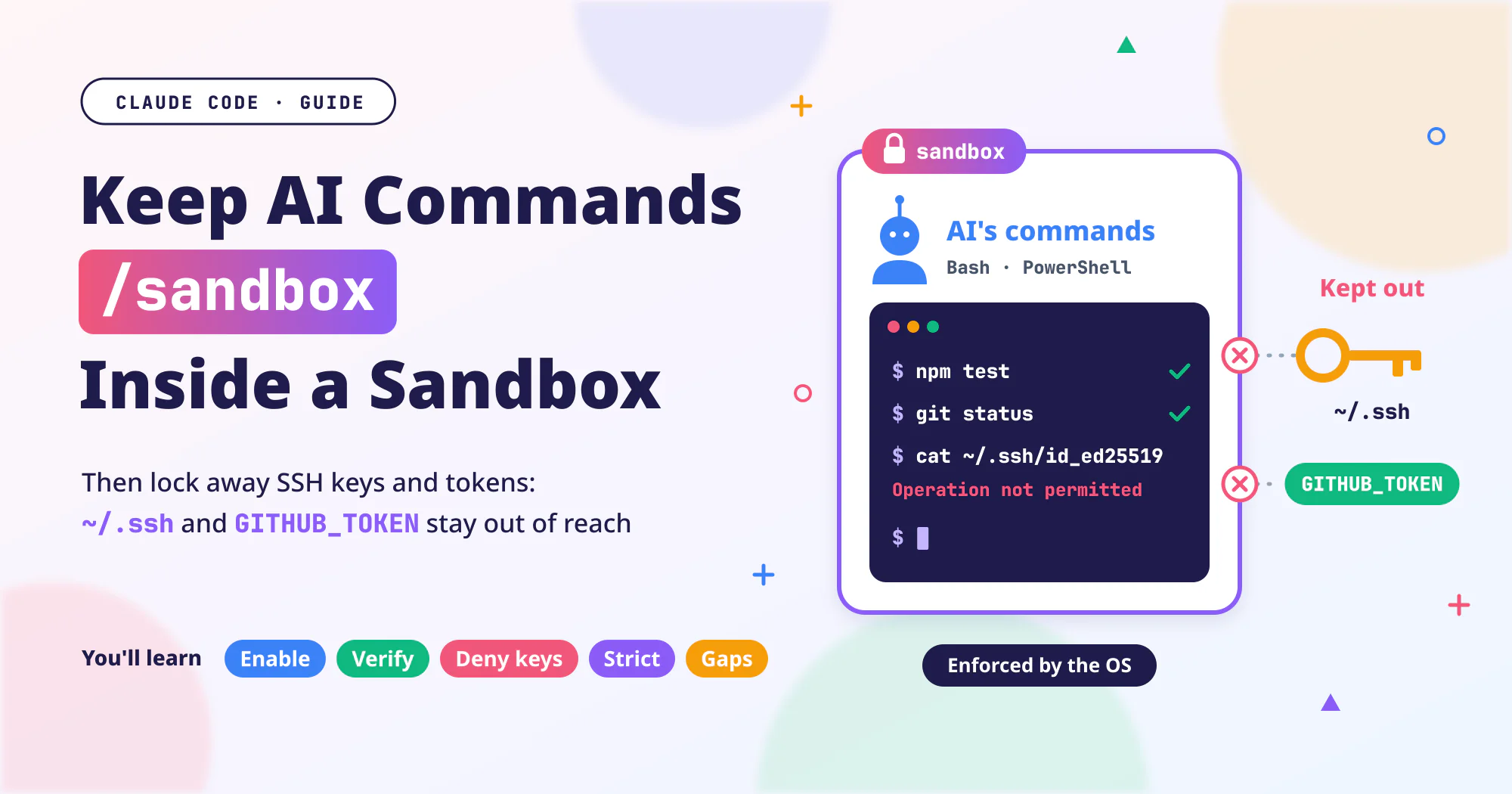
Claude Code, an AI coding assistant you use in the terminal, runs commands on its own, such as running tests, installing packages, and calling git. These commands run under your account, so by default they can read any file you can read, including SSH keys and cloud credentials. Claude Code has a built-in sandbox that keeps these commands inside limits the operating system enforces, restricting where they can write and which sites they can connect to.
But the sandbox is off by default. Even when it’s on, the official docs state that it still allows reading ~/.ssh and ~/.aws/credentials by default. Many people assume “it’s on, so it’s safe,” but I think a few steps are still missing.
This post walks through those steps one by one. Each step includes the results I actually got on my own Mac, and at the end there is a settings.json you can copy as is.
Based on Sandboxing, Permissions, Settings reference, and the changelog as of 2026-11-13 (Taipei time). I ran through it the same day with Claude Code 2.1.323 on macOS, the latest version that day (released November 12).
Several November releases fixed sandbox and permission-rule bugs one after another:
- 2.1.321 fixed read-only commands running outside the sandbox without a prompt, and deny rules not applying when
cpormvwrote into a folder. - 2.1.323 fixed the sandbox possibly turning off mid-conversation, and
excludedCommandsletting commands it didn’t list run outside the sandbox.
Before you follow along, run these in order in your terminal to update and then check the version:
1
2
claude update
claude --version
This post is the hands-on follow-up to OWASP Agentic Top 10 Checklist: Audit Your AI Workflow. In that post I only asked you to “confirm whether /sandbox is on.” This one shows how to configure it once it is. I covered why you should limit an agent’s permissions in Third-Party Skills and MCP Servers: The New Attack Surface in Your Coding Agent, so I won’t repeat it here.
A Few Terms First
- Sandbox: a fence the operating system guards. Programs inside run as usual, but they can only touch the files and network the fence allows.
- Token: a string that stands in for a password. Tools use it to sign in to services such as GitHub or npm. Anyone who gets it can act as you.
- Environment variable: a setting a program receives from the terminal when it starts. Many tools keep tokens here, such as
GITHUB_TOKEN. - Domain: a website’s name, such as
example.comorgithub.com. - Allowlist: the domains you list in advance as OK to connect to. Anything not on it needs a separate decision.
- Proxy: a relay that forwards network connections. Every connection a sandboxed command makes goes through a proxy that Claude Code runs on your computer, and the proxy checks the domain.
- Permission mode: decides whether Claude asks you before acting. The default, Manual mode, asks each time. Auto mode leaves it to a separate AI classifier model.
bypassPermissionsmode asks nothing. !commands: if you start your input in Claude Code with!, the command after it runs directly in your terminal without going through Claude.
How I Tested
So you can reproduce the results, here is how I did it:
- Setup: macOS (Apple Silicon), Claude Code 2.1.323, the morning of 2026-11-13 (Taipei time).
- Method: the
/sandboxpanel only works in the interactive screen. Non-interactive mode isclaude -p, which passes your request as an argument and exits when done. In that mode,/sandboxreplies/sandbox isn't available in this environment.So I wrote the settings for each step into a JSON file and passed it withclaude -p "Use Bash to run ..." --settings file. These are the same keys the panel orsettings.jsonsets. - No real keys: I created a fake “canary” file,
~/.sandboxlab-canary/secret.txt, to stand in for~/.ssh. Its content isFAKE-SECRET-FOR-TEST, 21 bytes. A fake environment variable,SANDBOXLAB_FAKE_TOKEN, stood in forGITHUB_TOKEN. I deleted both afterward. - Nobody can press “allow”: in non-interactive mode nobody answers prompts, so wherever a prompt would appear, the results below show a denial. In the normal interactive screen, you get a confirmation prompt instead.
- Edited output: home directory paths are rewritten as
~and the test folder is shortened to…/sandboxlab. I removed curl’s progress meter; everything else is as it appeared.
What the Sandbox Blocks and What It Allows by Default
The sandbox covers only commands: the commands Claude runs through the Bash, PowerShell, and Monitor tools, plus any programs those commands start. The operating system enforces the limits, with a different mechanism on each platform:
| Platform | Sandbox mechanism |
|---|---|
| macOS | Built-in Seatbelt |
| Linux, WSL2 | bubblewrap |
| WSL1 | Not supported; upgrade to WSL2 first |
| Native Windows | Not supported, so Claude Code runs commands outside the sandbox. To use the sandbox on Windows, install Claude Code inside WSL2 |
The official docs list the defaults once it’s on:
| Area | Default | Setting to adjust it |
|---|---|---|
| Writes | Only the working directory (the folder you started Claude Code in), a per-user temporary folder, and any folders you add. Even there, protected paths such as Claude Code’s settings files, .mcp.json, and .git/hooks still can’t be written | filesystem.allowWrite, filesystem.denyWrite |
| Reads | Almost the whole computer, including ~/.ssh and ~/.aws/credentials | filesystem.denyRead, credentials |
| Network | No direct outbound connections. Every connection goes through a local proxy that checks it against the domains you allow, and the allowlist starts empty. What happens to a domain not on the list depends on your permission mode (see the diagram in Step 1) | network.allowedDomains, network.deniedDomains, network.strictAllowlist |
| Environment variables | Inherited from Claude Code’s environment, including any tokens in it | credentials |
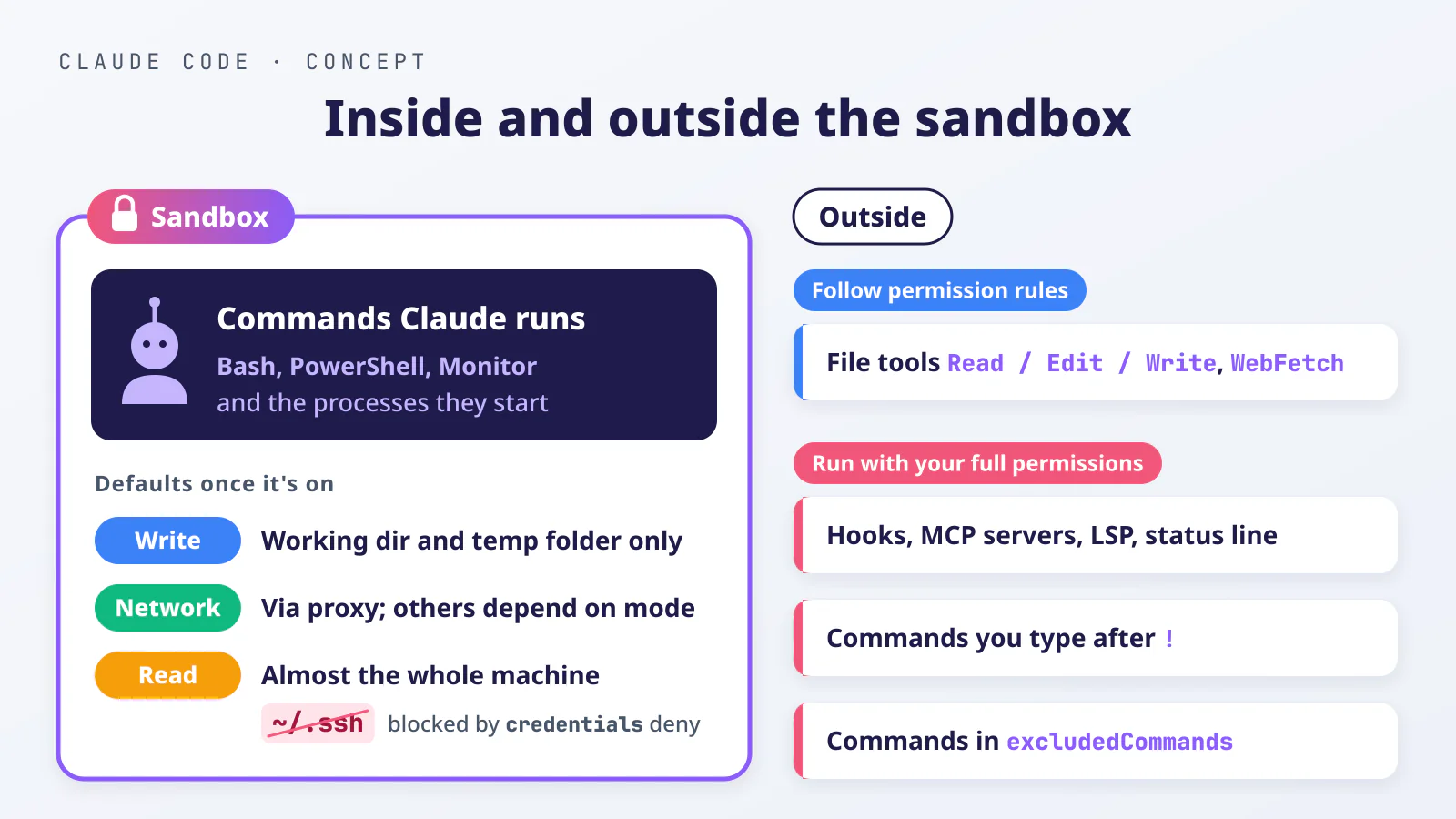 A concept illustration, not the real UI. The sandbox covers only commands. Other components follow permission rules or run with your full permissions.
The defaults restrict writes and network access tightly, but barely restrict reads and environment variables. With only the sandbox turned on and nothing else set, I asked Claude to check the canary file and the fake token. The result was exactly the same as with the sandbox off:
1
2
3
4
# Settings: {"sandbox": {"enabled": true}}. Asked Claude to run:
# wc -c ~/.sandboxlab-canary/secret.txt; test -n "$SANDBOXLAB_FAKE_TOKEN" && echo set || echo unset
      21 ~/.sandboxlab-canary/secret.txt
set
21 means the file was readable, and set means the token was there. Step 3 fills that gap.
When to Turn It On
It’s worth turning on if any of these apply:
- You often press “allow” to let Claude run commands, or you want it to run them without asking you every time. With the sandbox on, the sandbox stops actions that go out of bounds, so you don’t have to review every command yourself.
- You let Claude read things you didn’t write, such as someone else’s repo, issues, web pages, or package source code. That content may hide text that tells the AI to run commands.
- Your computer has keys, cloud credentials, or tokens, and you don’t want commands the AI runs to read them.
Step 1: Turn It On With /sandbox
On macOS, there’s nothing extra to install. On Linux and WSL2, install bubblewrap and socat first:
1
2
3
4
5
# Ubuntu / Debian
sudo apt-get install bubblewrap socat

# Fedora
sudo dnf install bubblewrap socat
After installing, restart Claude Code, because it checks for these packages only at startup. Newer Ubuntu releases use AppArmor to restrict user namespaces by default, which keeps bubblewrap from starting. /sandbox points out this problem. For the fix, see the official Add an AppArmor profile for bubblewrap.
Then type this in Claude Code:
1
/sandbox
This opens the sandbox panel, which has three tabs:
- Mode: choose how commands in the sandbox get approved.
- Overrides: whether a command that fails in the sandbox can be rerun outside it. Step 4 turns this off.
- Config: view the sandbox settings currently in effect.
On Linux, the panel may also show a Dependencies tab:
- Only a Dependencies tab: the sandbox can’t start yet. Fix the missing items the tab lists (or the AppArmor restriction), then restart.
- Dependencies next to the other tabs: only an optional component (the seccomp filter) is missing, and the sandbox still runs.
On the Mode tab, pick one of two options:
| Mode | Commands in the sandbox | Pick it if |
|---|---|---|
| auto-allow | No longer ask you one by one. Deny rules still apply, and ask rules that target specific content, such as Bash(git push *), still prompt you to confirm | You want to press “allow” less often |
| regular permissions | The sandbox still applies its limits, but each command still asks you through the normal permission flow | You want to review every command yourself |
Both modes have exactly the same file and network limits. The only difference is whether you get asked. With auto-allow, Claude no longer asks before it uses commands to change files in the working directory, even in Manual mode, which normally asks before every file edit.
Claude Code saves the mode you pick in the panel only to .claude/settings.local.json in this project. To turn on the sandbox for every project, set "sandbox": { "enabled": true } in ~/.claude/settings.json.
With only enabled set, the mode defaults to auto-allow. To switch to regular permissions, also add "autoAllowBashIfSandboxed": false.
From now on, the commands Claude runs are limited by the sandbox. The first time a command tries to reach a domain, the diagram below decides whether it goes through:
flowchart TD
  A[Command reaches a domain] --> B{In allowedDomains?}
  B -->|Yes| OK[Allowed]
  B -->|No| C{strictAllowlist on?}
  C -->|Yes| NO[Denied]
  C -->|No| D{Permission mode}
  D -->|Manual| ASK[Asks you first]
  D -->|auto| CLS[Classifier decides]
  D -->|bypassPermissions| OK
To stop every mode from allowing domains outside the list, turn on strictAllowlist. Add "network": { "strictAllowlist": true } to sandbox in your user settings, or in a file you pass with --settings.
This setting exists since 2.1.219, and it has no effect in a repo’s settings files. Once it’s on, add the domains you need to allowedDomains.
I asked Claude to run curl -sS -o /dev/null -w "%{http_code}\n" https://example.com under four settings. It prints only the site’s status code, and 200 means it connected:
1
2
3
4
5
6
7
8
9
10
11
12
13
14
15
16
17
18
19
20
21
# 1. Empty allowlist, Manual mode (non-interactive, nobody answers the prompt -> denied)
curl: (56) CONNECT tunnel failed, response 403
000

<sandbox_violations>
deny network-outbound example.com:443 (user denied)
</sandbox_violations>

# 2. example.com added to allowedDomains, Manual mode
200

# 3. Empty allowlist, bypassPermissions mode (allowed without asking)
200

# 4. strictAllowlist: true added, bypassPermissions mode
curl: (56) CONNECT tunnel failed, response 403
000

<sandbox_violations>
deny network-outbound example.com:443 (host is not on the allow list)
</sandbox_violations>
I think the most important comparison is 3 versus 4: in bypassPermissions mode, domains outside the list go through without a prompt, and only strictAllowlist stops them.
Step 2: Confirm It Actually Blocks
The official docs give two commands for this check. Ask Claude to run them, and don’t type them yourself after !. Commands you type with ! run outside the sandbox in most cases anyway, so they can’t tell you whether the sandbox works:
1
2
touch ~/sandbox-probe
curl --noproxy '*' https://example.com
| Command | What it tests | Result when the sandbox is working |
|---|---|---|
Line 1, touch | Creates an empty file in your home directory, to test that commands can’t write outside the working directory | macOS shows Operation not permitted; Linux and WSL2 show Read-only file system |
Line 2, curl | Tells curl to skip the proxy and connect directly, to test that commands can’t connect out on their own | Shows Could not resolve host, because this command can’t get around the sandbox’s proxy |
During the check, keep three things in mind:
- Use Manual mode. If Claude asks whether to retry outside the sandbox, say no. In
bypassPermissionsmode, or when an allow rule happens to match the command, the retry runs outside the sandbox without asking, and the check no longer tells you anything (Step 4 turns this retry off). - Don’t start Claude Code in your home directory. If you started it there, or added your home directory as a working directory,
touchcan write there anyway, so test again from a project folder. - If
touchstill succeeds once you rule out both cases, delete~/sandbox-probefirst, then run/sandboxto confirm the sandbox is on and all dependencies are installed.
Here is what I got on macOS:
1
2
3
4
5
6
7
# Asked Claude to run: touch ~/sandbox-probe
touch: ~/sandbox-probe: Operation not permitted
# exit code 1

# Asked Claude to run: curl --noproxy '*' https://example.com
curl: (6) Could not resolve host: example.com
# exit code 6
If both commands fail, the write and network limits are working.
Step 3: Keep Keys and Tokens Out
The sandbox has no built-in list of credentials. It blocks only the files and variables you list. Use sandbox.credentials to list what to protect.
The official example below blocks the AWS credentials file and the whole SSH folder. It also removes GITHUB_TOKEN and NPM_TOKEN from the environment of sandboxed commands:
1
2
3
4
5
6
7
8
9
10
11
12
13
14
15
{
  "sandbox": {
    "enabled": true,
    "credentials": {
      "files": [
        { "path": "~/.aws/credentials", "mode": "deny" },
        { "path": "~/.ssh", "mode": "deny" }
      ],
      "envVars": [
        { "name": "GITHUB_TOKEN", "mode": "deny" },
        { "name": "NPM_TOKEN", "mode": "deny" }
      ]
    }
  }
}
For a file, "mode": "deny" means commands in the sandbox can’t read it. For an environment variable, it means the variable is removed before each sandboxed command runs. Replace the list with credentials that actually exist on your computer, such as config files for other cloud services, or other environment variables that hold tokens.
I recommend putting this in your user settings, ~/.claude/settings.json, so it applies to every project. The deny entries from every settings layer are merged: any layer can add more, but no layer can remove a deny entry another layer added.
That doesn’t mean someone else’s repo can’t touch your protection, though. A repo’s settings take precedence over your user settings, and there are other ways to loosen the sandbox. Step 5 covers how to guard against that.
Here is how to check. Both checks print only a file size or whether a variable is set, so the contents of your keys or tokens never end up in the conversation.
Type this yourself after
!(swap in a file that actually exists on your computer):1
wc -c ~/.ssh/known_hosts
This runs outside the sandbox, so it prints the file size.
- Ask Claude to run the same command. Once the setting takes effect, it should no longer be able to read the file.
Do the same for environment variables. First run this yourself with
!:1
test -n "$GITHUB_TOKEN" && echo set || echo unset
Confirm it prints
set, which means your shell had this variable to begin with. Then ask Claude to run it. Once the setting takes effect, it should printunset.- If Claude asks to retry outside the sandbox, say no.
If you’d rather not test with real keys, do what I did: create a file containing a fake string and a fake environment variable, list them in credentials, and delete them when you’re done.
I set the canary folder ~/.sandboxlab-canary and the fake token SANDBOXLAB_FAKE_TOKEN to "mode": "deny", then asked Claude to run the same command as before:
1
2
3
4
5
6
7
# Before setting credentials (sandbox on only)
      21 ~/.sandboxlab-canary/secret.txt
set

# After setting credentials
wc: ~/.sandboxlab-canary/secret.txt: open: Operation not permitted
unset
The file couldn’t be opened, and the token was gone from the environment.
The cost of blocking ~/.ssh is that git push and git pull over SSH fail in the sandbox. In fact, on macOS, SSH remotes can’t connect from inside the sandbox even if you don’t block ~/.ssh. You have three options:
Simplest: when you push, type this yourself after
!:1
git push
It runs outside the sandbox.
Switch the remote to HTTPS. That needs an HTTPS credential such as a personal access token, and the settings above already removed
GITHUB_TOKENfrom the sandbox, so weigh the tradeoff.Use the official
excludedCommandsto move commands such asgit pushout of the sandbox. Excluded commands run with your full permissions and can connect to any host, so think it through before you use it.
If you want a tool to sign in as usual inside the sandbox without seeing the real token, the official docs also offer
"mode": "mask". The command sees only a placeholder value, and the proxy swaps in the real one when it sends the request. It requires the experimentalnetwork.tlsTerminate, and on macOS,maskon a file has the same effect asdeny. The setup is more involved, so I’d suggest starting withdeny. For details, see Mask credentials.
Step 4: Turn Off Retries Outside the Sandbox
When a command fails in the sandbox, Claude can pass the dangerouslyDisableSandbox parameter to ask to run it again outside the sandbox. This is an escape hatch for tools that don’t work in the sandbox. Whether that rerun happens, and who approves it, follows the diagram below. The first check is the setting this step adds:
flowchart TD
  A[Command fails in sandbox] --> B["Claude retries with dangerouslyDisableSandbox"]
  B --> C{allowUnsandboxedCommands is false?}
  C -->|Yes| IN[Ignored, stays in sandbox]
  C -->|No| D{Allow rule matches?}
  D -->|"Yes, e.g. Bash(curl *)"| RUN[Runs outside, no prompt]
  D -->|No| E{Permission mode}
  E -->|"Manual, acceptEdits"| ASK["Bash command (unsandboxed) prompt"]
  E -->|auto| CLS[Classifier decides]
  E -->|bypassPermissions| RUN
First I tested in bypassPermissions mode, with retries still allowed. I asked Claude to create a file outside the working directory and, if that failed, retry with dangerouslyDisableSandbox:
1
2
3
4
5
# Attempt 1 (in the sandbox)
touch: ../outside/probe-T12.txt: Operation not permitted

# Attempt 2 (dangerouslyDisableSandbox: true, no prompt at all)
(Bash completed with no output)
The second attempt worked, and the file really was created outside the working directory. In Manual mode, the retry stops at the confirmation step. Because I was in non-interactive mode with nobody to press “allow,” it was denied with Run outside of the sandbox.
To keep every command Claude runs inside the sandbox, I’d close this escape hatch:
1
2
3
4
5
6
7
{
  "sandbox": {
    "enabled": true,
    "allowUnsandboxedCommands": false,
    "failIfUnavailable": true
  }
}
allowUnsandboxedCommands: false: Claude Code ignoresdangerouslyDisableSandbox. From then on, every command Claude runs executes in the sandbox, except those that matchexcludedCommands. The Overrides tab in/sandboxcalls this state Strict sandbox mode.failIfUnavailable: true: if the sandbox can’t start (an unsupported platform or missing dependencies), Claude Code exits with an error at startup. Without this setting, Claude Code only shows a warning at startup and still runs commands outside the sandbox. The tradeoff is that Claude Code won’t start at all on unsupported platforms such as native Windows, or on Ubuntu before you fix the AppArmor restriction.
Since 2.1.285, an allowUnsandboxedCommands: false in your user settings isn’t overridden even if a project’s settings say true.
Same request, same bypassPermissions mode, and I ran it again with allowUnsandboxedCommands: false added:
1
2
3
4
5
# Attempt 1 (in the sandbox)
touch: ../outside/probe-T13.txt: Operation not permitted

# Attempt 2 (Claude still passed dangerouslyDisableSandbox: true, but it was ignored and ran in the sandbox)
touch: ../outside/probe-T13.txt: Operation not permitted
Now a command that fails in the sandbox simply fails. Claude reports the error and you decide whether to change the settings, instead of Claude moving outside the sandbox on its own.
The tradeoff is that tools that don’t work in the sandbox simply fail, and Claude can no longer retry them outside it. The official troubleshooting section lists examples such as:
docker,jest- Go-based tools on macOS such as
gh,gcloud, andterraform - Sign-in flows that need to open a browser
When you hit one, run it yourself with !.
If turning retries off entirely feels too strict, another option is to keep them and add the ask rule Bash(dangerouslyDisableSandbox:true) under permissions.ask. Then every retry outside the sandbox asks you first, even in auto mode and bypassPermissions mode.
When I added this rule in bypassPermissions mode, Claude’s retry stopped at the confirmation step, and the file wasn’t created. In non-interactive mode, it showed up as a Run outside of the sandbox denial.
Step 5: What the Sandbox Does Not Cover
The items below are outside the sandbox’s scope and need other measures.
Claude’s file and network tools. Read, Edit, Write, WebFetch, and WebSearch are Claude Code’s built-in tools. Permission rules decide whether they can be used, and the sandbox doesn’t limit them. The official docs say explicitly that denyRead doesn’t stop the Read tool, and allowedDomains doesn’t restrict WebFetch.
So even if the sandbox blocks cat ~/.ssh/id_ed25519, Claude can still read the file with the Read tool. With the Step 3 settings still in place (the canary folder set to deny), I asked Claude to read the same file with the Read tool instead:
1
2
# Read tool result (the line number is added by the Read tool)
1	FAKE-SECRET-FOR-TEST
The file that wc couldn’t open in the sandbox, the Read tool read in full.
There was also a twist. The first time I asked, Claude refused to use Read on its own, saying it would respect the sandbox settings. But once I explained that this was an authorized test with a fake file, it read it. So I don’t count on the AI’s self-restraint as a defense: text hidden in a web page or repo can talk it into things too.
To actually close this gap, I’d add deny rules to the permission settings:
1
2
3
4
5
6
7
8
9
{
  "permissions": {
    "deny": [
      "Read(~/.ssh/**)",
      "Read(~/.aws/credentials)"
    ],
    "blockWritesOutsideWorkingDirectories": true
  }
}
A Read(...) deny rule blocks:
- Claude’s file tools reading that path
- File-reading commands Claude Code recognizes, such as
catandhead - Edit and Write changing the same path (NotebookEdit is the exception)
With the sandbox on, Claude Code also adds the rule to the sandbox’s read deny list. The path syntax differs from the sandbox’s: ~/ means your home directory, and an absolute path must start with //.
blockWritesOutsideWorkingDirectories (since 2.1.314) makes Write, Edit, and NotebookEdit refuse to write outside the working directory in any permission mode. It doesn’t restrict commands, because the sandbox handles where commands can write, so the two complement each other.
It has two side effects:
- Claude can no longer edit Claude Code’s settings files, even the ones in your project, so you have to edit them yourself.
- Claude loses its
EnterWorktreeandExitWorktreetools.
To turn it off, delete the key from every settings file and restart. To keep reads inside the working directory as well, there is also blockReadsOutsideWorkingDirectories (since 2.1.257).
With these two rules added, the Read tool was refused outright. Asking the Write tool to write outside the working directory in bypassPermissions mode was refused too:
1
2
3
4
5
6
7
8
# Read tool on the canary file
File is in a directory that is denied by your permission settings.

# Write tool on ../outside/probe-T16.txt
…/sandboxlab/outside/probe-T16.txt is outside …/sandboxlab/project; the
permissions.blockWritesOutsideWorkingDirectories setting blocks writes outside
the working directories. Ask the user to add the directory with /add-dir, or to
remove that setting.
Programs Claude Code starts itself. All of these run with your full permissions, and the sandbox can’t help:
- Hooks
- Local MCP servers
- Plugin monitors and LSP servers
- Status line commands and
apiKeyHelper - Mods, which are plugins that run their own code inside Claude Code
So I’d check what one does before installing it. To keep credential environment variables away from these programs too, the official docs offer the CLAUDE_CODE_SUBPROCESS_ENV_SCRUB environment variable. With or without the sandbox, it removes credentials from the environment of every subprocess.
Commands you type yourself with !. In most cases these run outside the sandbox, even with Strict sandbox mode on. Step 3 relies on this when you run git push yourself; the flip side is that the sandbox doesn’t protect you from commands you type here.
Commands listed in excludedCommands. The sandbox doesn’t limit listed commands at all, and the broader an entry (for example, docker *), the more can happen outside the sandbox.
The official docs recommend that when a tool only needs to write to one more folder or reach one more domain, you use allowWrite or allowedDomains instead, so it stays in the sandbox.
Settings files in someone else’s repo. A repo’s .claude/settings.json and .claude/settings.local.json take precedence over your user settings. Normally, they can:
- Turn the sandbox off with
"enabled": false. - Add
excludedCommandsto move commands out of the sandbox (excluded commands can read~/.sshand tokens). - Reopen paths you blocked with a narrower
allowRead. - Add
allowWriteandallowedDomainsto loosen writes and network access.
Settings that live only in ~/.claude/settings.json can’t stop any of this, so before opening an unfamiliar repo, I’d look at these two files.
I think a safer approach is to save your sandbox settings to a separate file, such as ~/.claude/sandbox-strict.json, and pass it with --settings when you start Claude Code. The file holds the sandbox section of the complete settings in the next section, with { "sandbox": { ... } } as the outermost level:
1
claude --settings ~/.claude/sandbox-strict.json
Whether a repo can loosen the sandbox depends on how you pass your settings:
flowchart TD
  R[Open unfamiliar repo] --> Q{Sandbox settings source?}
  Q -->|User settings only| A[Repo wins, can loosen]
  Q -->|"--settings, retries on"| B[Repo can still exclude]
  Q -->|"--settings, retries off"| C[admin-required state]
  C --> D[Repo loosening ignored]
Since 2.1.285, when --settings turns off retries outside the sandbox, the sandbox enters what the official docs call the “admin-required” state. Claude Code then ignores these items in the repo’s settings:
excludedCommandsallowedDomains- Write permissions
- Any setting that changes
enabledtofalse
The repo also can’t use allowRead to reopen paths that credentials in --settings blocked.
The tradeoff is that /sandbox no longer opens the panel. It shows Sandbox settings are overridden by a higher-priority configuration instead. To see where settings come from, check Setting sources in /status.
I made an “unfriendly” test repo to check this. Its .claude/settings.json contained only {"sandbox": {"excludedCommands": ["touch *"]}}. Inside it, I asked Claude to run touch to create an empty file outside the repo:
1
2
3
4
5
# --settings turns on the sandbox only: the repo moved touch out of the sandbox, and the file was created
(Bash completed with no output)

# --settings adds allowUnsandboxedCommands: false: the repo's excludedCommands is ignored
touch: ../outside/probe-T15b.txt: Operation not permitted
The domain allowlist checks only hostnames. The proxy allows a connection based on the hostname it requests, and by default it doesn’t decrypt or inspect encrypted traffic. The official docs warn that allowing a broad domain such as github.com can become a channel for sending data out, so I’d put only the domains that are really needed on the allowlist.
Also, when you choose “Yes, and don’t ask again” in the network prompt, Claude Code saves a WebFetch(domain:...) allow rule. That rule also lets the WebFetch tool reach that domain.
git worktree. If you open Claude Code in a worktree, as in git worktree for AI Agents: Run Two Agents in One Repo, the sandbox allows writes to the main repo’s shared .git folder. So git commit works as usual, but the hooks/ and config inside it are still not writable.
Since 2.1.323, git worktree add, move, and remove fail in the sandbox because of read-only restrictions. Committing in a worktree that this conversation didn’t open or add fails too. Create and remove worktrees yourself in the terminal.
To contain everything above as well, run the whole of Claude Code inside a container, a virtual machine, or the official sandbox runtime. The official Sandbox environments page compares the options.
The Complete settings.json
Below, I’ve combined the previous steps into one configuration for ~/.claude/settings.json. If the file already has permissions or sandbox, merge these entries in instead of overwriting the whole file:
1
2
3
4
5
6
7
8
9
10
11
12
13
14
15
16
17
18
19
20
21
22
23
24
{
  "permissions": {
    "deny": [
      "Read(~/.ssh/**)",
      "Read(~/.aws/credentials)"
    ],
    "blockWritesOutsideWorkingDirectories": true
  },
  "sandbox": {
    "enabled": true,
    "failIfUnavailable": true,
    "allowUnsandboxedCommands": false,
    "credentials": {
      "files": [
        { "path": "~/.aws/credentials", "mode": "deny" },
        { "path": "~/.ssh", "mode": "deny" }
      ],
      "envVars": [
        { "name": "GITHUB_TOKEN", "mode": "deny" },
        { "name": "NPM_TOKEN", "mode": "deny" }
      ]
    }
  }
}
This configuration does the following:
- The sandbox is on by default in every project, and Claude Code won’t start if the sandbox can’t.
- Commands Claude runs can’t be retried outside the sandbox.
- Commands in the sandbox can’t read SSH keys or AWS credentials, and can’t get
GITHUB_TOKENorNPM_TOKEN. - Claude’s file tools can’t read those same files, and can’t write outside the working directory.
All of this holds only as long as the repo doesn’t loosen it. To guard against that, save the sandbox section as ~/.claude/sandbox-strict.json as in Step 5, and start with --settings. The file itself is still one JSON object, with { "sandbox": { ... } } as the outermost level.
After saving, restart Claude Code, run /sandbox, and confirm on the Config tab that the settings took effect. If you started with --settings, check Setting sources in /status instead. Then check again with the methods from Steps 2 and 3.
If Something Gets Blocked, and How to Turn It Off
With the sandbox on, normal work occasionally gets blocked too. Start by reading the error message to see which kind it is:
| What you see | What it means | What to do |
|---|---|---|
Operation not permitted (Read-only file system on Linux) | The command tried to write outside the allowed area, or read a file you blocked | If it really needs that folder, add it to filesystem.allowWrite. If you’re not sure, run the command yourself with ! |
CONNECT tunnel failed, response 403, or deny network-outbound <domain> inside <sandbox_violations> | It tried to reach a domain that isn’t on the allowlist | If it really needs that domain, add it to allowedDomains, or allow it in the prompt |
Could not resolve host | The tool didn’t use the proxy and tried to connect directly | Usually a tool that doesn’t support proxies, such as plain ssh or a database client. Run it yourself with ! |
My rule of thumb: open only the one folder or domain that’s actually needed, and don’t drop a whole tool into excludedCommands just to save effort.
To turn the sandbox off, temporarily or for good, go to the settings file where you turned it on and change "enabled" to false. Save, then restart Claude Code:
- If you used the panel:
.claude/settings.local.jsonin the project. - If you set it in your user settings:
~/.claude/settings.json. - If you passed it with
--settings: just start without that file next time.
Conclusion
I ran through this post in order once, and everything I tested matched the official docs. I suggest working through Steps 1 to 4 yourself, then using Step 5 to cover what the sandbox doesn’t. One last reminder: the sandbox covers only commands, and in my test the Read tool went straight past it.
Further Reading
- Sandboxing: the full official guide, including troubleshooting and organization-level enforced settings.
- Permissions: how to write permission rules, and how to restrict the file tools.
- OWASP Agentic Top 10 Checklist: Audit Your AI Workflow: where this post started, a ten-question self-check.
- Third-Party Skills and MCP Servers: The New Attack Surface in Your Coding Agent: the risks of MCP servers and plugins, which run outside the sandbox.
- Claude Code Hooks: Format, Test, and Flag Sensitive Files: hooks run with your full permissions and aren’t limited by the sandbox.
- Claude Code Plugins: What to Check Before You Install One: a plugin can add hooks and MCP servers that run outside the sandbox; which files to open before you install one.