pstack, Part 4: Steer With Principles, Build Your Own Mode, and Let It Run Unattended
Change how the AI works with one principle name, turn your habits into your own mode, and set limits before it runs unattended, using pstack in Claude Code.
When an AI coding assistant got something wrong, I used to type out a long paragraph explaining what I actually wanted. pstack gives you a much easier way: just name a principle to tell it which way to adjust, then check that it really follows through.
This is the last part of the series, and it covers three things: how to steer the AI mid-conversation with principle names; how to turn your own habits into a mode so the AI works your way; and, if you want it to work while you sleep, how to write the prompt, how to set permissions and spending limits, and how to check what it did when you get up in the morning.
pstack series Part 4 (final part)
- Series guide: what this skill set is and how to read the four parts (not yet published)
- Previous (Part 3): After the Code Is Written, Prove It Works Before Merging
- Next: this is the last part of the series
Version: this post is based on pstack
0.15.36, which is commitc742dd6incursor/plugins(2026-10-28 07:12, Taipei time), the same as Part 3, with Claude Code 2.1.318. I checked on 2026-11-05: the latestcursor/pluginsmain isbb68f23(2026-11-04 15:20, Taipei time), with no changes in the pstack folder sincec742dd6, and the latest Claude Code is 2.1.318.
Before You Start
pstack is a set of skills in Cursor’s official plugin repo; a skill is simply a set of instructions that tells the AI how to do one kind of work. I covered installation in Part 1. If you want the same version this post uses, clone the repo, check out this post’s commit, and add the folder as a marketplace (the source catalog Claude Code installs plugins from):
1
2
3
4
git clone https://github.com/cursor/plugins.git ~/src/cursor-plugins
git -C ~/src/cursor-plugins checkout c742dd61706fbacc1b95f1a20b7b988cf096ce6c
claude plugin marketplace add ~/src/cursor-plugins
claude plugin install pstack@cursor-plugins
If you install with /plugin marketplace add cursor/plugins instead, you get whatever happens to be latest at that moment, not the version you’ve reviewed. For why that’s risky, see Third-Party Skills and MCP Servers: The New Attack Surface in Your Coding Agent.
Commands need a prefix. In Claude Code (an AI coding assistant you use in the terminal), plugin commands start with the plugin name, such as /pstack:correct. The examples below use the Claude Code form; in Cursor, drop the pstack:.
You start every one of these skills yourself. Of pstack’s 58 skills, all but /setup-pstack are set so the AI can’t start them on its own (disable-model-invocation: true), and that includes the principles. In other words, the AI can’t call these skills by itself. That said, /poteto-mode can still read and apply relevant principles as part of its own workflow, which I’ll explain later.
The official guide is written for Cursor. Some of the tools and commands it describes, such as /loop and create-skill, assume a Cursor setup; Claude Code also has a /loop command, but it works differently. pstack ships Claude Code adapter notes, which /poteto-mode reads first in Claude Code to map Cursor names to their Claude Code equivalents. Wherever the two differ, I’ll give the Claude Code way below.
Steer the AI With Principle Names
What a Principle Is
pstack has 24 principles. Each one is its own skill, named principle-<name>, and each is a short, specific rule, such as “remove dead weight before you build on top of it.” They come in five groups (README, guide chapter 8):
| Group | Count | What it decides |
|---|---|---|
| core | 10 | How much to build, and when to rethink the design |
| architecture | 6 | Where state, validation, and compatibility live |
| verification | 5 | What counts as proof |
| delegation | 2 | How to keep responsibilities clear in parallel work |
| meta | 1 | Turning repeated advice into structure |
When you hand multi-step work to /pstack:poteto-mode, it starts by reading the principle index, then applies the ones the task triggers, and names each applied principle in its reply along with the decision it changed (SKILL.md).
As the guide puts it, you don’t need to invoke every principle up front; just name one when the work needs a change of direction (guide chapter 8). Each name stands for a whole rule, so you never have to explain it from scratch.
How to Say It in Claude Code
In the same conversation, start your next message with the principle’s command, followed by what you want done:
1
/pstack:principle-<name> <what you want done under this principle>
With the command form, Claude Code reads the principle’s full instructions, not just a name. Below are the four I use most; for all 24, see the principles table in the README.
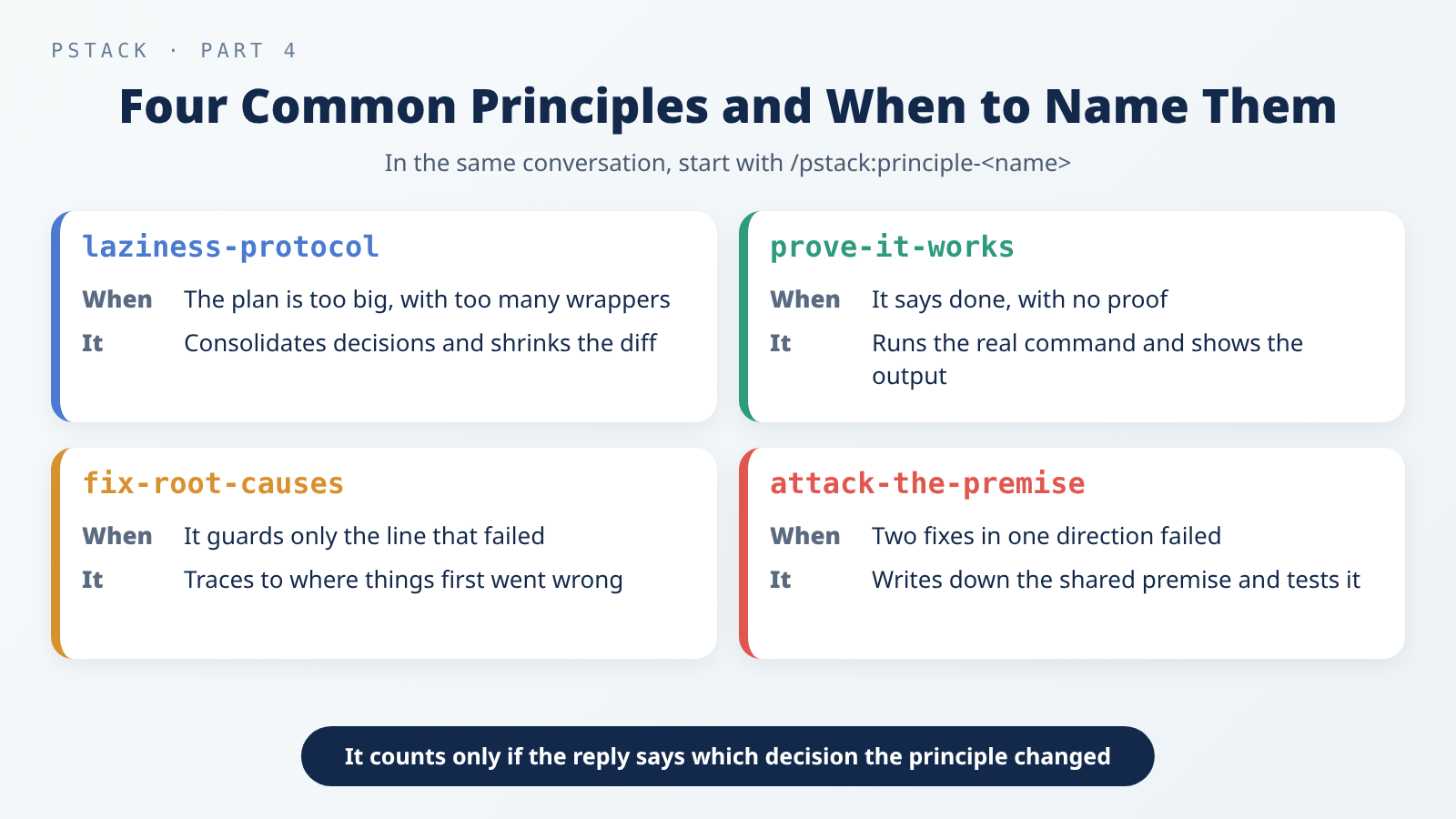 Four common principles, and when to say their names.
laziness-protocol: When the Plan Is Too Big
When to use it: the AI’s plan adds several helper functions or wrapper layers, or makes the same decision in several places.
What to type:
1
/pstack:principle-laziness-protocol apply this to your plan, then implement it.
What it does (SKILL.md):
- Consolidates decisions. Instead of making the same choice in several places, it makes it once in a single place, and the rest of the code just uses the result.
- Minimizes the diff. It solves the problem with the smallest change it can. A few fewer lines beat a pile of “elegant” boilerplate.
What you get: a leaner plan or change, and a reply that explains what this principle removed.
Next step: look over the changes and make sure what it removed really was unnecessary, and that the behavior you need is still there.
prove-it-works: Done, but No Proof
When to use it: the AI says “done,” but all it shows you is “the build passed” or its own summary.
What to type:
1
/pstack:principle-prove-it-works run the real command and show me the output, not the build log.
What it does (SKILL.md):
- Checks the real thing. It reads the actual value and actually runs the program, instead of guessing from file times, caches, or a subagent’s self-report.
- Suspects the check first when a check fails. It makes sure it looked in the right place before it blames the code.
- Scripts the check when it can. The strongest proof is a script that can be rerun, not a one-time look.
What you get: the commands it actually ran, with their output.
Next step: read through the output yourself and make sure it really checked the thing you care about.
fix-root-causes: When a Fix Only Hides the Symptom
When to use it: the AI adds a guard right where the error shows up to sidestep it, without looking into why it happened.
What to type:
1
/pstack:principle-fix-root-causes <the symptom>. find the first place it went wrong and fix it there.
What it does (SKILL.md):
- Reproduces first.
- Keeps asking “why” until the answer is a wrong decision in the code, not the consequence of an earlier one.
- Adds logging when stuck, looking at the actual error and state instead of guessing.
- Asks whether the triggering state is legitimate. If it is, the code that can’t handle it is the cause; if that state should never exist in the first place, it looks for whatever produced it.
- Looks for the same fault elsewhere, and fixes them all.
What you get: an explanation of the root cause, a fix, and what it found when it checked for the same problem elsewhere.
Next step: check that the cause it names really is the first place things went wrong.
attack-the-premise: When Fixes Keep Failing
When to use it: you’ve already tried two or more fixes, and they all get stuck on the same check.
What to type:
1
/pstack:principle-attack-the-premise the last two fixes failed. write down the premise they share, test it, then decide what to do next.
What it does (SKILL.md):
- Writes the premise down: that is, the assumption every failed fix relied on.
- Tests the premise first: it designs a check that can tell whether the premise is true or false, runs it, and looks at the result.
- Follows the evidence: if the evidence contradicts the premise, it looks for the cause elsewhere; if it confirms it, it asks the next “why,” as in fix-root-causes.
- Starts no new fix until the premise is written down and tested.
What you get: the written-down premise, how it was tested and what came back, and the direction it picked based on that result.
Next step: if the premise turns out to be wrong, let it replan from a new direction.
How to Tell It Really Applied the Rule
Naming a principle isn’t the same as following it. The guide says the reply has to state which decision the rule changed; if it cites the name but can’t point to a decision it changed, the agent just name-dropped the rule without applying it (guide chapter 8). The guide also says there’s no need to memorize the list: skim it once, then come back for the name the next time you see the agent do something one of the principles could have prevented (guide chapter 8).
Make It Work Your Way
/poteto-mode reflects the pstack author’s personal working style. Chapter 9 of the guide shows how to swap in your own: /automate-me generates your mode, /reflect captures what one conversation taught you, and /correct changes the repo so the same mistake can’t happen again (guide chapter 9).
/automate-me: Turn Your Habits Into a Mode
When to use it: you keep making the same corrections, such as “shorter answers” or “run the tests before you say it’s done,” and you’d like the AI to work your way from the start. A mode is really just a skill that describes your working habits, with a name like <your-name>-mode.
What to type: the guide’s version is just /automate-me, because in Cursor it knows where the transcripts (full records of your AI conversations) are. Claude Code keeps them in ~/.claude/projects/<project path>/, where the folder name is the project path with each / and . changed to - (Claude Code adapter notes). I recommend spelling out in the prompt that it may read only this project’s transcripts:
1
/pstack:automate-me read only this project's transcripts (~/.claude/projects/<folder name made from the project path>/), no other projects. write the draft to .claude/skills/<my-name>-mode/SKILL.md, show it to me, and don't commit.
What it does (SKILL.md):
- Looks for an existing mode. If you already have one, it asks whether to update it or start fresh; updating is the default.
- Mines your transcripts. It reads only this project’s history, splits the last few weeks of transcripts into three time periods, and sends subagents (extra AI helpers a skill starts to work in parallel) to read them, looking for preferences that keep showing up in replies, delegation, verification, code and prose, and process. Only patterns that show up in at least two time periods count.
- Asks you directly. It uses one or two multiple-choice questions to confirm which patterns really are your habits, then an open-ended question to catch anything it missed. In
claude -p(a mode that runs once to completion without the chat window) there’s no question tool, so it just asks you in plain text instead (Claude Code adapter notes). - Groups and drafts. It organizes the results into sections, such as reply style, autonomy, verification, and process, and writes only the parts where you have a specific rule. It adds
disable-model-invocation: trueby default, so the mode loads only when you type its command. - Edits the prose. It runs
/unslopso every line is direct and clear. - Delivers it as requested. In the guide’s full workflow, it commits in a worktree (a separate working directory for the same repo) and then opens a PR rather than pushing straight to main. The prompt above, though, explicitly asks for a draft and no commit, so this run should stop at the draft and wait until you’ve read it and decided whether to send it for review.
What you get: a draft <your-name>-mode/SKILL.md. Claude Code protects the project’s .claude/ folder, so a write there either asks you first or is refused (permission modes). If it’s refused, have it write somewhere else first, then move the file in yourself once you’ve read it.
Next step: read it and ask yourself, “Does this read like me? What did it miss?” (SKILL.md). Keep in mind that it mines your conversations in this project; if most of them were for something unusual, such as one-off tests, the result won’t look like the way you usually work. When your habits change later, just run an update:
1
/pstack:automate-me update my mode skill with everything since its last edit
/reflect: Capture Lessons From a Conversation in a Skill
When to use it: you just finished a task that took a long detour, and you don’t want to take it again next time.
What to type (from guide chapter 9):
1
/pstack:reflect that took way too long. capture what we learned so the next run doesn't repeat it.
What it does (SKILL.md):
- Finds this conversation’s transcript. It reads only this project’s transcripts.
- Sends three reviewers in parallel. They look for lessons from three angles: judgment, tooling, and a divergent view.
- Combines the findings. Another agent sorts the proposals into Accepted (recommended for adoption), Rejected, and Backlog.
- Moves proposals better enforced by code to Backlog. If a lint rule, script, or runtime check would prevent an error more reliably than a skill edit, the proposal goes to Backlog for a later repo change.
- Waits for your approval. It lists all the results and changes no skill until you explicitly approve. It never edits a skill inside the plugin cache; it copies the skill to your project or personal skill folder first and edits the copy. It never opens a PR or pushes, either.
What you get: the Accepted, Rejected, and Backlog lists, with the skill or repo check each proposal would change. Accepted items are still just proposals waiting for your approval; nothing has been changed yet.
Next step: approve only items that would change a future decision. The guide is blunt: one weird session is an anecdote, not a rule (guide chapter 9).
/correct: Make the Same Mistake Impossible
When to use it: you keep correcting the AI for the same kind of mistake. The fix belongs in the repo, not in your next prompt.
What to type: when you know the mistake, name it (from guide chapter 9):
1
/pstack:correct agents keep calling the database client directly instead of going through the repository layer
If you can’t say what the recurring mistake is, leave the description off and let it dig through the project history itself:
1
/pstack:correct
What it does (SKILL.md):
- Identifies recurring types of mistakes. It reads recent commits, reverts, review comments, the AI’s instruction files, and comments that explain workarounds. A type of mistake only counts if it has happened at least twice.
- Fixes each class at the highest level that works, in this order:
- Architecture that makes the mistake impossible, such as one owner per piece of state and one supported way per task;
- Types, or a lint rule (an automatic check on how code is written) or CI (the checks that run automatically on every push), with an error message that says what to use instead;
- A test;
- Docs or AI rules last, because when the AI skips a rule, no check fails.
- One commit per class, with proof the check works. Each new check has to be tried against a real mistake from the past to confirm it actually fails. The same command runs locally and in CI.
- Keeps a rule table. It keeps a table in the AI’s instruction file (
CLAUDE.mdin Claude Code) pairing each rule with the mechanism that enforces it. A rule with nothing enforcing it can still get ignored again.
What you get: the evidence for each class, the level it picked, and why a higher level couldn’t work, plus one commit per class.
Next step: go through the commits one by one. It may touch your CI config or existing tests, and you should see those changes before anything gets pushed. So run /correct in a session you’re watching, not in an unattended prompt.
The difference between the two: /reflect improves skills based on one conversation, while /correct changes the repo so a whole class of mistakes can’t come back (guide chapter 9). One more thing: don’t edit a skill in the middle of a task. Write down what you’d improve, finish the task, then handle the skill change separately; if it needs a commit, put it in its own PR (guide chapter 9).
Let It Run: Writing an Unattended Prompt
First, Check That It Has Earned Your Trust
Chapter 7 of the guide lists four conditions. Only let it run alone once all four hold; until then, run it while you watch (guide chapter 7):
- You’ve done the task once yourself, or watched the AI do it, so you know what good looks like.
- The AI has the same tools and signals you’d use yourself, such as a verification skill, a profiler, and logs.
- Every stage proves its work and can stop the line when it misses the bar.
- You’ve already read a few transcripts and turned the failures that keep recurring into tools, skills, or checks.
The Six Parts of the Prompt
The guide’s handoff template has four elements: the goal, the finish condition, permissions, and an escape hatch (guide chapter 7). I also split out “decision log” and “what it must not do” on their own, which makes six parts:
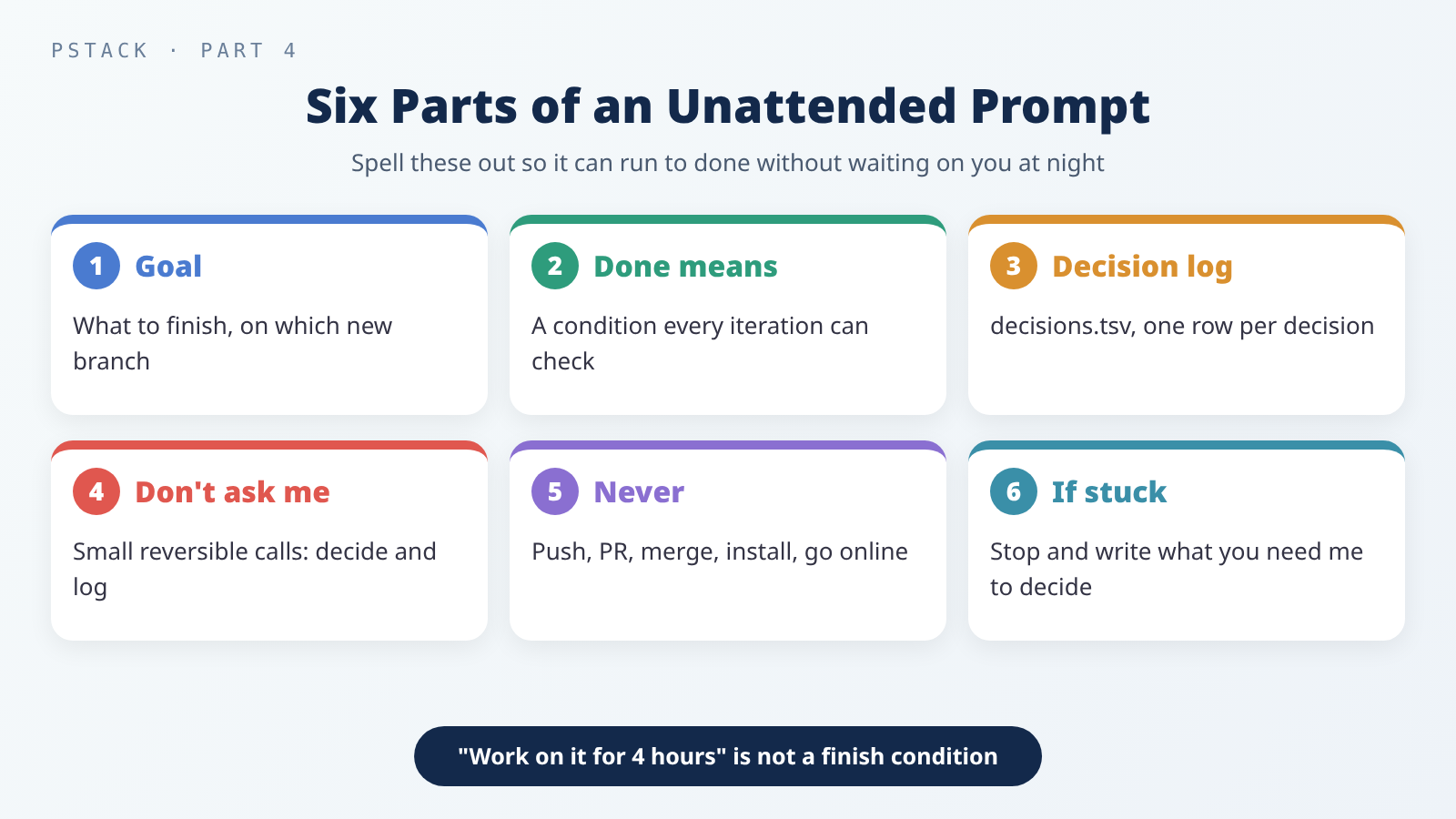 The six parts of an unattended prompt. A duration is not a finish condition.
When to use it: the task meets the four conditions above, and you won’t be at the computer.
What to type:
1
2
3
4
5
6
7
/pstack:poteto-mode im going to bed. keep going until it's done.
goal: <what to finish>, on the prepared task branch <branch name>.
done means: <checkable condition 1>; <condition 2>; <condition 3>.
decision log: keep one in decisions.tsv in the show-me-your-work format.
don't ask me: commit only changes for this task, excluding decisions.tsv, without asking; decide <other small, reversible choices> yourself and log them.
never: push, open a PR, merge, install packages, go online, or change files outside this folder.
if you're truly stuck: stop and write down where you're stuck, what you tried, and what you need me to decide.
What each line does:
- “im going to bed” tells
/poteto-modeto keep the authorized work moving for the rest of this session and check in less often. It still has to respect your prohibitions, though, and it still stops for actions that need confirmation or when it’s genuinely stuck (SKILL.md). - “done means” has to be a condition every iteration can actually check, such as “all tests pass” or “nothing calls the old function.” The guide warns that a duration is not a finish condition: “work on this for 4 hours” gives the agent nothing to check, and you’ll wake up to four hours of busywork instead of a result (guide chapter 7).
- “task branch” keeps the commits separate, but it doesn’t isolate uncommitted changes in the same working directory. If you don’t want it getting in the way of your other work, follow the guide’s advice and use a fresh worktree; Claude Code’s
-w(--worktree) option starts a session directly in its own worktree (CLI reference). - “don’t ask me” answers ahead of time the questions it would otherwise stop to ask. This template only clears committing on a new local branch. Pushing and opening a PR need your explicit go-ahead in both the prompt and the permission settings (see Autopilot-stack below); merging and other irreversible actions still need a human to confirm.
- “never” draws the line. Writing it in the prompt isn’t enough; you also need to block it with permission settings, which I’ll cover next.
- “if you’re truly stuck” is the escape hatch. Rather than spending the night creatively reinterpreting the goal, it should stop when it hits a genuine dead end and write up what happened.
The guide’s template ends with /loop, Cursor’s built-in command for waking the AI on a schedule or an event; it isn’t a pstack skill (guide chapter 7). Claude Code has its own /loop, but it works differently and I won’t cover it here; the template above skips it and drives the work to done within a single conversation.
What it does:
- Designs the run first. For work like this, which you’ll review after stepping away,
/poteto-modefirst hands off to/figure-it-out, which plans the phases and wires in the decision log (guide chapter 7). - States the finish condition as a checkable predicate before the first iteration (autonomous-run playbook).
- Makes the smallest change each iteration and checks it against the finish condition; it commits progress and discards what didn’t help, keeping nothing that only “might help.”
- Handles mid-run discoveries that support the goal without stopping to ask; it leaves only irreversible actions, product or preference calls no experiment can settle, and genuine dead ends for you.
- Logs one row per iteration in the decision log.
- Claims success only when the finish condition is met. If it plateaus, it changes approach. If it hits a decision only you can make, or genuinely can’t get any further, it records the unfinished state and why, instead of loosening the finish condition to declare success (autonomous-run playbook). If the run hits the
--max-budget-usdcap, Claude Code stops it outright and it may not get to write anything, so in the morning go by the last log row and the commits.
What you get: a reply with the finish condition, the number of iterations, what it kept, what it discarded, and the final state of the finish condition, plus a decision log.
Next step: check it in the morning with /show-me-your-work (see the morning audit section below).
Running Unattended in Claude Code
If you’re away and the AI stops to wait for your approval every time it runs a command, it’ll sit there stuck all night. So decide ahead of time what it can and can’t do. Here’s my setup: I first prepare a separate worktree, its task branch, the project dependencies, and overnight-prompt.txt, then start claude -p from that worktree with a permission mode, an allowlist, and a spending cap. The commands below use feat/export-csv, the branch name from the full example later in this post. Start by creating the worktree and branch yourself in the terminal and copying the prompt file over; when you do this for real, swap in names for your own task:
1
2
3
cd ~/my-project
git worktree add ../my-project-overnight -b feat/export-csv
cp overnight-prompt.txt ../my-project-overnight/
Next, set up the project dependencies in the new worktree, make sure the branch named in the prompt matches the one you actually created, then start the run:
1
2
3
4
5
6
cd ~/my-project-overnight
claude -p "$(cat overnight-prompt.txt)" \
  --permission-mode acceptEdits \
  --allowedTools "Read" "Grep" "Glob" "Bash(python3 -m unittest *)" "Bash(git add *)" "Bash(git commit *)" "Bash(git status *)" "Bash(git diff *)" "Bash(git log *)" \
  --disallowedTools "Bash(git push *)" "Bash(rm *)" "Bash(curl *)" "WebFetch" "WebSearch" \
  --max-budget-usd 10
--permission-mode acceptEdits: reads, edits, and common file commands run without asking; other commands need separate authorization. Before you start an unattended run, check your existing permission settings.--allowedTools: the allowlist of tools and commands that run without asking. Swap in the test command your project actually uses. This list doesn’t allow creating or switching branches, which is why you need to set up the worktree and branch yourself first.--disallowedTools: the denylist. Deny rules apply in every permission mode (permission modes).--max-budget-usd: stops the run once estimated spend reaches this amount; it works only withclaude -p(CLI reference).
If claude -p runs with no permission mode set, actions that need approval are simply denied (permission modes). If the allowlist leaves out a command the task needs, the task may not finish; in the morning, check the log to decide whether to adjust it. Also, this example blocks only some tools and commands. It doesn’t fully prevent network access, file deletion, or changes outside the working directory, because a program you allow can still do those things itself. To actually enforce those boundaries, you need a sandbox, a container, or similar isolation settings.
Stopping on Purpose, or Picking Up Tomorrow
To stop it, tell it to pause, or say you’re about to go offline; both trigger a pause (guide chapter 7). If you also tell it to keep going, as in “going to bed, keep going,” it won’t pause. The Pause safely playbook finishes or backs out of the current step, saves progress as a wip: commit, and writes a resume note. Pausing only saves progress locally; it doesn’t open a PR or push on its own. Just saying “keep going” won’t trigger a pause (pause-safely playbook).
1
/pstack:poteto-mode pause, i'm going offline.
Later, a new conversation can pick up from that note through the Session pickup playbook: it reads the previous trail, rebuilds the state, and re-verifies against the real code anything the earlier run claimed was done (session-pickup playbook).
When the Night Holds More Than One Task
If you have several unrelated changes for one night, the guide offers two playbooks (guide chapter 7): Autopilot-full carries each PR all the way to merged; Autopilot-stack verifies the same way but doesn’t merge, so you review and land them yourself in the morning. If you want the AI to get the PRs ready so you can review them and decide whether to merge in the morning, go with Autopilot-stack. Note that unlike the earlier local-only template, you have to explicitly give it permission to push and open PRs:
1
/pstack:poteto-mode autopilot these five changes. you may push branches and open PRs; don't merge. i'll land them in the morning.
With the earlier claude -p setup, remove Bash(git push *) from the denylist, add Bash(git push -u origin feat/*) and Bash(gh pr create *) to the allowlist, and add Bash(git push *--force*), Bash(git push *-f*), Bash(git push *main*), and Bash(gh pr merge *) to the denylist. These rules only match how a command is written, so the real wall is on GitHub: protect main so changes must go through a PR and force pushes are blocked, and turn on “Do not allow bypassing the above settings”, because branch protection doesn’t apply to repo admins by default, and the AI pushes as you. Because the rules match text literally, keep “-f” and “main” out of branch names (feat/add-format or feat/domain-check would be blocked, for example), or ordinary pushes get blocked too. If your default branch is master, use master instead of main in the deny rule. Also, if you reuse the earlier six-part template, drop “go online” from its never line this time, since pushing and opening PRs need the network.
In the Morning: Audit the Decision Log With /show-me-your-work
When to use it: the AI has run a long stretch of work on its own, and now you’re back and want to know what it did and why.
The decision log is a TSV file (a plain-text table with tab-separated columns), one row per decision, with columns for time, phase, decision, reason, evidence, and result. The evidence field has to point to something you can check, such as a commit SHA or file:line, not just a written description (SKILL.md). By default it lives at decisions.tsv in the work folder, or at .audit/<task-slug>.tsv when several efforts run at once, and it is not committed; it only gets committed when the work is big enough that a reviewer needs the trail to trust the result (SKILL.md). The log is append-only: if a call turns out wrong, a new row notes the correction, and old rows are never edited or deleted.
What to type (from guide chapter 7), in the same conversation that ran the work:
1
/pstack:show-me-your-work catch me up on what you did last night
What it does (SKILL.md):
- Audits the log against the transcript. Every row has to match a real decision or action, and its evidence has to actually open and prove what the row claims. Missing pivots get added; wrong rows aren’t edited or deleted, but corrected with a new row.
- Gets a reviewer from a different model family. It sends a subagent from a model family other than the one that did the work to read the trail and the transcript, flagging decisions with weak evidence, verification claimed without proof, and choices that look risky in hindsight.
- Summarizes what it did, ending with an Attention section.
What you get: a summary and an Attention section. Attention starts with reviewed by <model>, then lists each thing that needs your scrutiny, along with the log row it refers to.
Next step: read Attention first, then follow it to the rows it points at and spot-check their evidence (guide chapter 7). You’re auditing decisions, not replaying the whole night. Also glance at the reviewed by line: if your setup has only one model family, the review isn’t really cross-family. To turn the TSV into a table in the terminal:
1
column -s$'\t' -t decisions.tsv
If you just want a quick status check rather than a full audit, run /pstack:ketchup in the same conversation; it only reads and never changes anything (guide chapter 7).
Risks: What Can Proceed, and What Needs Confirmation
Where never-block-on-the-human Draws the Line
The core principle behind letting the AI run on its own is never-block-on-the-human: the human can look at the results and step in later, so the AI doesn’t have to stop for every small, reversible decision. Reversible work, such as writing code, editing notes, or splitting tasks, goes ahead and gets reported afterward; instead of asking “should I do X?”, it does X and explains why. But irreversible actions still need confirmation, such as a force push (overwriting the remote branch’s history), deleting production data, or sending external messages. Product direction is still the human’s call.
/poteto-mode also says that even after “im going to bed,” it always pauses for these: force-pushing to shared branches, deploys, data deletion, and customer messages (SKILL.md).
But note that the same SKILL.md also says reversible work, plus external actions like team chat, ticket updates, and kicking off evals, go ahead without asking, using any MCP tool (SKILL.md). So don’t read “irreversible actions need confirmation” as “every external message gets asked about first”: the document treats internal team messages differently from customer messages. If you don’t want it posting anywhere, say so under Never and block those MCP tools with --disallowedTools.
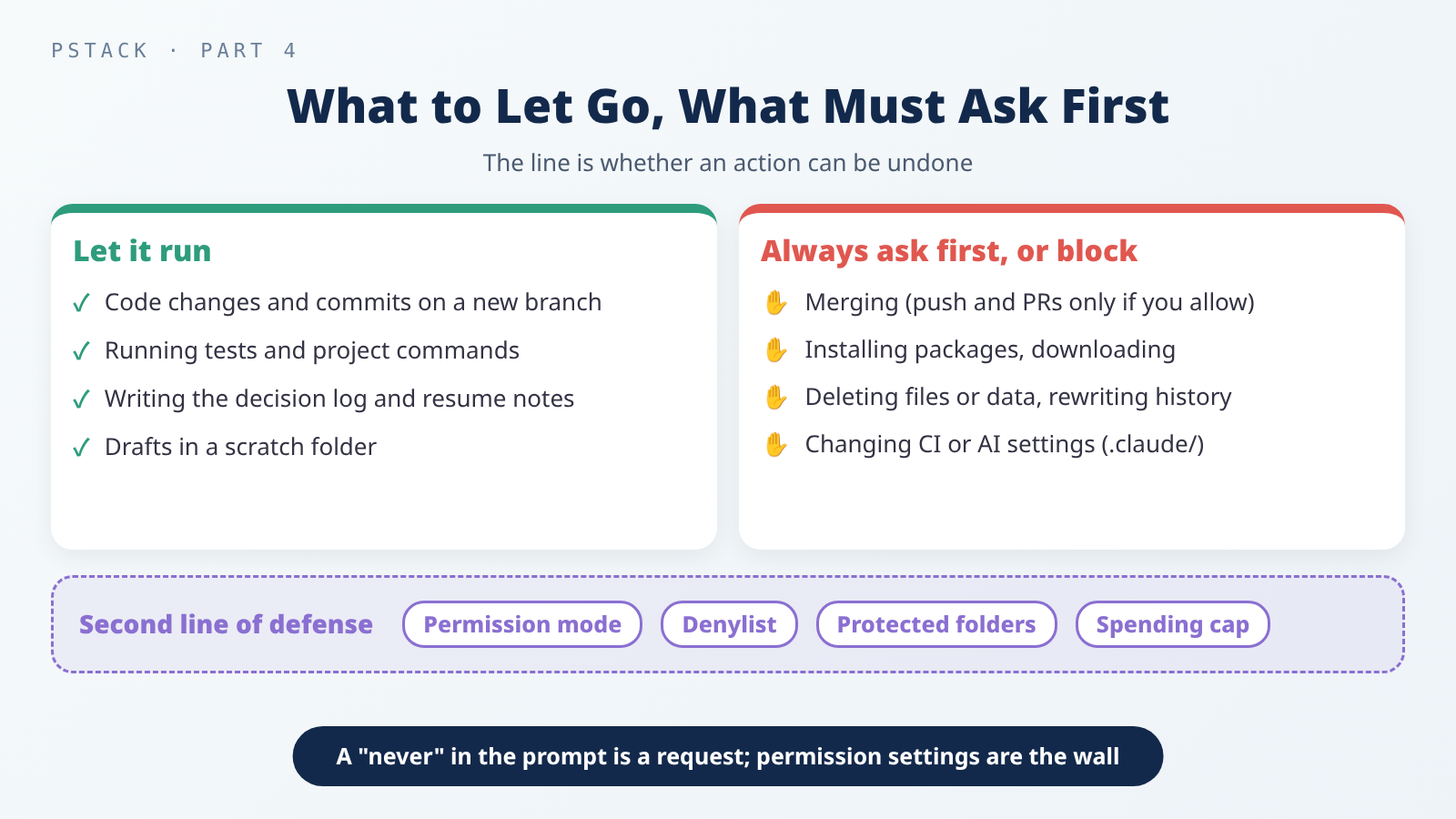 The line is whether an action can be undone. The prompt is the first line of defense; permission settings are the second.
Personally, I draw the line a bit more conservatively:
| Let it run | Always ask first, or block outright |
|---|---|
| Changing code and committing on a new branch | Merging; pushing and opening a PR only when you explicitly allow it |
| Running tests and the project’s own commands | Installing packages, downloading from the internet |
| Writing the decision log and resume notes | Deleting files or data, rewriting git history |
| Drafts in a scratch folder | Changing CI config or the AI’s settings (.claude/, CLAUDE.md) |
Permissions: The Prompt Isn’t Enough
The prompt states your intent, permission rules restrict tool calls, and isolation settings define network and filesystem boundaries. Each of Claude Code’s permission modes gives the AI a different amount of freedom (permission modes):
| Mode | Runs without asking | Best for |
|---|---|---|
default (Manual) | Reads only | Reviewing every action yourself |
acceptEdits | Reads, edits, common file commands | Code changes, with an allowlist for other commands |
plan | Reads, plus classifier-approved commands when auto mode is available | Exploring before changing anything |
auto | Everything, with background safety checks | Long tasks |
dontAsk | Reads and pre-approved tools; everything else is denied | Locked-down CI and scripts |
bypassPermissions | Everything | Isolated containers and VMs only |
A few things to know:
- Deny rules always apply, even in
bypassPermissions; but inbypassPermissions, allow rules have no effect. - Some folders are protected. Writes to folders such as
.gitand.claudeask you first indefaultandacceptEdits, and are refused indontAsk(protected paths). That’s actually a good thing: the AI can’t sneakily rewrite its own settings. So when/automate-meor/reflectwrites a skill, be ready for it to stop here. - Don’t turn off every check just to avoid interruptions.
bypassPermissionsbelongs only in an isolated container or VM (common setups).
Spending: Set a Cap First
Unattended work may spin up several subagents, and it can end up costing more than you expect.
- Add
--max-budget-usdtoclaude -p. The amount is Claude Code’s own estimate, which can differ from your actual bill and can slightly overshoot, so leave some headroom; subagent spend counts toward it; and when you continue with--resume, earlier spend doesn’t count toward this run’s cap (CLI reference). - If you’re on a subscription such as Pro or Max with usage credits turned on, remember to set a monthly spend limit in claude.ai under Settings → Usage (costs).
- If you use Cursor, check your plan’s usage and limit settings too before letting it run alone.
For more on permission and supply-chain risks, and how to tighten permissions, see Third-Party Skills and MCP Servers: The New Attack Surface in Your Coding Agent.
Full Example: One Day’s Flow
This continues Part 3’s fictional example: a command-line tool that exports data.
Daytime: steer with principle names. I ask for a new option:
1
/pstack:poteto-mode add a --since DATE option to the export command. tell me your plan first and don't change anything.
Its plan uses two helpers that make the same date check, plus three tests that cover the same case. I ask it to cut the duplication but keep the tests that matter:
1
/pstack:principle-laziness-protocol apply this to your plan, then implement it and commit.
It says it’s done but shows me only test results:
1
/pstack:principle-prove-it-works run export --since on real data and show me the output. try some odd dates too.
Evening: turn a repeated mistake into structure. This is already the second time this week I’ve had to correct it for comparing user input without normalizing it first:
1
/pstack:correct filter values from user input are often compared without the same normalization the data gets
I go through each commit, confirm the new check really does fail on the old mistake, and only then push it myself.
Before bed: hand off the unattended work. I write the six parts into overnight-prompt.txt:
1
2
3
4
5
6
7
/pstack:poteto-mode im going to bed. keep going until it's done.
goal: add a --format csv option to export, on the prepared task branch feat/export-csv.
done means: all tests pass; the CSV made from the sample data reads back in with the same row count; the existing JSON output is byte-for-byte unchanged.
decision log: keep one in decisions.tsv in the show-me-your-work format.
don't ask me: commit only changes for this task, excluding decisions.tsv, without asking; decide small things like column order and how to write empty values yourself, and log them.
never: push, open a PR, merge, install packages, go online, or change files outside this folder.
if you're truly stuck: stop and write down where you're stuck, what you tried, and what you need me to decide.
Following the earlier steps, I create the feat/export-csv branch and a separate worktree, copy the prompt file over, and set up the dependencies. Then I kick it off with the claude -p command, along with the allowlist, denylist, and spending cap.
Morning: audit. I use claude --resume <session ID> to reopen the overnight conversation interactively. Sessions started with claude -p don’t appear in the --resume picker, so pass the ID directly: it’s the .jsonl file name for that run under ~/.claude/projects/<worktree path>/, or pass the file’s full path to --resume. Then I enter:
1
/pstack:show-me-your-work catch me up on what you did last night
I read Attention first, open the commits and output behind the rows it points at, resolve the decisions it left for me, and then decide myself whether to push and open a PR.
Finally: capture the lesson. One step took a long detour:
1
/pstack:reflect parsing dates took way too long. capture what we learned so the next run doesn't repeat it.
I approve only the items that would change a future decision. After a while, I run /pstack:automate-me to turn these habits into my own mode.
Which Skill to Use When
| Your situation | Use this |
|---|---|
| The plan is too big, with too many wrappers | /pstack:principle-laziness-protocol |
| It says done, with no real output | /pstack:principle-prove-it-works |
| The fix only guards the symptom | /pstack:principle-fix-root-causes |
| Two fixes in the same direction both failed | /pstack:principle-attack-the-premise |
| You want to see all 24 principles | The README’s principles table |
| You want the AI to work your way | /pstack:automate-me |
| You want one conversation’s lessons in a skill | /pstack:reflect |
| You’ve corrected the same mistake twice or more | /pstack:correct |
| You want it to work toward completion on its own | /pstack:poteto-mode plus the six-part prompt |
| The night holds several independent changes | /pstack:poteto-mode plus Autopilot-stack |
| You want to stop on purpose and resume tomorrow | Tell /pstack:poteto-mode to pause |
| You want to audit what it did | /pstack:show-me-your-work |
| You only want the current status | /pstack:ketchup |
Common Pitfalls
- A duration as the finish condition: “work on this for four hours” gives it nothing to check.
- Limits that live only in the prompt: block “don’t push” with the denylist.
- A principle that’s only named: the reply should show which decision it changed.
- Editing a skill mid-task: do it in its own PR.
- A rule from one conversation: approve only
/reflectitems that would change a future decision. - Letting the AI read every project’s transcripts: only let
/automate-meand/reflectread this project’s conversations. - A cross-family review that isn’t: check
reviewed byin Attention. - No spending cap: add
--max-budget-usdtoclaude -p, and set your plan’s spend limit. - Versions: all of this follows pstack
0.15.36’s docs, and later versions may work differently.
Conclusion
To change how the AI works with one phrase, type /pstack:principle-<name> mid-conversation, then check that its reply says which decision the principle changed.
To have the AI work your way, use /automate-me to build your own mode from your conversations and /reflect to write one conversation’s lessons back into a skill, while /correct changes the repo itself so the same mistake can’t recur.
To let it run while you’re away, first check that this kind of work meets the four conditions above, then write the goal, a checkable finish condition, the decision log, what not to ask about, what it must never do, and how to stop when stuck; back those boundaries up with permission rules and isolation settings, set a spending cap, and in the morning start your /show-me-your-work audit from Attention. Within the scope you’ve authorized, let it finish the reversible work; decisions that can’t be undone stay in your hands.
Further Reading
- Guide: Run work while you sleep: the handoff template, the morning audit, and playbooks for a night with several tasks.
- Guide: Steer with principle names: a short tour of all 24 principles.
- Guide: Make it yours:
/automate-me,/reflect,/correct, and how to write and test a skill. - Skill docs: automate-me, reflect, correct, show-me-your-work, never-block-on-the-human.
- Claude Code permission modes: what each mode allows, and the protected paths.
- pstack, Part 1: Install, Pick Models, Start With /poteto-mode: installing, updating, and pinning a version.
- pstack, Part 2: Understand the Code, Then Design, Before You Change It:
/how,/why,/architect,/interrogate, and/arena. - pstack, Part 3: After the Code Is Written, Prove It Works Before Merging: the Build, Clean, Verify, and Prepare for Review stages, including playbooks,
/tdd, verification skills, and babysit. - Write Your Own Agent Skill: From SKILL.md to Testing and Upkeep: where skills live and how to write
SKILL.md. - Third-Party Skills and MCP Servers: The New Attack Surface in Your Coding Agent: permissions, sandboxes, and pinning versions.
- mattpocock/skills Series Guide: What It Is and How to Read It and mattpocock/skills, Part 1: Get Started Without Memorizing 25 Skills: a series about a different set of skills.