Automate Repeated Checks: Format, Test, and Flag Sensitive Files With Claude Code Hooks
Use Claude Code hooks to format files after edits, block Edit or Write calls targeting .env and .git, and run tests when a turn ends—and learn what hooks cannot block.

After I ask an AI to edit a file, I still have to remember: did formatting run? Did the tests pass? Did it touch .env by mistake? You don’t have to repeat these reminders every time. Claude Code, an AI coding assistant you use in the terminal, offers hooks: commands you write in advance that run at fixed points in a conversation, instead of waiting for the AI to decide whether to run them.
This post explains what hooks are, when they help, and how to set up four common checks in a project: auto-format after edits, block that change when a sensitive file is targeted, run tests when a turn ends, and put project rules back after the conversation is compacted. It also covers what hooks cannot block, because they are not a security boundary.
Version: this post follows the Claude Code hooks guide and the Hooks reference (including Security considerations), read on 2026-11-10 (Taipei time). That day, the latest Claude Code on npm was 2.1.322. Later versions may change events and fields.
For the permission risks that come with third-party skills and MCP servers, see this earlier post. This post focuses only on everyday checks you can configure yourself.
What Hooks Are, and When to Use Them
A hook is a command you define that Claude Code runs at key points in its lifecycle. Hooks make selected actions run deterministically instead of relying on the model to decide whether to run them. Use them for work that shouldn’t need a fresh judgment each time: formatting, running tests, or blocking an edit to a given file and explaining why. Decisions that need discretion still belong to you or to the permission settings.
Common moments include:
- PreToolUse: before a tool (for example, a file edit or a command) actually runs. It can block that call.
- PostToolUse: after a tool succeeds, for example to format the file that was just changed.
- Stop: when Claude finishes a reply. Note that it fires whenever a reply ends, not only when a whole task is done.
- SessionStart: when a session begins or resumes. To re-inject rules only after compaction, set the matcher to
compact.
There are more hook events than the ones above; the full list is in the Hooks reference. You don’t need all of them to get started.
 A concept illustration, not the real UI. The four moments can be: before a tool runs, after it succeeds, when the reply ends, and when the session starts or is compacted.
When to use it: you’ve already had to repeat the same reminder more than once, and the rule is clear, such as “format JavaScript after it’s edited” or “don’t use Edit or Write on .env.”
Next step: decide which settings file to use, then start with one hook.
Where to Put the Settings
The examples in this post go in .claude/settings.json at the project root. You can commit that file so everyone on the project shares it. Other locations include ~/.claude/settings.json, which applies to all of your projects on this machine, and .claude/settings.local.json, which stays out of version control. Hooks from the different layers are merged; one layer does not replace another.
The file is JSON: no comments, and no trailing comma after the last item. The structure has three layers: the event name, a group of rules with a matcher, then the hooks to run.
A matcher is the filter that decides whether this hook should run. For PreToolUse and PostToolUse, it compares the tool name, and the comparison is case-sensitive. For example, "Edit|Write" fires only when Claude uses Edit or Write, not when it uses Bash, Read, or any other tool. "Edit, Write" means the same thing. If you omit the matcher, or set it to "*", the hook runs on every occurrence of that event.
After you save the settings, type /hooks at the Claude Code prompt to open a read-only browser of the hooks you have, labeled by source: user settings, project settings, local settings, a plugin, or the current session. You can inspect them there, but you can’t edit them in that screen.
The command examples below need jq to pick fields out of the JSON sent to hooks. The formatter also needs Node.js and npx, so this command adapted from the official guide’s Prettier example can run: the path is stored in a variable and quoted, so spaces or apostrophes are not split. Hook scripts must be executable on macOS and Linux; after you add them, run chmod +x .claude/hooks/*.sh.
Auto-Format After Edits: PostToolUse
When to use it: you want files Claude changes with Edit or Write to be reformatted with the project’s rules, without asking again each time.
Add this to the project’s .claude/settings.json (if the file already has a "hooks" object, add PostToolUse inside it instead of replacing the whole file):
1
2
3
4
5
6
7
8
9
10
11
12
13
14
15
{
  "hooks": {
    "PostToolUse": [
      {
        "matcher": "Edit|Write",
        "hooks": [
          {
            "type": "command",
            "command": "f=$(jq -r '.tool_input.file_path'); npx prettier --write \"$f\""
          }
        ]
      }
    ]
  }
}
What it does: after a tool successfully edits a file, the command reads the file path from the input JSON and runs npx prettier --write on it. This is adapted from the official guide’s Prettier example: the path is stored in a variable, then quoted and passed to npx prettier --write, so a path with spaces or apostrophes is not split.
What you get: on success, the conversation usually shows no message; check whether the file was reformatted. The official check is to ask Claude to add a line with single-quoted strings to a JavaScript file, then open the file and see whether they were rewritten to double quotes (with Prettier’s default settings).
Next step: if you also want to block an edit when it targets .env or .git/, add a PreToolUse hook.
Block That Edit to a Sensitive File: PreToolUse
When to use it: you don’t want Claude to change .env, files under .git/, or package-lock.json with Edit or Write. This means blocking that change and feeding the reason back to Claude, not “the AI can’t touch these files.”
First add .claude/hooks/protect-files.sh (the official guide’s protected-file example, including Windows path normalization):
1
2
3
4
5
6
7
8
9
10
11
12
13
14
15
16
17
18
#!/bin/bash
# protect-files.sh — based on official Claude Code hooks guide example
INPUT=$(cat)
FILE_PATH=$(echo "$INPUT" | jq -r '.tool_input.file_path // empty')

# Normalize Windows backslash separators so the patterns below match
FILE_PATH="${FILE_PATH//\\//}"

PROTECTED_PATTERNS=(".env" "package-lock.json" ".git/")

for pattern in "${PROTECTED_PATTERNS[@]}"; do
  if [[ "$FILE_PATH" == *"$pattern"* ]]; then
    echo "Blocked: $FILE_PATH matches protected pattern '$pattern'" >&2
    exit 2
  fi
done

exit 0
Then add this inside "hooks" in .claude/settings.json:
1
2
3
4
5
6
7
8
9
10
11
"PreToolUse": [
  {
    "matcher": "Edit|Write",
    "hooks": [
      {
        "type": "command",
        "command": "\"$CLAUDE_PROJECT_DIR\"/.claude/hooks/protect-files.sh"
      }
    ]
  }
]
$CLAUDE_PROJECT_DIR is an environment variable Claude Code provides, pointing at the project root. Exit code 2 on PreToolUse stops that tool call, and the Blocked: line written to stderr (the error output stream) becomes feedback for Claude. Exit code 0 means no extra decision; the normal permission flow still applies, and it does not count as approving the call.
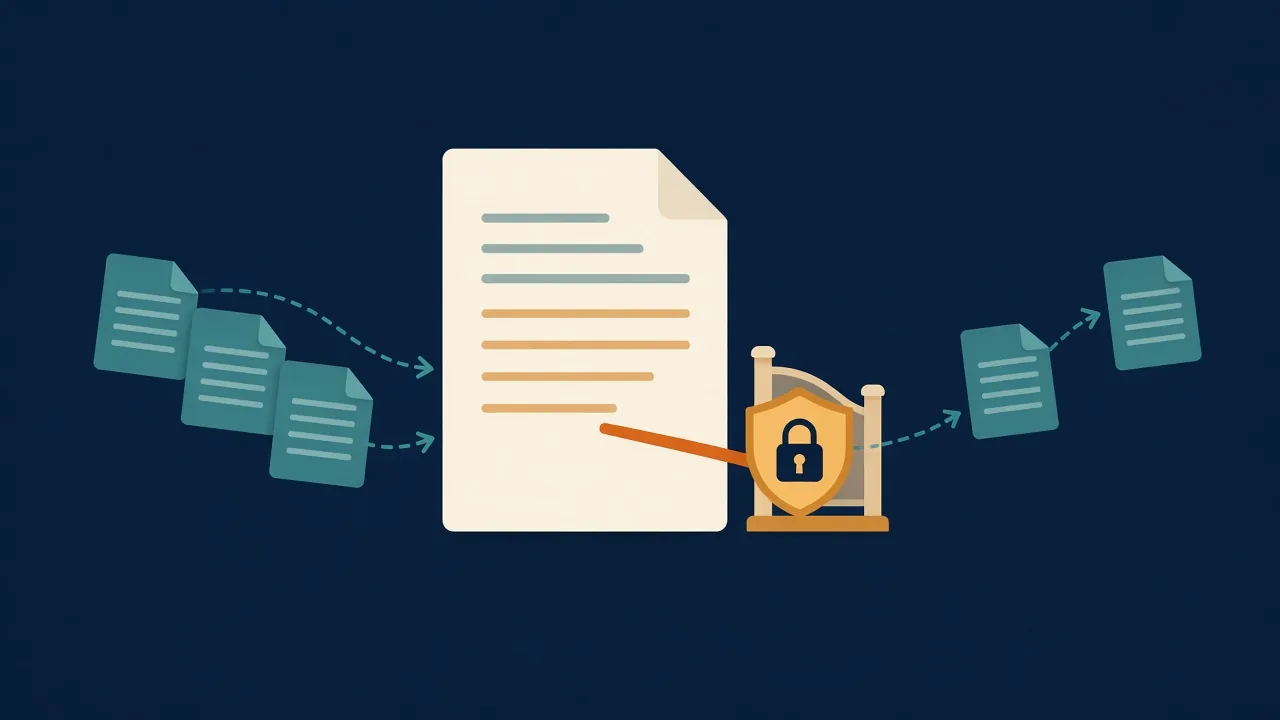 A concept illustration, not a real permission screen. This hook blocks that Edit or Write, not every path that could change the file.
What you get: if the path matches a protected pattern, that change does not run, and Claude sees the reason.
Next step: remember that matching only Edit|Write does not catch changes made through Bash or PowerShell; the limits section covers how to close that gap. To run tests when a turn ends, add a Stop hook.
Run Tests When the Turn Ends: Stop
When to use it: you want project tests to run when Claude finishes a reply; if they fail, don’t stop there, feed the failure back and keep going.
A Stop hook has no matcher. It runs whenever a reply ends, and it does not run if you interrupted. If the hook caused the conversation to continue, stop_hook_active in the input is true. The official docs say to check this field, or to read the transcript, so you don’t keep blocking on a condition that will never resolve. After stop hooks have continued the turn eight times in a row, Claude Code ends the turn anyway; the count resets each time Claude calls a tool.
Add .claude/hooks/run-tests-on-stop.sh. This example uses bun test to match the Bun scenario later in the post; swap in your own test command, such as npm test or pytest:
1
2
3
4
5
6
7
8
9
10
11
12
13
#!/bin/bash
# run-tests-on-stop.sh — Stop hook with official stop_hook_active guard
INPUT=$(cat)
if [ "$(echo "$INPUT" | jq -r '.stop_hook_active')" = "true" ]; then
  exit 0  # Allow Claude to stop
fi

PROJECT_DIR="${CLAUDE_PROJECT_DIR:-$(cd "$(dirname "$0")/../.." && pwd)}"
if ! (cd "$PROJECT_DIR" && bun test) >&2; then
  echo "Blocked stop: tests failed. Fix the failing tests before finishing." >&2
  exit 2
fi
exit 0
The matching settings:
1
2
3
4
5
6
7
8
9
10
"Stop": [
  {
    "hooks": [
      {
        "type": "command",
        "command": "\"$CLAUDE_PROJECT_DIR\"/.claude/hooks/run-tests-on-stop.sh"
      }
    ]
  }
]
On the Stop event, exit code 2 keeps Claude from stopping, and the stderr message becomes the reason to continue.
What you get: if the tests pass, the turn can end; if they fail, Claude keeps going from the feedback, instead of blocking again after a hook has already continued the turn.
Next step: if you worry that compaction will drop project conventions, add SessionStart.
Re-inject Rules After Compaction: SessionStart
When the context (the text still in front of the model) gets too long, Claude Code runs compaction: it summarizes earlier conversation to free space, and important details can be lost. The official recommendation is a SessionStart hook whose matcher is compact, so critical rules are written back into the context after every compaction. Plain text your command prints to standard output is added to Claude’s context. Rules that rarely change can also live in CLAUDE.md.
When to use it: a few rules should still be there after every compaction, such as which package manager or test command to use.
1
2
3
4
5
6
7
8
9
10
11
"SessionStart": [
  {
    "matcher": "compact",
    "hooks": [
      {
        "type": "command",
        "command": "echo 'Reminder: use Bun, not npm. Run bun test before committing. Current sprint: auth refactor.'"
      }
    ]
  }
]
Replace the reminder with your project rules. compact covers automatic and manual compaction. SessionStart cannot block compaction itself.
What you get: according to the official docs, Claude sees this reminder again after compaction.
Next step: run /hooks and confirm that all four events appear in the list.
Check Your Setup With /hooks
Type /hooks at the Claude Code prompt to open a read-only hooks browser. The list labels each hook with where it comes from, such as user settings, project settings, local settings, a plugin, or the current session. Select one to see the full command it runs and the settings file path or plugin name that defines it. You can also switch to All events to include events that have no hooks yet.
The screen is for inspection only; to change a hook, edit the corresponding JSON file.
A Full Example: One Day on a Small Project
Suppose you maintain a small site, and you want JavaScript formatted after edits, Edit and Write calls prevented from changing .env, tests run when a reply ends, and a reminder after compaction to use Bun and test before committing.
Formatting still uses the earlier npx prettier command, adapted from the official guide’s example so the path is quoted and spaces or apostrophes are not split; that does not depend on whether you manage packages with Bun or npm.
- At the project root, create
.claude/settings.jsonwith the four events above; addprotect-files.shandrun-tests-on-stop.sh, point the test command at your project, and runchmod +x .claude/hooks/*.sh. - Confirm
jqis installed, and that you have a Node.js environment that can runnpx prettier. - Start Claude Code, type
/hooks, and confirm that PostToolUse, PreToolUse, Stop, and SessionStart are listed, sourced from project settings. - Ask Claude to add a feature in a
.jsfile. After it edits with Edit or Write, Prettier formats the file. - If it tries to change
.envwith Edit or Write, that change is blocked, with aBlocked:reason. - When it says it’s done, the Stop hook runs the tests; on failure, work continues from the feedback instead of ending the turn.
- If the session is compacted, SessionStart sends your reminder back into the context.
You can add these four hooks one at a time; you don’t have to enable them all at once.
Which Hook When
| Your situation | Use this |
|---|---|
| Auto-format after an Edit or Write | PostToolUse, matcher Edit\|Write |
Block that Edit or Write to .env, .git/, and similar files | PreToolUse, matcher Edit\|Write, exit code 2 with a reason |
| Scan a file after it changes, whoever wrote it | FileChanged (runs after the file is written, cannot block in advance) |
| Run tests or scan the working tree when a reply ends | Stop, and check stop_hook_active |
| Put project rules back after compaction | SessionStart, matcher compact |
| Just want to see which hooks are configured | /hooks (read-only browser) |
Limits to Know Before You Rely on Them
These limits come from the official docs; read them before you depend on hooks.
A matcher compares tool names only. "Edit|Write" does not fire when Claude changes files with Bash or PowerShell. The official suggestion: if your hook must see every file change, such as for compliance scanning or audit logging, add a Stop hook that scans the working tree once per turn; for per-call coverage, also match Bash|PowerShell and have the script list modified and untracked files with git status --porcelain. To run a hook when a specific file changes on disk, whoever wrote it, use FileChanged. So the protection script above should be read as “blocks that Edit or Write,” not as “the AI can never touch these files.”
 A concept illustration. The matcher watches named tools; changes made through Bash or PowerShell take another path.
The if field is best-effort only. Besides a matcher, tool events can take an if filter, using permission-rule syntax on the tool name and arguments, for example "Edit(*.ts)". The official docs call this best-effort. For a hard allow or deny, use the permission system, not a hook alone. if only works on tool-related events; adding it to any other event prevents the hook from running.
A hook that returns allow does not bypass deny. Deny rules in settings, including enterprise managed deny lists, still apply. By contrast, a hook’s deny holds in every permission mode. Exit code 0 is not an approval either.
PostToolUse can’t undo what already happened. The hook runs after the tool has executed, so file writes, commands, and network requests have already taken effect. Exit code 2 can’t roll them back here either; it only passes a message to Claude. To block or change a call before it runs, use PreToolUse.
Hooks run with your full user permissions. The official warning: command hooks execute shell commands with your full user permissions, and can modify, delete, or access any files your account can access. Review the commands, and try them in a safe setting, before you add them. Before you use hooks in a shared or production environment, read Security considerations. In an interactive session you’re asked whether to trust the folder; with claude -p or the SDK, the official docs say the dialog is never shown and the folder is treated as trusted, so hooks in a repo’s .claude/settings.json may run in a directory you’ve never confirmed. Don’t call hooks a security boundary, and don’t claim they can block every path.
Conclusion
Hooks make formatting, sensitive-file reminders, and end-of-turn tests happen at fixed times, without asking again. Start by adding one hook in the project’s .claude/settings.json, confirm it in /hooks, then add more as you need them. Keep in mind that a matcher compares tool names only, so Bash or PowerShell can go around a rule that only watches Edit and Write; if is best-effort; allow does not bypass deny; and PostToolUse can’t undo work that’s already done. Treat hooks as fixed checks that save repetition, not as the last line of defense.
Further Reading
- Claude Code hooks guide: common uses and copyable examples.
- Hooks reference: events, input and output, and Security considerations.
- Third-Party Skills and MCP Servers: The New Attack Surface in Your Coding Agent: permission and supply-chain risks, complementary to the everyday checks in this post.
- AI Writes Code Faster. Why Is Shipping Still Slow? How I Think About an AI-Native SDLC: explains the difference between skills and hooks.