Claude Code Plugins: What to Check Before You Install One
One Claude Code plugin can add skills, hooks, and MCP servers that run code on their own. Learn which files to open, which scope to pick, and how to remove it.
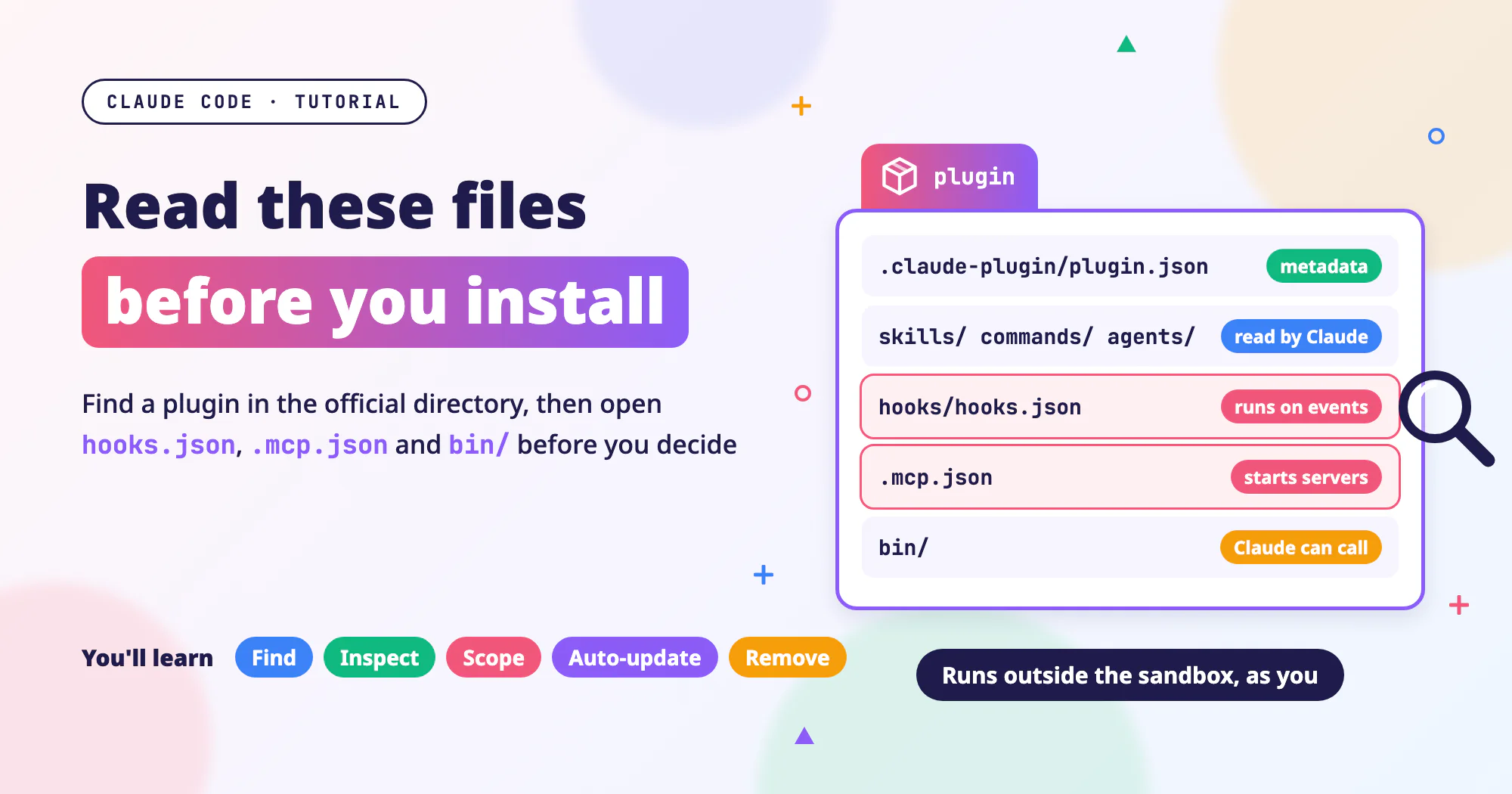
Claude Code, the AI coding assistant you use in the terminal, can install plugins. A plugin is a whole bundle of extensions. One install can bring in skills, slash commands, hooks, and MCP servers at once, and the next section explains each of them.
What makes plugins convenient is exactly what I think you need to be careful about. Some of these pieces run code on their own when you haven’t given any command, and they run with your account’s permissions. Before installation, Claude Code shows this official warning:
Plugins can run code on your computer, with access to your files and shell. Make sure you trust a plugin before installing, updating, or using it. Anthropic does not control what MCP servers, files, or other software are included in plugins and cannot verify that they will work as intended or that they won’t change. See each plugin’s homepage for more information.
When I read “make sure you trust,” my first question was how you’re actually supposed to do that. I went through several official docs and turned them into the checks I’d follow before and after installing a plugin.
This post doesn’t recommend any plugins. Wherever the post says what I’d do, those are steps I worked out from the official docs.
This post is based on official docs I read on 2026-11-14 (Taipei time): Discover and install plugins, Plugins overview, Plugins reference, Plugin security, Manage plugins for your organization, and Marketplace reference. For the marketplace, I also read the README and marketplace listing of anthropics/claude-plugins-official. On 2026-11-17, I rechecked some details against the same pages and added the parts about mods based on Mods overview and Manage mods for your organization, read that day. I checked the terminal commands against the
--helpoutput of Claude Code 2.1.325 (2.1.326 forplugin validate). Commands and screens change between versions, so go by the version you have installed.
I covered why third-party extensions bring risk in Third-Party Skills and MCP Servers: The New Attack Surface in Your Coding Agent. This post covers only the concrete steps for checking a plugin.
A few terms first
- Plugin: a bundle of Claude Code extensions. It may contain several of the things below at once. Its full name is written as “plugin-name@marketplace-name”.
- Marketplace: a catalog of plugins. Claude Code has to know about a marketplace before it can install plugins from it. Anthropic’s official marketplace is called
claude-plugins-official. Claude Code adds it automatically the first time you open its interactive screen. - Skill: a set of instructions written for Claude (
SKILL.md). When Claude runs into a related task, it follows them. - Slash command: a command you type in the Claude Code input box that starts with
/, such as/plugin. - Hook: a shell command that runs automatically at a set moment. For example, it can format a file every time Claude finishes editing it. For how to use hooks, see Claude Code Hooks: Format, Test, and Flag Sensitive Files.
- MCP server: a small program that connects Claude to outside tools or services, such as a database, GitHub, or documentation search. It can be a program that starts on your computer, or just a web address.
- Shell: the program in your terminal that runs commands. Anything that can run shell commands can do almost anything you can do in the terminal.
What a plugin brings in: some parts run code outside the sandbox
A plugin is a folder, and each file in it goes in a set location depending on what it does. Based on the official reference and security docs, these files fall into two groups: text that only Claude reads, and parts that run code.
| Location | What it is | Does it run code on its own? |
|---|---|---|
.claude-plugin/plugin.json | The plugin’s business card: name, version, author, homepage, license. It can also declare components such as hooks and MCP servers directly, or point to config files in other locations | Not by itself, but the hooks and servers it declares do |
skills/, commands/, agents/ | Instructions for Claude (Markdown files) | No, but they affect what Claude does next |
hooks/hooks.json | Shell commands that run at set moments | Yes, as soon as the moment comes |
modules in hooks/hooks.json (a mod) | Points to a JavaScript file (such as register.js) that runs inside Claude Code | Yes, and it can rewrite Claude’s tool calls |
monitors/monitors.json | Commands that keep running in the background | Yes |
.mcp.json | MCP server settings, meaning which program to start or which web address to connect to | Yes, Claude Code starts local servers |
.lsp.json | Language servers (background programs that provide code navigation and error hints) | Yes |
bin/ | Executables Claude can call directly while the plugin is enabled | Only when Claude calls them, and the call goes through permission rules |
The point from the official security docs that I think is most worth remembering is this one. Claude Code’s permission rules and sandbox govern the tool calls Claude itself makes, not code that a plugin runs on its own. Hooks, monitors, MCP servers, LSP servers, and mods all run outside the sandbox with your full user permissions.
I showed how to turn on /sandbox in Claude Code Sandbox Setup: Keep SSH Keys and Tokens Out. But even with it on, a plugin’s hooks and mods still run outside the sandbox.
One more point is easy to misread: plugin.json isn’t required. The official docs say you can leave it out, and even when it exists, only name is required, so author, homepage, and license may all be empty. So empty fields aren’t a sign of trouble, and fully filled-in fields aren’t a reason to relax.
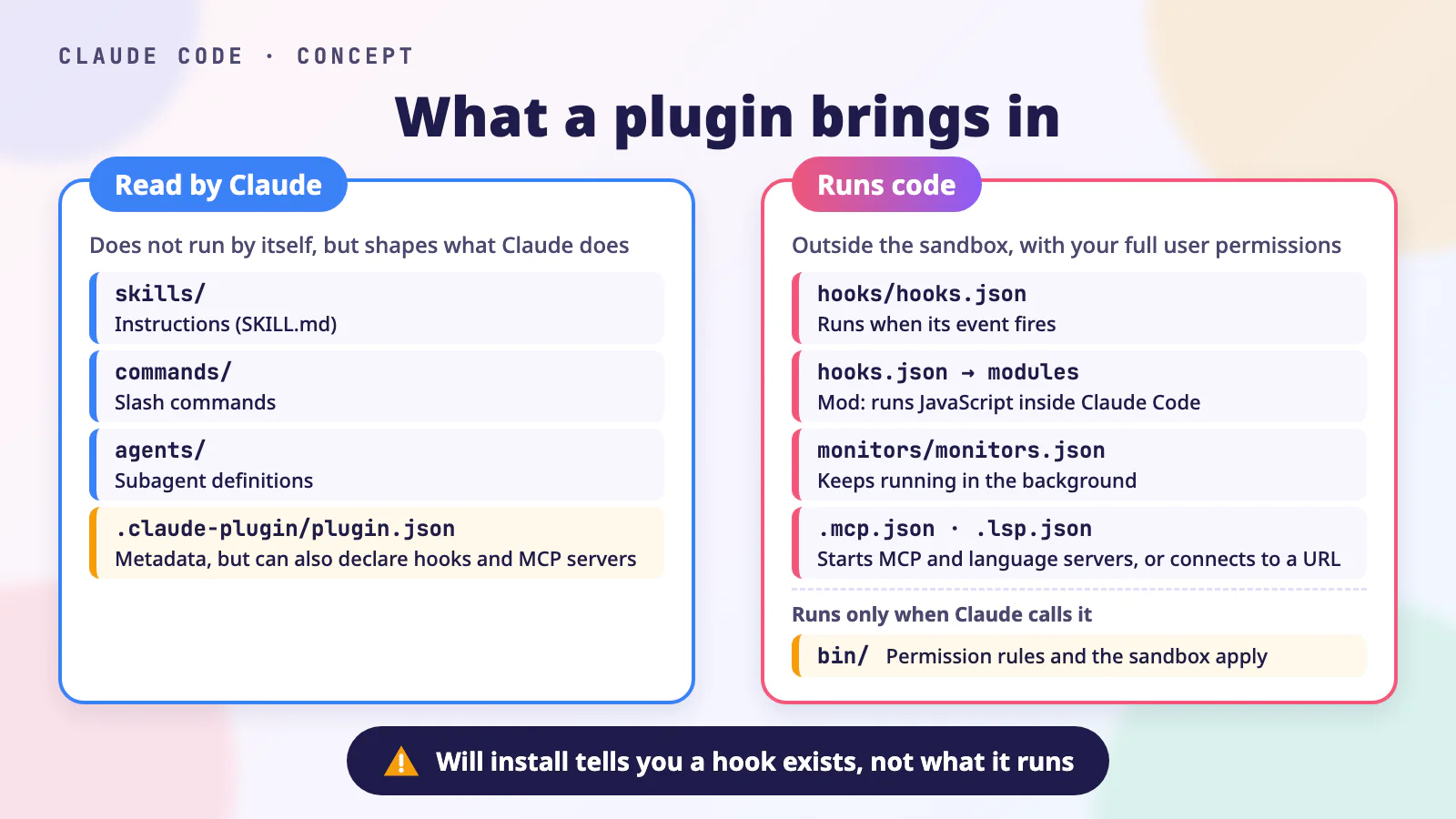 A concept illustration. The left side is text for Claude to read, and the right side is the parts that run code. Open each file on the right before you install, and the yellow
plugin.json too, since it can declare hooks and MCP servers directly.
The official directory stops impostors, but not every plugin is reviewed
The word “official” makes it easy to assume Anthropic has reviewed every plugin in the official directory. I had to read the directory’s README and listing file to be sure the scope is narrower than that.
The directory is anthropics/claude-plugins-official on GitHub, and this repo is two things at once. It stores plugins, and it also holds .claude-plugin/marketplace.json, the listing file of the claude-plugins-official marketplace.
The repo has two folders for plugins. The README describes them like this:
/plugins: plugins that Anthropic develops and maintains itself. Every time someone proposes a change, every folder here is checked./external_plugins: third-party plugins added before submissions moved to claude.ai/directory/manage. It also holds Anthropic’s channel plugins (Discord, fakechat, iMessage, and Telegram).
Still, most plugins in the marketplace listing aren’t in either folder. When I read marketplace.json on 2026-11-14, it listed 317 plugins. Only 55 of them live in this repo, and the other 262 live outside it:
| Where the plugin lives | Count |
|---|---|
This repo’s /plugins | 41 |
This repo’s /external_plugins | 14 |
| Repos owned by other companies or developers | 261 |
| Fetched by running a command on your computer | 1 |
The README says it plainly: the repo’s checks cover the plugin folders stored here, not plugins stored in other repos.
The official docs also point out that a marketplace’s name tells you who publishes the catalog, not what each plugin in it does. So check every plugin before you install it, whichever marketplace it comes from. The warning before installation is the same for every marketplace, too.
The official directory does lower your chance of installing an impostor. For official names such as claude-plugins-official, Claude Code only accepts sources from github.com/anthropics/. No one else can publish a marketplace under the same name.
But that doesn’t mean every plugin passed a security review. I’d still put a plugin from the official directory through the steps below.
Find out where a plugin actually lives
Since most plugins live in other repos, I’d always check this before installing one. Find the plugin’s entry in marketplace.json and look at its source field:
flowchart TD
  A["Entry source field"] --> B{What does it say?}
  B -->|"./plugins/… or ./external_plugins/…"| C[Official repo folder]
  B -->|"Object, source is url"| D["Repo at url"]
  B -->|"Object, source is git-subdir"| E["path in that repo"]
  D --> F["Check that sha"]
  E --> F
An entry looks roughly like this (the values are examples):
1
2
3
4
5
6
7
8
9
10
11
12
{
  "name": "example-plugin",
  "author": { "name": "Example Inc." },
  "source": {
    "source": "git-subdir",
    "url": "https://github.com/example-org/claude-plugins.git",
    "path": "plugins/example-plugin",
    "ref": "v1.2.0",
    "sha": "<40-character commit SHA>"
  },
  "homepage": "https://example.com"
}
sha is the ID of a commit, which is a snapshot of the code at one point in time. According to the marketplace reference, when an entry has both ref and sha, Claude Code fetches the version at sha.
So the files to check are the ones at that commit, not the latest version in the other repo. On GitHub, I’d open the folder at that version with a URL like https://github.com/<owner>/<repo>/tree/<sha>/<path>.
An entry is more than an index card, too. According to the marketplace reference, the entry itself can carry component fields, and what they do depends on whether the plugin has a plugin.json:
| Field in the entry | Plugin has plugin.json | Plugin has no plugin.json |
|---|---|---|
commands, agents, skills, outputStyles, themes | Merged into plugin.json by default | Loads |
hooks | Merged into plugin.json by default, and replaces the settings for the same event in plugin.json | Loads |
mcpServers, lspServers | Don’t take effect | Loads |
When a plugin has no plugin.json, the entry serves as its manifest. If an entry has these fields, I’d read them as well.
Step 1: Find the plugin in /plugin and read its details first
To find a plugin, I’d start by opening the plugin management screen. In the Claude Code input box, type:
1
/plugin
According to the official docs, the screen opens on the Discover tab, which lists plugins from the marketplaces you’ve added. Start typing to search, and press Enter to open a plugin’s details. The other tabs are Installed (installed plugins), Marketplaces (marketplaces you’ve added), and Errors (loading errors).
If you already know the name, you can also type it directly:
1
/plugin install <plugin-name>@claude-plugins-official
Running this in a conversation doesn’t install anything right away. It opens the same details panel first, so you can pick an install scope and then confirm.
The details panel has a Will install section, which lists the commands, agents, skills, hooks, and MCP and LSP servers the plugin will install. Look here first for hooks, MCP servers, or LSP servers. If there are any, code will run automatically once you install the plugin, and the checks that follow need extra care.
Most plugins in the official marketplace are stored in other repos. When Anthropic doesn’t have component data for such a plugin, this section may only show Component summary not available for remote plugin. When that happens, go straight to the source files as Step 2 describes.
Even when this section does list components, the official docs explain that it only tells you “there are hooks,” not what those hooks run. So whatever it lists, the next step is to read the source files.
Step 2: Open these files before you install
In the details panel, choose Open homepage or View on GitHub to open the source code. If neither option is there, go back to the marketplace’s repo and find the plugin’s folder as “Find out where a plugin actually lives” describes. To check where you originally added the marketplace from, run this in your terminal:
1
claude plugin marketplace list
Always open plugin.json first. It can define hooks, MCP servers, LSP servers, and monitors directly, or point to config files at other paths. So a file missing from its default location doesn’t mean the plugin lacks that feature, and what plugin.json declares tells you which other files to open.
.claude-plugin/plugin.json: who made it and what else it declares
I’d start with author, homepage, repository, and license, and confirm that the homepage and repo fields point to the same repo I’m reviewing. If the name looks alike but the account is different, I’d stop and find out who’s behind it first.
Next, I’d check whether it declares any components or dependencies. Here’s an example I wrote:
1
2
3
4
5
6
7
8
9
10
{
  "name": "example-plugin",
  "author": { "name": "Example Inc." },
  "homepage": "https://example.com",
  "hooks": "./config/hooks.json",
  "mcpServers": {
    "example-api": { "command": "node", "args": ["${CLAUDE_PLUGIN_ROOT}/server.js"] }
  },
  "dependencies": ["example-helper"]
}
Here’s how I’d read this file:
hookspoints toconfig/hooks.json, not the defaulthooks/hooks.json. Hooks from both locations are merged, so read both files.mcpServersis written right insideplugin.json, and it startsserver.jsonce installed.lspServersandexperimental.monitorscan be written this way too, and you read them the same way ashooks/hooks.jsonand.mcp.jsonbelow.dependencieslists other plugins this one depends on. According to the official docs, installing the plugin also installs and enables these dependencies at the same scope. Soexample-helperneeds the same checks this post describes.- How a dependency is written decides where it comes from. A bare name comes from the same marketplace. One written as
name@marketplacecomes from another marketplace, and by default Claude Code won’t install such a cross-marketplace dependency unless the marketplace explicitly allows it.
hooks/hooks.json: what runs automatically, and when
If I could look closely at only one file, I’d pick this one. For each hook, check two things: the event name (when it runs) and what it runs.
Which field to check depends on type. When type is command, check the command field. When it’s http, check url, because the event data is sent to that address. type can also be mcp_tool, prompt, or agent.
It looks roughly like this (the contents are an example):
1
2
3
4
5
6
7
8
9
10
11
12
13
14
15
16
17
18
19
{
  "hooks": {
    "SessionStart": [
      {
        "hooks": [
          { "type": "command", "command": "bash \"${CLAUDE_PLUGIN_ROOT}/hooks/setup.sh\"" }
        ]
      }
    ],
    "PostToolUse": [
      {
        "matcher": "Edit|Write",
        "hooks": [
          { "type": "command", "command": "bash \"${CLAUDE_PLUGIN_ROOT}/hooks/format.sh\"" }
        ]
      }
    ]
  }
}
I’d go through this config item by item:
SessionStartrunssetup.shevery time you open Claude Code, without you doing anything. It also runs again when you resume an earlier conversation, run/clear, or the conversation gets compacted.PostToolUsewith"matcher": "Edit|Write"runsformat.shevery time Claude finishes changing a file with the Edit or Write tool.${CLAUDE_PLUGIN_ROOT}stands for the folder where the plugin lives after installation. When a command only says “run some script,” open that script too, because the script does the actual work.
If a hook does any of the following, I’d stop and find out why:
- Downloading something with
curlorwgetand running it right away - Sending file contents or environment variables to an outside address
- Deleting or changing files outside the project
- Reading places that store keys, such as
~/.sshor.env
These aren’t always malicious. Some hooks are meant to send code snippets to an outside service for analysis, and the README usually says so. What I care about is whether I know it does this, and whether I can accept it.
modules in hooks.json: mods that run inside Claude Code
If hooks.json has a field like "modules": ["./register.js"], the plugin comes with a mod. A mod is a JavaScript program that runs inside Claude Code, and it isn’t sandboxed.
According to the official mod docs, a mod can:
- Read and write files, start programs, and make network requests with your permissions
- Read environment variables and API keys in settings files
- See every message you send and every tool call Claude makes, and rewrite them
- Approve tool calls that your deny or ask rules or a
PreToolUsehook would otherwise block, unless the built-in guard stops it
So when a plugin comes with a mod, I’d review it even more closely than its hooks. The plugin details component list described later doesn’t list mods. The official way to check one is to get the plugin’s files first (for example, by cloning its repo), then run this on the plugin folder:
1
claude plugin validate <plugin-folder>
flowchart TD
  A[Run plugin validate] --> B{Any errors?}
  B -->|Yes| C["Don't install"]
  B -->|No| D["Check hooks: and calls:"]
  D --> E[Read the JavaScript file]
Don’t install a mod that this command reports errors for. The official docs warn about this because some errors don’t stop a mod from loading. In the output, hooks: lists the events the mod receives, and calls: lists what it calls, for example:
$.fs.read: read files$.process.run: start programs$.http.fetch: make network requests$.env.get: read environment variables
.mcp.json: which programs start and where they connect
1
2
3
4
5
6
7
8
9
10
11
12
13
{
  "mcpServers": {
    "example-docs": {
      "type": "http",
      "url": "https://mcp.example.com/mcp"
    },
    "example-db": {
      "command": "npx",
      "args": ["-y", "@example/db-mcp@1.4.2"],
      "env": { "DB_URL": "${DB_URL}" }
    }
  }
}
I’d look at this config field by field:
- A server with
urlconnects to an outside address. I’d check whether the domain belongs to that service itself, because whatever you look up or send through it in Claude goes to that address. - A server with
commandstarts a program on your computer.npx -y package-namedownloads that package from npm and runs it. - I want to see a fixed version number (such as
@1.4.2). With no version, or with@latest, each start may run different code. envlists the environment variables it needs, which are usually tokens or passwords. I’d give it access only to what it really needs.
bin/, monitors/, and .lsp.json
- Look at every file in
bin/. While the plugin is enabled, these files are on the search path (PATH) that Claude uses to run commands, so Claude can call them directly like any other command. monitors/monitors.jsonholds commands that run in the background. Read it the same way as hooks and check eachcommand..lsp.jsonstarts language servers. Check which program it starts.
skills/, commands/, agents/: skim them
These are instructions for Claude to read, and they don’t run on their own, but instructions can tell Claude to run commands. I’d skim them once and watch for passages like these:
- Telling Claude to download and run something
- Telling Claude to send data outside
- Telling Claude to ignore your rules
The “Entry 1: Instructions Hidden in Content” section of Third-Party Skills and MCP Servers: The New Attack Surface in Your Coding Agent covers this kind of hidden instruction in detail.
Check the component list with one command
If I go through folders by hand, I’m bound to miss something. The official security docs offer a way to cross-check: plugin details lists the components Claude Code finds in a plugin folder. Clone the repo that holds the plugin, check out the commit named in the marketplace entry, and run:
1
2
3
4
git clone https://github.com/example-org/claude-plugins.git
cd claude-plugins
git checkout <sha-from-the-marketplace-entry>
claude --plugin-dir ./plugins/example-plugin plugin details example-plugin
It prints a Component inventory, a list of the plugin’s components: skills and commands, agents, hooks (with their trigger events), MCP servers, and LSP servers. I’d compare it with the files from the steps above and go back for anything missing.
This list doesn’t cover everything. These need a separate look:
- Monitors, files in
bin/, and mods aren’t in the list, so open them yourself. - The list covers the components in this folder. For components the marketplace entry adds, go back to the entry.
- Each plugin in
dependenciesneeds its own check.
After you install, you can also run this to check the copy that’s actually installed:
1
claude plugin details <plugin-name>
A checklist you can copy
I’ve turned the checks above into a checklist you can paste straight into your notes or team docs:
1
2
3
4
5
6
7
8
9
10
11
12
13
14
## Claude Code plugin pre-install checklist

- [ ] From the marketplace entry's source and sha, confirm which repo and commit the plugin actually lives in
- [ ] The author, homepage, and repo in plugin.json match the source I'm looking at
- [ ] Whether plugin.json declares hooks, mcpServers, lspServers, or monitors directly, or points to config files at other paths; whether the marketplace entry adds its own component fields
- [ ] Every plugin listed in dependencies has passed this same checklist
- [ ] Will install in the details panel: any hooks, MCP servers, or LSP servers
- [ ] hooks/hooks.json: each hook's trigger and command (url for http hooks), plus the scripts it calls
- [ ] Whether hooks.json has modules (a mod); if so, list its hooks and calls with claude plugin validate, and read the JS file
- [ ] .mcp.json: the program each server starts (is the version pinned?) or the address it connects to, and the environment variables it needs
- [ ] bin/, monitors/, .lsp.json: every file that runs
- [ ] skills/, commands/, agents/: nothing that tells Claude to download and run things, send data out, or ignore rules
- [ ] Checked hooks, MCP servers, and LSP servers against claude --plugin-dir <folder> plugin details <name>
- [ ] Decide the install scope (local, user, or project) and whether to auto-update
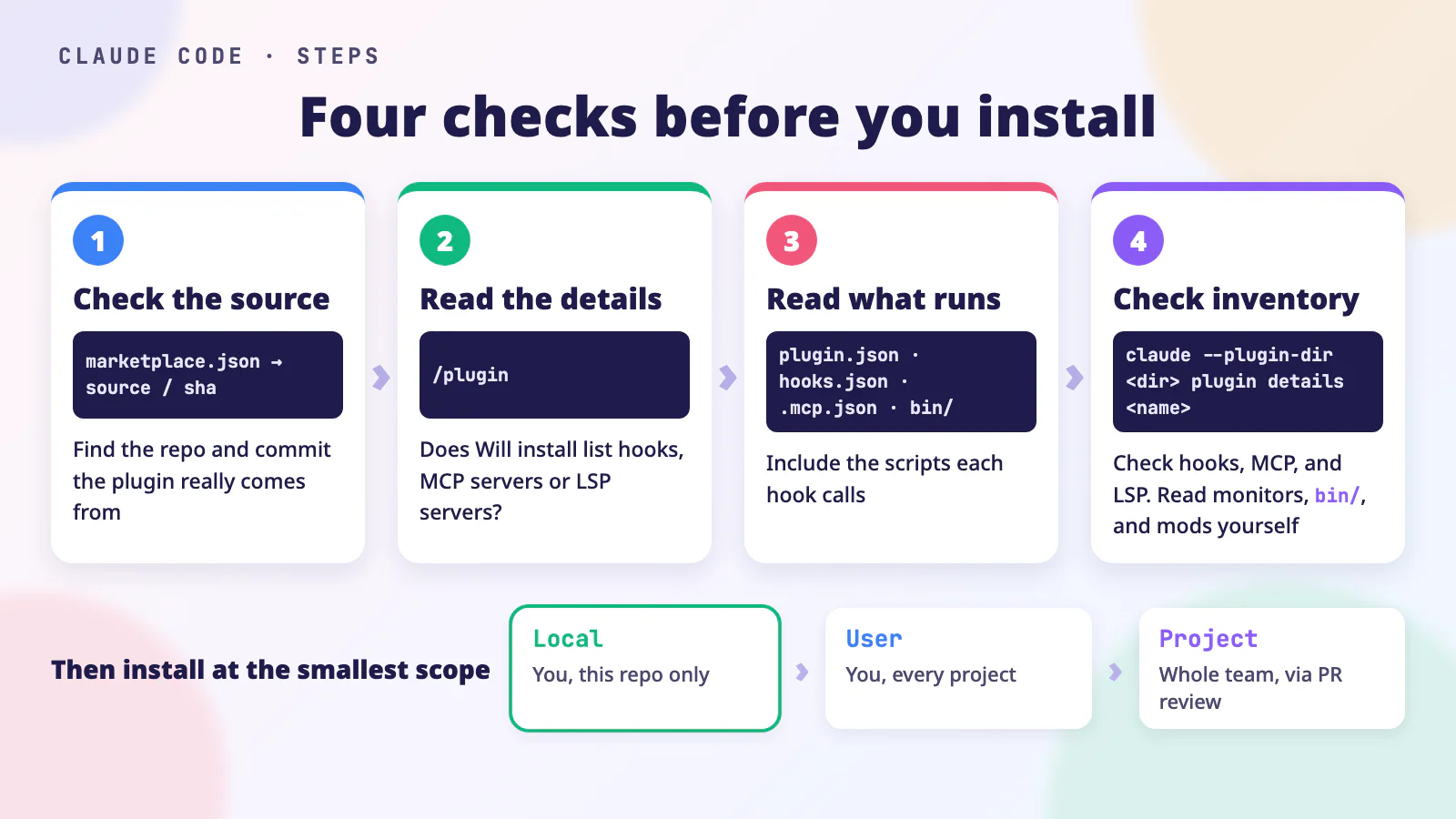 A concept illustration. You finish all four checks before installing. Check 3 only covers the files you open, and check 4 cross-checks hooks, MCP servers, and LSP servers against the component list. You still need to read monitors,
bin/, and mods yourself.
Step 3: Start with the smallest install scope
When you choose to install in the details panel, you pick an install scope:
| Scope | Who uses it | Which settings file it goes in |
|---|---|---|
| Local | Only you, and only in this repo | .claude/settings.local.json |
| User | You, in every project on this computer | ~/.claude/settings.json |
| Project | Everyone who works on this repo | .claude/settings.json (committed to the repo) |
For a plugin that’s new to me, I’d widen the scope in this order:
flowchart LR
  A[New plugin] --> B["Local: one project"]
  B -->|Needed in other projects| C[User]
  B -->|Whole team needs it| D["Project: via code review"]
For how to review a Project-scope plugin, see “Put the checklist into your team’s rules” below. To install from the terminal, use the command below. Without --scope, it defaults to user:
1
claude plugin install <plugin-name>@claude-plugins-official --scope local
Before installing, keep three things in mind:
- Installing a plugin turns it on. Unless the plugin itself sets
defaultEnabled: false, it starts working as soon as it’s installed. - Dependencies come along. If the plugin declares dependencies, Claude Code installs and enables them at the same scope, and the success message lists them.
- Project scope doesn’t install it on your teammates’ computers. After the setting is committed to the repo, each collaborator still has to run the install once themselves.
Check the source before you add another marketplace
Besides the official marketplace, anyone can create a marketplace. I’d be more careful about adding a marketplace than about installing a single plugin, because once it’s added, every plugin in it can be installed with one command. The command to add one is:
1
/plugin marketplace add <source>
The source can be any of these:
- A GitHub repo, written as
owner/repo. You can add#to pick a tag or branch, such asyour-org/plugins#v1.2.0. - A full URL on another Git host, such as
https://gitlab.example.com/your-group/your-marketplace.git#v1.0.0. - The path to a local folder.
- An
https://URL that points to amarketplace.json.
Before adding one, I’d check these things:
- Who owns the repo. Take the link only from a place you trust, such as the tool’s official website or docs, not just from search results. Look-alike account names are common.
- Whether a version is pinned. With a tag such as
#v1.2.0, the marketplace contents won’t change every time the owner commits. But a tag itself can be moved, as gh actions-lock Tutorial: Pin GitHub Actions Dependencies With a Lockfile explains, so a tag only cuts down on changes. - A one-line install command can also add a marketplace. If you type
/plugin install <name> --marketplace owner/repoin a conversation and the marketplace hasn’t been added yet, Claude Code first shows you the source and asks you to confirm. Runningclaude plugin install <name> --marketplace owner/repoin the terminal adds the marketplace right away without asking. When someone shares a command like this, check whoowner/repois first, just the same.
Auto-update replaces the files you reviewed
According to the official docs, Anthropic’s official marketplaces (such as claude-plugins-official) auto-update by default. Other marketplaces, including third-party and local ones, don’t.
With auto-update on, Claude Code updates the plugins installed from that marketplace in the background. So the files you reviewed may be replaced without you knowing.
To turn off auto-update for a marketplace, go to the Marketplaces tab in /plugin, select the marketplace, and choose Disable auto-update.
The cost of turning it off is that you won’t get fixes automatically, so I wouldn’t turn it off everywhere. I’d turn it off only for third-party or unfamiliar marketplaces and update those by hand on a regular schedule:
flowchart LR
  A[Diff the two shas] --> B[Check configs, new deps]
  B --> C[Run plugin update]
  C --> D[Reload to apply]
The URL for the diff is https://github.com/<owner>/<repo>/compare/<old-sha>...<new-sha>. When comparing, look especially at plugin.json, hooks/hooks.json, .mcp.json, and any new dependencies. The command to update by hand is:
1
claude plugin update <plugin-name>@<marketplace>
To apply the update, restart Claude Code or run this in a conversation:
1
/reload-plugins
After you install: disable first, remove once you’re sure
First, I’d check what’s actually installed. This shows each plugin’s version, install scope, and status:
1
claude plugin list
There are three ways to handle a plugin, from lightest to heaviest: disable it, remove it, or remove the whole marketplace.
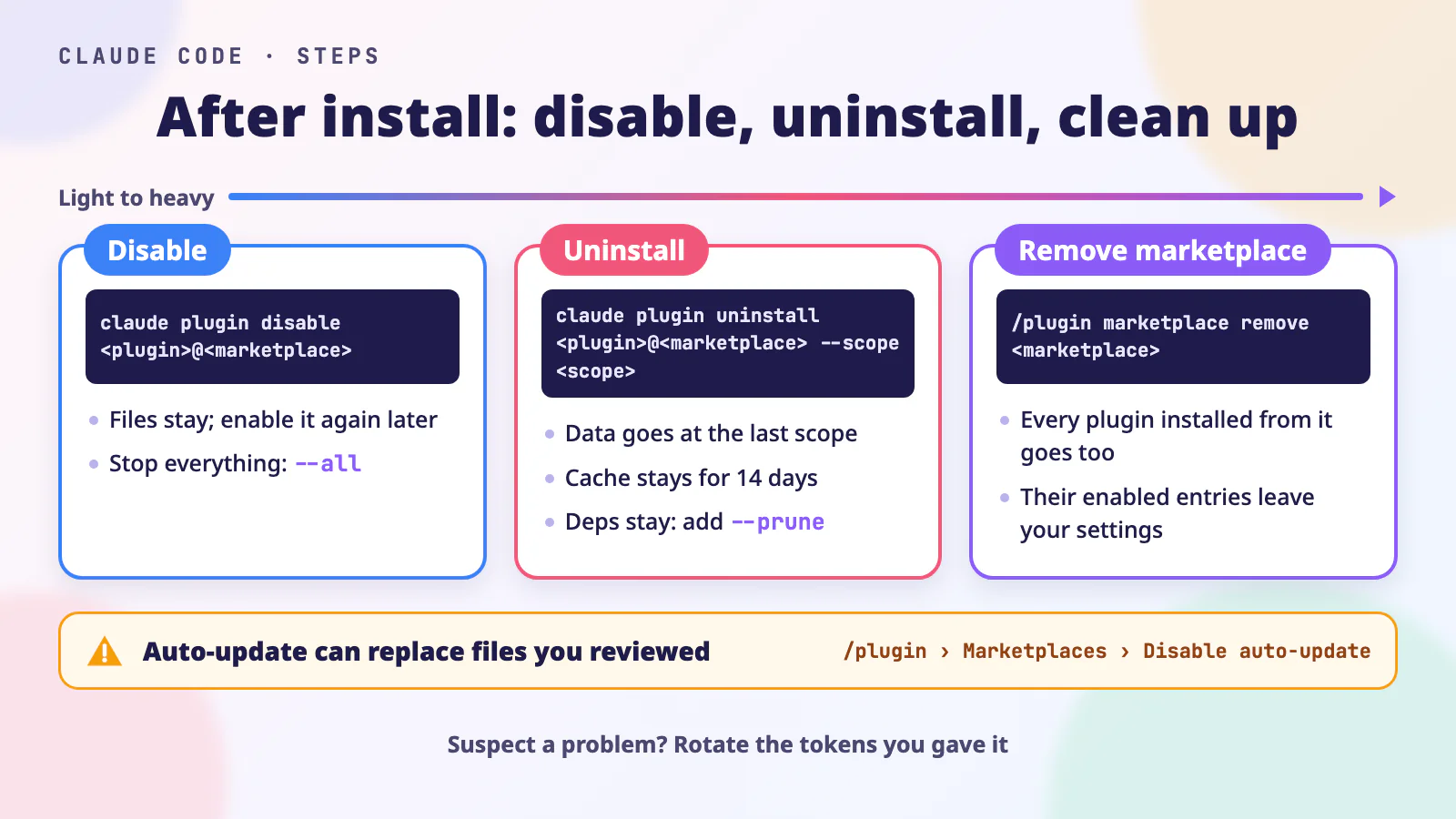 A concept illustration. Three ways to handle a plugin, from lightest to heaviest. If you suspect a problem, disable it first. Remove it once you’re sure you don’t need it.
Disable: the files stay, so you can turn it back on
This is the first step I’d take when I don’t need a plugin for now, or when I suspect a problem with it. In the Installed tab of /plugin, select the plugin and press the space bar, or type this to open the panel:
1
/plugin disable
In the terminal, run:
1
claude plugin disable <plugin-name>@<marketplace>
After you disable a plugin, its files stay, and you can turn it back on later with claude plugin enable. If another enabled plugin depends on it, disabling fails and names the plugins to disable first.
If something odd is going on and you want to stop everything first, this disables every plugin:
1
claude plugin disable --all
Remove: use the same scope you installed with
Type this in the input box:
1
/plugin uninstall
Or run this in the terminal:
1
claude plugin uninstall <plugin-name>@<marketplace> --scope <original-scope>
--scope must match the scope you installed with. If you leave it out, it defaults to user. When removing a plugin, pay particular attention to these points:
- When you remove it from its last install scope, the plugin’s data folder,
~/.claude/plugins/data/<id>/, is deleted too. The options and secrets the plugin saved go with it. Add--keep-datato keep the folder. - The plugin’s code stays in
~/.claude/plugins/cache/for another 14 days before a background cleanup deletes it. If I’m sure I no longer trust it, I’d delete~/.claude/plugins/cache/<marketplace>/<plugin-name>/myself. Dependencies that were installed along with it stay. Add
--pruneto also remove dependencies no other plugin needs, or clean them up later with this:1
claude plugin prune
- When you remove a Project-scope plugin in the interface, it asks you to choose Disable for me or Uninstall for everyone. The first turns it off only for you, written to your
.claude/settings.local.json. The second removes it from the shared.claude/settings.json, which affects every collaborator.
Removing a plugin doesn’t revoke any tokens you gave it. If I’m removing a plugin because I suspect a problem, I’d also replace those tokens. For what to do next, see the “After an Incident (or a Suspected One)” checklist in Third-Party Skills and MCP Servers: The New Attack Surface in Your Coding Agent.
Remove a marketplace: its plugins go with it
Type this in the input box:
1
/plugin marketplace remove <marketplace>
This also removes every plugin you installed from that marketplace.
Put the checklist into your team’s rules
Anyone on the team might install a plugin, so being careful on my own isn’t enough, and the team needs a shared way of doing this. I’d work at three levels.
Write it into your project rules
I’d put the checklist above into CLAUDE.md, AGENTS.md, or the PR template. Then the team agrees that “anyone who adds a plugin or marketplace attaches this checklist.” I cover how to write a rules file in How to Write AGENTS.md: Give Coding Agents Your Project Rules.
Review the settings file like code
When a project recommends plugins, I’d write two fields in .claude/settings.json:
extraKnownMarketplaces: which marketplaces to know aboutenabledPlugins: which plugins to enable
1
2
3
4
5
6
7
8
9
10
{
  "extraKnownMarketplaces": {
    "your-marketplace": {
      "source": { "source": "github", "repo": "your-org/your-marketplace" }
    }
  },
  "enabledPlugins": {
    "code-formatter@your-marketplace": true
  }
}
This file is committed to the repo, so I treat changing it like changing code, and it has to go through PR review. You can also add it to CODEOWNERS (a file that says who reviews which files), so that someone who knows this checklist approves the changes.
The official docs note two more things. First, writing enabledPlugins in the repo doesn’t install anything automatically, so collaborators have to run this themselves:
1
claude plugin install <name>@<marketplace> --scope project
Second, extraKnownMarketplaces only takes effect in folders the collaborator already trusts.
Limit marketplace sources at the organization level
If your company manages Claude Code settings centrally (managed settings), admins can limit marketplace sources. strictKnownMarketplaces allows only certain sources, and blockedMarketplaces blocks certain sources. Here is the official allowlist example:
1
2
3
4
5
6
7
{
  "strictKnownMarketplaces": [
    { "source": "github", "repo": "anthropics/claude-plugins-official" },
    { "source": "github", "repo": "your-org/*" },
    { "source": "skills-dir" }
  ]
}
The first two lines allow only the official marketplace and marketplaces under the company’s own account.
The third line, skills-dir, covers plugins kept in skill folders. Folders in ~/.claude/skills/ and the project’s .claude/skills/ that contain .claude-plugin/plugin.json keep loading as plugins. Plain skills with only a SKILL.md aren’t affected by this list.
Admins can also set pluginTrustMessage to add the company’s own note after the pre-install warning, such as a link to the review process.
What to do when
| I want to… | Do this |
|---|---|
| Find a plugin | Use the Discover tab in /plugin, or open its details first with /plugin install <name>@claude-plugins-official |
| Know where a plugin actually lives | Check source and sha in its marketplace.json entry |
| Know what runs automatically after I install | Check the components plugin.json declares, then read hooks/hooks.json, .mcp.json, bin/, monitors/, .lsp.json |
| Know what a mod does | Run claude plugin validate <folder>, check hooks: and calls:, then read the JavaScript file |
| Know which other plugins come along | Check dependencies in plugin.json, and run each through the checklist |
| Make sure I haven’t missed any hooks, MCP servers, or LSP servers | Clone the repo, then run claude --plugin-dir <folder> plugin details <name>; check monitors, bin/, and mods separately |
| Try it at a small scope first | Choose Local when you install |
| Add another marketplace | Confirm owner/repo from an official link, and pin a version with #tag |
| Keep reviewed files from being swapped in the background | /plugin → Marketplaces → Disable auto-update, then update by hand after reading the diff |
| Stop using it for now | claude plugin disable <name>@<marketplace> |
| Stop everything when I suspect a problem | claude plugin disable --all |
| Remove it completely | claude plugin uninstall <name>@<marketplace> --scope <scope> --prune, and delete the cache folder if needed |
| Keep the team consistent | Put the checklist into your project rules, and send .claude/settings.json through PR review |
Conclusion
After putting this post together, I’ve settled on one rule for myself: before I install a plugin, I work out what it will do with my permissions, and when. The official directory and Will install are only a starting point, and the files that run code are mine to read. Once I decide to install, I start at the smallest scope.
If you want to keep reading, here are a few of my posts:
- Claude Code Hooks: Format, Test, and Flag Sensitive Files: what the hooks a plugin brings in actually do.
- Write Your Own Agent Skill: From SKILL.md to Testing and Upkeep: how the skills inside a plugin are written.
- OWASP Agentic Top 10 Checklist: Audit Your AI Workflow: check supply chain risks across your whole AI workflow with the same approach.