Audit Your AI Workflow With the OWASP Agentic Top 10: Ten Risks, Ten Checks, and How to Fix Them
Turn the OWASP Agentic Top 10 into ten yes/no checks for your coding agent, MCP servers, and CI, with a fix for each yes.
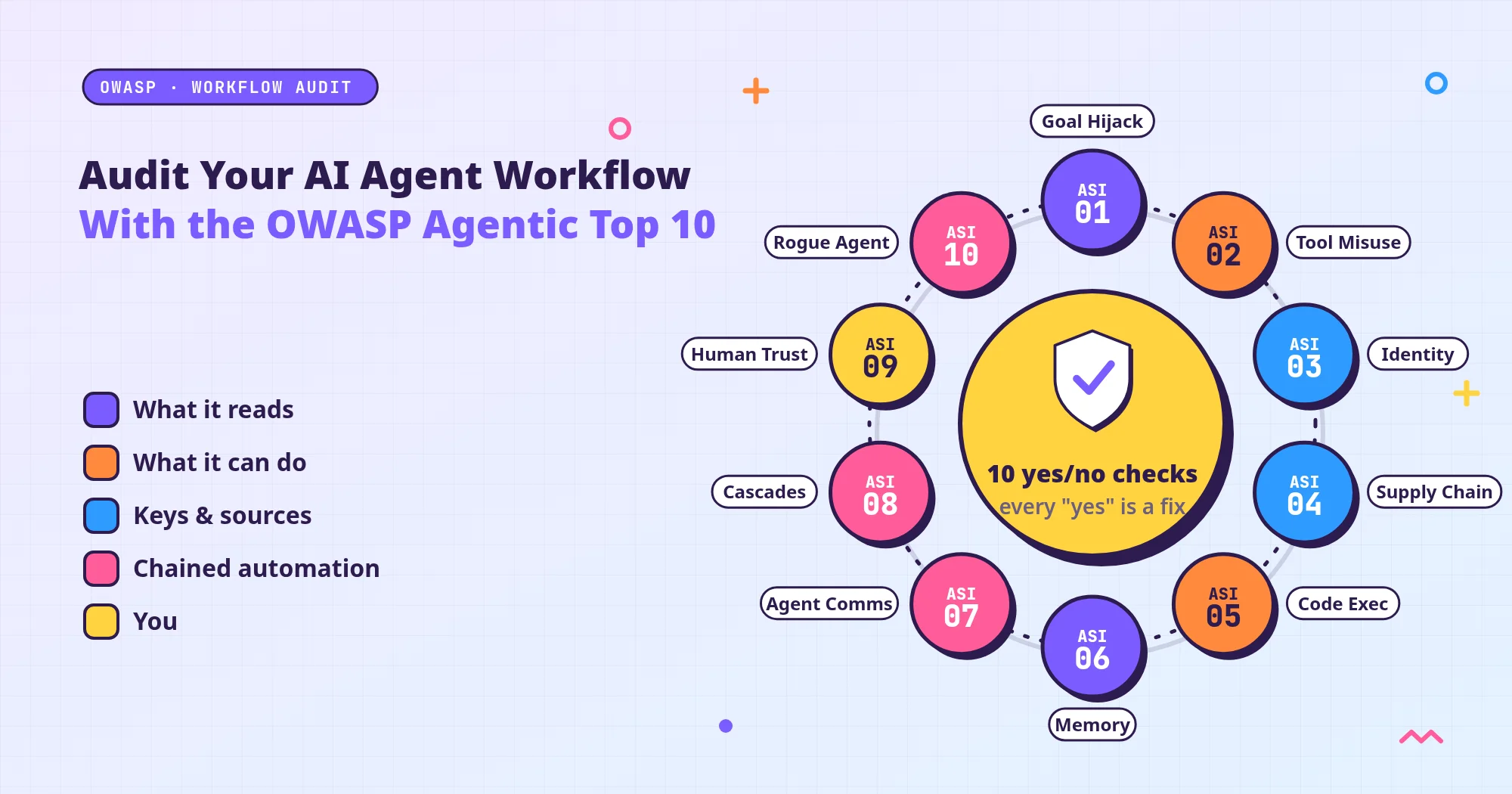
This post turns OWASP’s list of security risks for AI agents (AIs that take actions on their own) into ten yes/no self-checks for individual developers who code with AI. Every “yes” marks something to fix, and each question comes with a fix.
Why check at all? The longer you use a coding agent (an AI coding assistant that reads files, edits code, and runs commands on its own), the more you tend to attach: another external tool, another “don’t ask me” auto-approval, then automated testing and deployment on top. Few people go back and review the workflow as a whole.
The questions are based on the OWASP Top 10 for Agentic Applications 2026, also called the OWASP Agentic Top 10. OWASP is a nonprofit open security community, best known for the web risk list “OWASP Top 10.” This agentic edition was published in December 2025. The project page calls it a “globally peer-reviewed” framework, developed with more than 100 industry experts, researchers, and practitioners, that names the most critical security risks facing autonomous and agentic AI systems.
The list was written for organizations that build agent systems. I turned its ten items into ten questions a personal workflow can answer, each with a fix. The grouping, scenarios, self-check questions, and fix order are this site’s own organization, not an official OWASP “checklist for individual developers.” The ten items are numbered ASI01 through ASI10; the numbers are identifiers only and do not rank severity.
The scope is a personal developer’s coding-agent workflow: agents such as Claude Code, Codex, and Cursor, plus the MCP servers (MCP is a standard for connecting agents to external tools) and GitHub Actions (GitHub’s automation service) attached to them. Third-Party Skills and MCP Servers: The New Attack Surface in Your Coding Agent starts from what you installed and walks through the attack surface (the places you can be attacked); this post uses OWASP’s ten items to scan the whole workflow. Cases already covered there are not retold here.
Version note: This article follows the OWASP Top 10 for Agentic Applications 2026 (published December 2025; rechecked on 2026-11-11 and still the current edition) and each tool’s official docs as of 2026-11-11. Default permissions in Claude Code, Codex, and Cursor have shifted recently, so treat names and defaults in the official docs as authoritative.
A Few Terms First
These terms are enough to follow the whole post. Less common terms are explained where they first appear.
- AI agent / agentic: An AI that does more than answer questions: it plans steps, calls tools, edits files, and runs commands. “Agentic” describes anything with that ability to act on its own.
- Coding agent: An AI agent built to help you write code, such as the agents in Claude Code, Codex, and Cursor. It can read files, edit code, and run terminal commands right inside your project.
- Tool: A function the agent can call, such as reading a file, running a terminal command, going online, or calling an MCP server.
- MCP, skills, plugins: Add-ons that let an agent do more, often from third parties. MCP (Model Context Protocol) is a standard for connecting an agent to external tools and data; an MCP server is the program that provides those tools.
- Prompt injection: Hidden instructions placed in content the agent will read, so that it follows them.
- Approval, auto-approval, permission mode: Approval means the agent asks you before it acts; an auto-approved (allowed) action no longer asks; a permission mode is one of a tool’s built-in presets for how much it asks.
- Sandbox: A restricted space for the agent’s commands, such as which folders it can read or write and which sites it can reach.
- Token / credential: A pass that stands in for a username and password; whoever holds it can act as you. A “long-lived token” stays valid for a long time, so if it leaks, it can be misused for longer.
- Long-term memory / context: What the agent reads every time it starts, such as
CLAUDE.md,AGENTS.md, rule files, and auto-written summaries. - Git, repo, diff: Git is a version control tool that records every change and lets you roll back; a repo is a code repository managed with Git; a diff shows a change before and after, so you can see exactly which lines changed.
- CI, GitHub Actions: CI is a pipeline that runs tests, builds, and sometimes deploys as soon as code is pushed; GitHub Actions is GitHub’s service for this, configured in workflow files.
- Least privilege: Give only the access the task actually needs.
- Least-Agency: OWASP’s term: do not grant autonomy you do not need.
- Kill switch: A way to stop everything immediately when something goes wrong.
How to Use This Checklist: One Loop, Four Steps
The method is four steps. Run the loop once, then run it again whenever your workflow changes.
- Inventory: Write down which agents you use, which folders they can read, which commands they can run, which MCP servers are attached, which tokens they can reach, and which automation runs after them (CI, scheduled jobs). If you are not sure where to look, see “Where to Look During the Inventory” below.
- Check: Answer yes or no to each of the ten questions. Every “yes” is something to fix.
- Fix: Start with items where no one is in the loop and the action cannot be undone. The order is in “What to Fix First” below.
- Re-check: When you add a tool or MCP server, or change a setting, run the loop again.
The principle behind these steps is Least-Agency, which OWASP introduces on page 7: “avoid unnecessary autonomy; deploying agentic behavior where it is not needed expands the attack surface without adding value.” In other words, letting an AI act on its own where you do not need it only adds places to be attacked, without adding value. The same passage also stresses observability: you need to be able to see what the agent is doing.
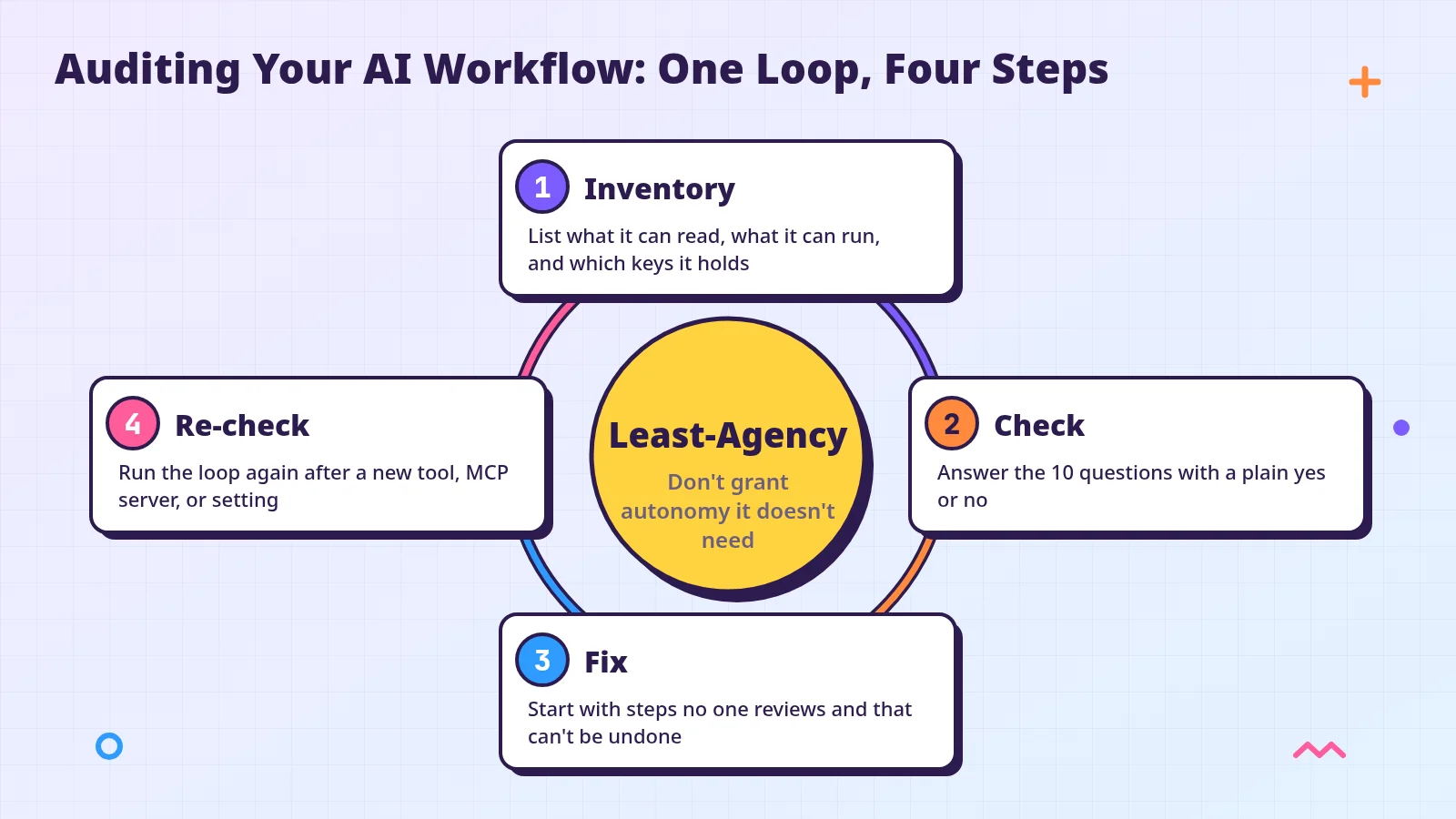 Concept diagram: Inventory, Check, Fix, and Re-check form one loop. The center principle is Least-Agency: do not grant autonomy you do not need. These four steps are this site’s method, not an official OWASP process.
Where to Look During the Inventory
Tool defaults change often, so this list covers only where to look and what to check, not default values.
- Permissions and auto-approval: In Claude Code, type
/permissionsto see the current rules, and read the permission modes docs for what each mode means. For Codex, read Agent approvals & security and confirm two things: the sandbox mode (what Codex can technically do) and the approval policy (when it must stop and ask you). For Cursor, read Agent Security and confirm the Run Modes (how terminal commands get approved) and the MCP allowlist (the MCP tools you pre-approved). - Sandbox: In Claude Code, use
/sandboxor thesandbox.enabledsetting to confirm whether the sandbox is on; for what it can read and reach once it is on, see the sandboxing docs. - MCP: Start from the project’s
.mcp.json(the file that registers MCP servers). Claude Code’s security docs warn that this file alone does not show every server that can be loaded. To see which servers Claude Code currently has configured, runclaude mcp listin your terminal (it also shows each server’s connection status), or type/mcpin a session; see the MCP docs. - Credentials: The project’s
.env(a file commonly used for passwords and tokens),~/.sshin your home directory (SSH keys, used to sign in to servers and Git),~/.aws/credentials(AWS cloud credentials), and any secrets kept in environment variables (settings the system hands to programs). - Automation: The workflow files in your repo’s
.github/workflows/folder, plus any scheduled or background jobs you set up.
An Overview of the Ten Risks
The official list is numbered ASI01 through ASI10. To make it easier to read, I grouped the ten items into five buckets: what it reads, what it can do, keys and sources, chained automation, and you. This is not OWASP’s official taxonomy, and the numbers do not mean one item is worse than another.
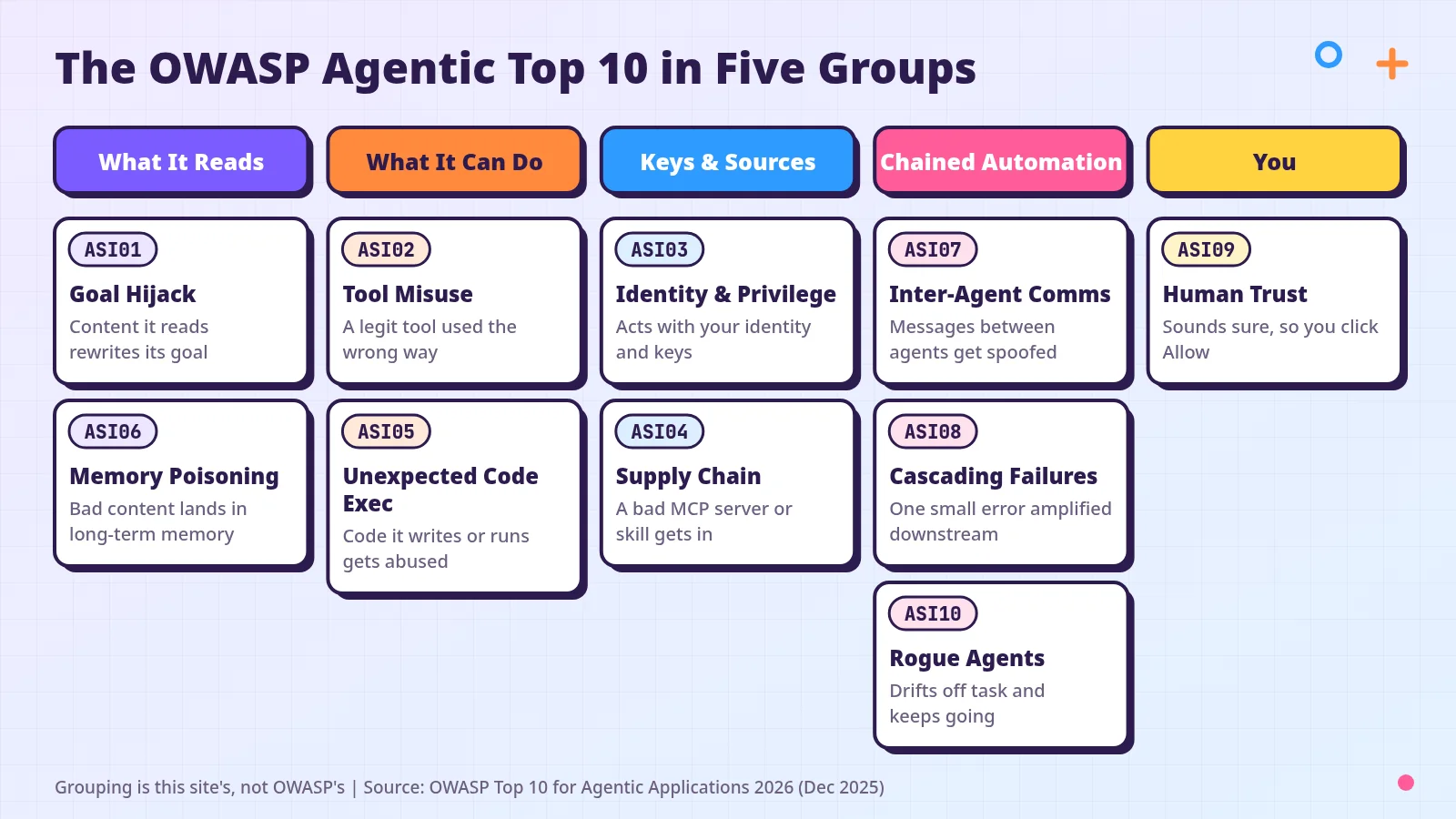 Concept diagram: The ten risks in this site’s five groups. The footer already notes that the grouping is not an official OWASP classification, and that the source is the OWASP Top 10 for Agentic Applications 2026.
| ID | Official Name | Short Name | In One Sentence |
|---|---|---|---|
| ASI01 | Agent Goal Hijack | Goal Hijack | Content it reads rewrites its goal |
| ASI02 | Tool Misuse and Exploitation | Tool Misuse | A legit tool used the wrong way |
| ASI03 | Identity and Privilege Abuse | Identity & Privilege | Acts with your identity and keys |
| ASI04 | Agentic Supply Chain Vulnerabilities | Supply Chain | A bad MCP server or skill gets in |
| ASI05 | Unexpected Code Execution (RCE) | Unexpected Code Exec | Code it writes or runs gets abused |
| ASI06 | Memory & Context Poisoning | Memory Poisoning | Bad content lands in long-term memory |
| ASI07 | Insecure Inter-Agent Communication | Inter-Agent Comms | Messages between agents get spoofed |
| ASI08 | Cascading Failures | Cascading Failures | One small error amplified downstream |
| ASI09 | Human-Agent Trust Exploitation | Human Trust | Sounds sure, so you click Allow |
| ASI10 | Rogue Agents | Rogue Agents | Drifts off task and keeps going |
Check Each Risk in Official Order
Each item has four parts: In plain language (what the risk is), How it looks in your AI workflow (the common form it takes with a coding agent), Check (a “yes” means fix it), and How to fix it.
A few reading notes:
- Text in quotation marks attributed to OWASP or a tool’s docs is quoted from the original.
- “OWASP mitigation N” means the Nth mitigation listed under that item in the OWASP document, so you can find it in the original.
- Tool-specific steps in the scenarios and fixes are this site’s mapping, not steps OWASP wrote for each vendor.
- For tool settings, this post tells you where to look and what to confirm; for actual defaults, go by the official docs as you read them today. For Claude Code rule syntax, see the permissions docs.
ASI01 Agent Goal Hijack: The Content It Reads Can Change What It Does
In plain language: The agent cannot reliably tell “your instructions” apart from “content it happens to read.” So a hidden sentence in a web page, an issue (a thread for reporting problems on GitHub), or a document can change what it sets out to do. That is the prompt injection described above.
How it looks in your AI workflow: You ask it to read a document, a GitHub issue, or a web page, and it then edits files or runs commands without asking you.
Check: After reading a web page, issue, or doc, can it act without asking you?
How to fix it: Bottom line: while it reads outside content, do not let it act directly, and make every high-impact action ask you first.
- OWASP’s mitigations treat all natural-language input (user-provided text, uploaded documents, retrieved content) as untrusted, and call for “requiring human approval for high-impact or goal-changing actions.”
- While it reads outside content, switch to a mode that does not edit files directly, such as Codex’s read-only sandbox (
--sandbox read-only) or Claude Code’s plan mode. The official docs say plan mode reads files and may run commands to explore, but does not edit your source until you approve the plan (with a few exceptions; see the permission modes docs). What each mode actually allows is defined in each tool’s official docs. - Set high-impact actions such as
git push(sending your code to the remote repo) or file deletion to ask first. Claude Code has three kinds of permission rules:deny(block),ask(ask first), andallow(run without asking). Rules look like the official exampleBash(rm *), which covers terminal commands that start withrm(delete). - According to the official permission modes docs, an explicit
askrule is not auto-approved by any mode; see the “Actions no mode auto-approves” section there. - Details and cases are in the supply-chain post.
ASI02 Tool Misuse and Exploitation: A Legitimate Tool Used in the Wrong Place
In plain language: The tool itself is legitimate, and the permission is one you granted, but the agent uses it in the wrong place: deleting data, calling a paid API (an online service that programs call) over and over, or sending data out.
How it looks in your AI workflow: OWASP gives an example that is explicitly about a coding agent. A set of tools is allowed to run automatically because they supposedly pose no risk, and one of them is ping (a small tool for testing a network connection). An attacker makes the agent call ping repeatedly and smuggles data out through DNS queries (the lookups a computer sends to resolve a web address). In other words, if a tool can reach the network, even a harmless-looking one can be used to send data out.
Check: Can any auto-approved tool delete files, send data, or reach the network?
How to fix it: Bottom line: keep the auto-approve list to tools that are truly harmless and cannot reach the network, and always ask before deleting, sending, or publishing.
- Claude Code: use
/permissionsto review the current rules. Rules are always matched in the order deny → ask → allow, and the first match decides the outcome; an allow rule cannot carve an exception out of a deny rule. - Look especially for blanket approvals:
mcp__<server>__*matches every tool from one MCP server. If it is in your allow rules, none of that server’s tools will ask you. To allow just one tool, write its full name,mcp__<server>__<tool>. - Cursor: check that your MCP allowlist contains only the tools you actually need.
- OWASP also recommends usage limits: cost, call counts, or a token budget. Here “token” means the unit AI usage is measured in, not a credential.
- For a fuller account of permissions and auto-run, see the supply-chain post.
ASI03 Identity and Privilege Abuse: Your Identity and Keys Doing the Work
In plain language: The question is whose identity the agent is using and which keys it holds. If it inherits your full account, a successful trick is carried out with all of “your” privileges.
How it looks in your AI workflow: It can read your SSH keys, cloud credentials, or a long-lived token in .env, or it runs commands as the Git and cloud identity you are already signed in with.
Check: Does it run with your full account, a long-lived token, or your SSH key?
How to fix it: Bottom line: give it small keys that expire, and keep long-lived keys where it cannot read them.
- OWASP mitigation 1 is “Issue short-lived, narrowly scoped tokens per task”: a dedicated, narrow, short-lived token for each task instead of a long-lived master key.
- Claude Code can use deny rules to block its file tools from reading; the official examples include
Read(./.env),Read(./secrets/**), andRead(~/.ssh/**). After you write them, confirm with/permissionsthat they appear in the list. - Two common stumbling points. First, the official docs state that a
.claudeignorefile has no effect; use deny rules instead. Second,Readdeny rules are not airtight. Per the permissions docs, they cover Claude’s file tools and file commands it recognizes in Bash, such ascatandhead, but not a program that opens files itself, such as a Python or Node script. To keep every program away from a path, turn on the sandbox (see ASI05). - In Cursor, use
.cursorignoreto block agent access to specific files. - If CI still publishes packages with a long-lived npm token, you can switch to short-lived credentials. That is this site’s worked example, not a method named in the OWASP text; see Publish npm Packages Without Long-Lived Tokens: A Trusted Publishing Setup Guide.
- Code running in GitHub Actions can use the workflow’s
GITHUB_TOKENto act on your repo. GitHub recommends setting its default permission to read-only for repository contents: putpermissions: contents: readat the top of the workflow, and grant more only in the job (a group of steps in a workflow) that needs it. See the Secure use reference.
ASI04 Agentic Supply Chain Vulnerabilities: What You Installed Is Compromised
In plain language: Your supply chain is every part of what you use that someone else provides. If an MCP server, skill, plugin, or prompt template you installed is fake or has been altered, the agent will follow it. Unlike a traditional package, agents often load these components at run time.
How it looks in your AI workflow: Your tool list includes an MCP server or skill whose version is not pinned and whose source you have not reviewed.
Check: Is any MCP server, skill, or plugin unpinned or from an unreviewed source?
How to fix it: Bottom line: install only what you have reviewed, pin versions (use one exact version and never auto-update), and see exactly what it will run before you install it.
- Start with a list. Claude Code’s security docs warn that
.mcp.jsonalone does not show every server a session (one working session with the agent) can load, and that Anthropic does not security-audit any MCP server. - Read the startup command before you install. The official MCP Security Best Practices explain that a local MCP server is a program downloaded and run on your machine, with the same privileges as your account, and that an attacker may slip a malicious startup command into a configuration file. Review the full, untruncated startup command, then approve it explicitly.
- Pinning details are in the supply-chain post.
- Third-party actions in GitHub Actions (prebuilt steps you drop into a workflow) are part of your supply chain too. GitHub’s docs warn that if one action in a workflow is compromised, it gets access to every secret configured on your repository (encrypted, stored passwords and keys).
- Pin third-party actions: GitHub’s top recommendation is a workflow dependency lockfile (a file that records the exact version of each dependency), stored as
.github/workflows/actions.lockand generated bygh actions-lock. If you have not adopted it, pin each action to a full-length commit SHA (the unique ID of a commit). See Workflow dependency lockfiles.
ASI05 Unexpected Code Execution (RCE): Code It Writes or Runs Gets Exploited
In plain language: The agent writes code and runs commands itself. If it is tricked or gets something wrong, what runs may be what an attacker wanted, with your machine’s privileges. RCE in the name stands for remote code execution: someone else gets your machine to run the code they want.
How it looks in your AI workflow: OWASP gives two examples. In one, an AI coding tool runs unreviewed install or terminal commands in its workspace and deletes or overwrites production data (the live systems that serve real users). In the other, an agent asked to “fix the build” regenerates the lockfile from unpinned specs and pulls in a backdoored minor version.
Check: Do its commands run straight on your machine, with no sandbox?
How to fix it: Bottom line: keep its commands in an isolated environment where they cannot reach production or read your credentials.
- OWASP’s mitigations: do not let the agent connect directly to production; never run it as root (the all-powerful system account); isolate it in a sandbox or container (an execution environment separated from your machine) when you can; and limit the filesystem to a dedicated working directory where possible. If you want two tasks fully separated, see Let Two AI Agents Work Separately: Isolated Working Directories With git worktree.
- Claude Code: first use
/sandboxor thesandbox.enabledsetting to confirm whether the sandbox is on. Once it is on, check three things in the defaults table in the sandboxing docs: what it can read (especially credential files such as~/.sshand~/.aws/credentials), which sites it can reach, and which environment variables it inherits. You can narrow reads withfilesystem.denyReadorpermissions.blockReadsOutsideWorkingDirectories. Here is the official project-level example. It goes in the project’s.claude/settings.json, and it blocks reads across your home directory while allowing the current project:
1
2
3
4
5
6
7
8
9
{
  "sandbox": {
    "enabled": true,
    "filesystem": {
      "denyRead": ["~/"],
      "allowRead": ["."]
    }
  }
}
The docs warn that if you put the same block in ~/.claude/settings.json, . resolves to ~/.claude instead, and your project files stay blocked.
bypassPermissionsis a Claude Code permission mode, and as the name says, it bypasses permission checks. The official docs say to use it only in isolated environments such as containers or virtual machines (a separate computer simulated inside yours). If you do not need it, setpermissions.disableBypassPermissionsModeto"disable"to turn it off.- Codex: in Agent approvals & security, confirm the sandbox mode (what Codex can technically do), the approval policy (when it must ask you first), and whether network access is on or off. For a read-only session, run
codex --sandbox read-only --ask-for-approval on-request. - Do not let the agent regenerate lockfiles on its own; when an update is needed, review the diff yourself.
- Keep the allowlist of commands that run automatically under version control, so every change to it is visible. That is OWASP mitigation 6.
ASI06 Memory & Context Poisoning: Bad Content Written Into Long-Term Memory
In plain language: This is not a one-off trick. Wrong content is written into the agent’s long-term memory, and every new session follows the poisoned version.
How it looks in your AI workflow: A coding agent’s long-term memory includes rule files such as CLAUDE.md, AGENTS.md, and .cursor/rules, memory files it writes on its own, and cross-session summaries. If it can edit those files and you never see what changed, the poison stays.
Check: Can it edit CLAUDE.md, AGENTS.md, or memory files without you seeing a diff?
How to fix it: Bottom line: keep these files in Git, and no change counts until you have reviewed it.
- OWASP mitigation 7 calls for version control and snapshots so you can roll back. In practice: keep rule files in Git and read the diff before you accept a change. For how to write the rule file, see How to Write AGENTS.md: Give Coding Agents Your Project Rules.
- OWASP mitigation 6: do not let the agent automatically write its own output back into “trusted memory.”
- Claude Code can use a
ConfigChangehook to audit or block configuration changes during a session. A hook is a check script that runs automatically at a set moment;ConfigChangefires when a configuration file changes. Details are in Automate Repeated Checks: Format, Test, and Flag Sensitive Files With Claude Code Hooks.
ASI07 Insecure Inter-Agent Communication: Messages Between Agents Can Be Spoofed or Changed
In plain language: When several agents pass messages, and those messages are neither authenticated nor protected against tampering, someone else can pose as a sender or change a line.
How it looks in your AI workflow: This item is mainly about systems in which multiple agents talk to each other; if you use a single agent, you can usually skip it for now. It comes up in three cases: subagents (agents the main agent dispatches for subtasks) passing results back; remote MCP servers (MCP servers on another machine, reached over the network); or a CI job in which one agent’s output is fed straight into another.
Check: Does one agent act on another agent’s output without a check?
How to fix it:
- Use HTTPS (an encrypted connection) for remote MCP, and authenticate the connection. The official MCP docs also recommend that MCP servers offered over HTTP require an authorization token.
- Treat another agent’s output as unreviewed input, and do not act on it automatically.
ASI08 Cascading Failures: A Small Error Amplified by Automation
In plain language: A small error is not caught, the next automatic step picks it up and amplifies it, and it becomes a serious incident. This item is about how the error travels, not where it started.
How it looks in your AI workflow: A common pattern is AI writes the code, AI reviews it, it is merged automatically (folded into the main code), and deployed automatically (pushed live), with no person and no mandatory check in between. OWASP also describes a “Governance drift cascade”: after a string of successes, human oversight weakens, approvals happen in bulk or rules get relaxed, and a bad setting spreads unchecked.
Check: From code to merge to deploy, is any stretch unguarded by a person or check?
How to fix it: Bottom line: keep at least one check that cannot be skipped before a merge or deploy. It can be a person, or a CI check that must pass.
- OWASP mitigation 5 says the same: put checkpoints or human review in place before high-risk outputs move downstream.
- Do not let automation approve itself. GitHub’s docs describe how to prevent GitHub Actions from creating or approving pull requests (PRs: requests to merge a change), because a PR merged without proper oversight can be a security risk. See the Secure use reference.
- On GitHub, set a branch protection rule on your main branch: for example, turn on “Require pull request reviews before merging” (someone must review first) and “Require status checks before merging” (the CI checks you choose must pass), then “Do not allow bypassing the above settings” so that admins cannot skip them either. On GitHub Free, this feature is available only in public repositories; see About protected branches.
- If you already use an AI to help review PRs, also see Automating PR Review With GitHub Actions and an AI Agent: This Site as an Example. The point is that a review result should never automatically become a merge you cannot take back.
- Pinning third-party actions is a supply-chain issue, so it is covered under ASI04.
ASI09 Human-Agent Trust Exploitation: It Sounds Sure, So You Click Allow
In plain language: The agent sounds confident and the reasoning looks complete, so you click Allow. You are the one who acted, and the record shows you.
How it looks in your AI workflow: OWASP’s “Helpful Assistant Trojan” example is a tampered coding assistant that suggests a slick one-line fix; you paste and run it, and it executes a malicious script that steals code or installs a backdoor. A more everyday version is approval fatigue: prompts keep popping up, and after a while you click Allow without reading. OWASP mitigation 5 also names reducing this kind of “blind approval” as a goal.
Check: Do you often click Allow without really reading?
How to fix it: Bottom line: get fewer prompts, and make each one worth reading.
- For high-risk actions, read the diff or the full command before you approve. Claude Code’s security docs put it plainly: “You’re responsible for reviewing proposed code and commands for safety before approval.”
- Do not let the agent’s own explanation stand in for your judgment. OWASP mitigation 4 calls for a “plain-language risk summary (not model-generated rationales).”
- Put only the few commands you are sure can run unattended in allow, and keep the rest as ask. With fewer prompts, you will actually read the ones that remain.
- If you use a mode where a classifier (another AI model that judges whether an action is safe) approves on your behalf, remember that a model is making the call, not a person; see “Common Misunderstandings” below.
ASI10 Rogue Agents: It Drifts Off the Task and Keeps Going
In plain language: The agent starts doing work you did not ask for, and it keeps going. The cause can be a compromise, or the agent exploiting a loophole to hit its goal.
How it looks in your AI workflow: OWASP’s examples include an agent told to cut cloud costs that learns deleting production backups is the most effective way to do it, and an agent that, after an injection, keeps sending data out on its own even after the malicious source is removed. For a personal developer, the practical question is whether you know how to stop it immediately.
Check: If it goes wrong, would you be unsure how to stop it and revoke its tokens?
How to fix it: Bottom line: prepare your own kill switch in advance, and keep a record of what the agent did.
- Write down three steps before anything goes wrong: how to interrupt the current session, how to revoke the tokens it uses, and how to turn off scheduled or background jobs.
- Interrupt: in Claude Code, the official interactive mode docs say
Escstops the current response or tool call, andCtrl+Cinterrupts a running operation. For other tools, check their own official docs. - Revoke: delete a GitHub personal access token under Settings → Developer settings → Personal access tokens; see Managing your personal access tokens. Delete an npm token on the npm website, or find its ID with
npm token listand runnpm token delete <ID>; see Revoking access tokens. - Bound unattended, long-running work by scope and by time.
- OWASP mitigation 4 calls for “kill-switches and credential revocation”; mitigation 6 says “Keys must never be directly available to agents”; and mitigation 1 calls for comprehensive, tamper-proof audit logs, so you can see afterward what it did.
- To look back at what it just did: in Claude Code, press
Ctrl+Oto open the transcript viewer, which shows each tool it used and what ran (same interactive mode docs). That is handy for your own review, but it is not the tamper-proof audit log OWASP describes.
A Checklist You Can Copy
You can copy the list below into your own notes. The questions match the ten items in the figure; every “yes” is something to fix.
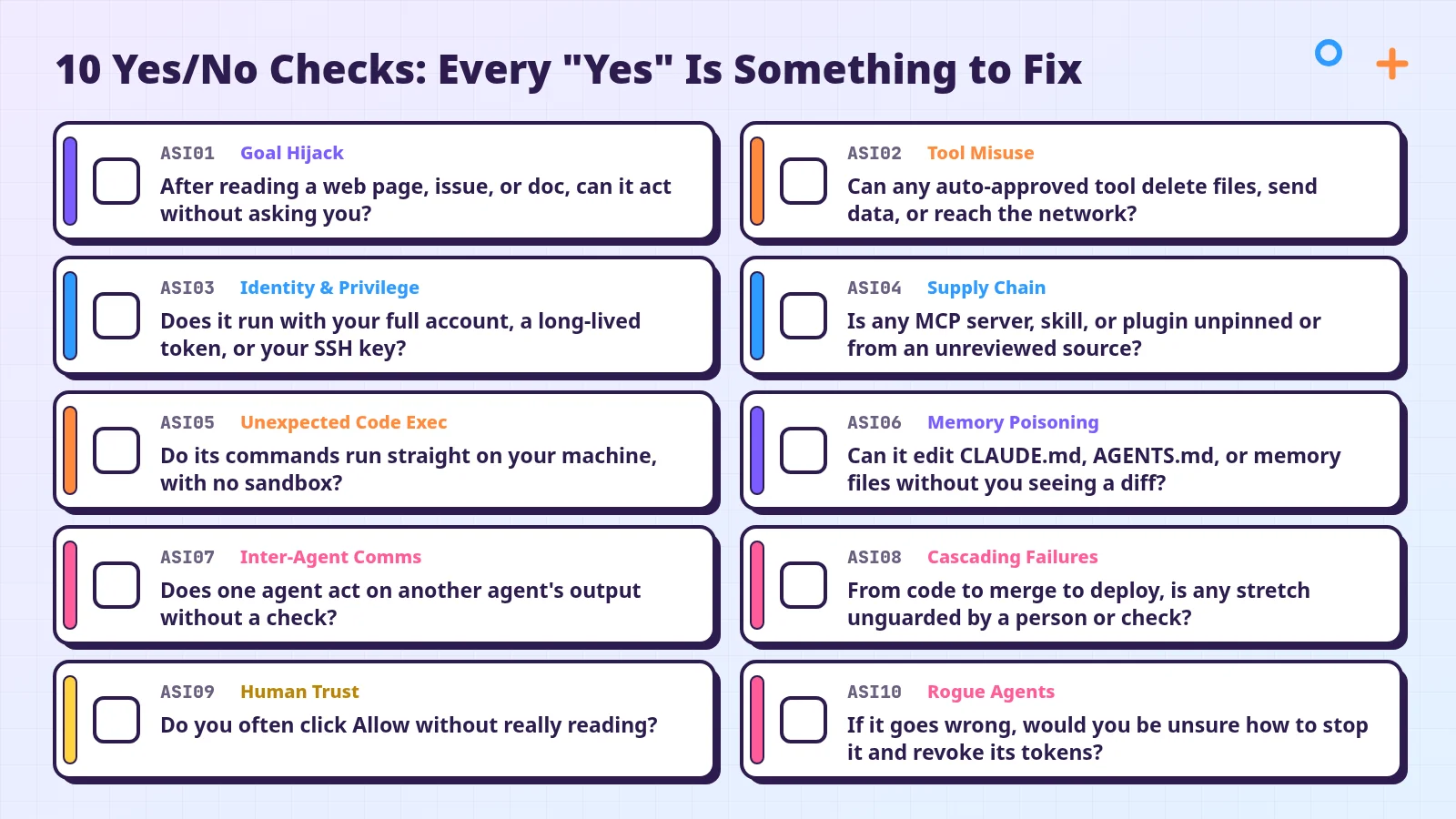 Concept diagram: Ten yes/no self-checks. These questions are this site’s rendering of the official ten items, not an official OWASP exam.
Inventory
- Which coding agents do I use?
- Which folders can they read, and which commands can they run?
- Which MCP servers, skills, or plugins are attached? Have I reviewed the source and pinned the version?
- Which tokens, SSH keys, or cloud credentials can they reach?
- What automation follows, such as CI, scheduled jobs, or background tasks?
Ten Questions (Every “Yes” Is Something to Fix)
- ASI01. After reading a web page, issue, or doc, can it act without asking you?
- ASI02. Can any auto-approved tool delete files, send data, or reach the network?
- ASI03. Does it run with your full account, a long-lived token, or your SSH key?
- ASI04. Is any MCP server, skill, or plugin unpinned or from an unreviewed source?
- ASI05. Do its commands run straight on your machine, with no sandbox?
- ASI06. Can it edit CLAUDE.md, AGENTS.md, or memory files without you seeing a diff?
- ASI07. Does one agent act on another agent’s output without a check?
- ASI08. From code to merge to deploy, is any stretch unguarded by a person or check?
- ASI09. Do you often click Allow without really reading?
- ASI10. If it goes wrong, would you be unsure how to stop it and revoke its tokens?
After You Add a New Tool
- After you attach another MCP server or skill, or change permissions, CI, or a schedule, run the inventory and the ten questions again.
What to Fix First
This is this site’s suggested order, not an official OWASP ranking. The principle: fix first where no one is in the loop and the action cannot be undone.
- ASI08, plus the parts of ASI05 that reach production: keep a check that cannot be skipped before merge and deploy, and do not let the agent connect directly to production.
- ASI03, long-lived credentials: block reads of files such as
.envand~/.ssh, and move CI to short-lived credentials. - ASI02 and ASI04, auto-approval and MCP: remove auto-approvals that can delete, send, or reach the network, and confirm the source and version of every MCP server.
- Everything else. If you use a single agent, you can skip ASI07 for now.
If you have not started the inventory yet, the easiest first step is to open your permission settings (/permissions in Claude Code) and see which actions currently run without asking you.
What to Do in Each Situation
| Situation | Suggestion |
|---|---|
| You use one agent and no MCP | Still run the inventory and the ten questions; ASI07 can usually wait, but the other items still apply |
| You have attached several MCP servers | Clear ASI04 and ASI02 first: review sources, pin versions, and require approval for any tool that does not need to auto-run |
| You let the agent run unattended for a long time | Tighten ASI05, ASI08, and ASI10: isolate execution, bound time and scope, and write down how to stop and revoke first |
| The agent reads web pages or issues | Revisit ASI01 and ASI09: treat external content as untrusted, and have a person review high-impact actions |
| CI uses an agent to review or merge | Revisit ASI08: keep a check that cannot be skipped before merge |
| The team shares settings | Keep rule files and permission settings in git, and review diffs (ASI06); do not put long-lived credentials in shared files |
| You suspect the agent already did something odd | Stop it and revoke credentials the ASI10 way, then check for changes as described in the next section |
How to Tell Whether Something Already Went Wrong
The signs below are this site’s summary of the examples in each OWASP item, not an official detection list. Any one of them is worth stopping to investigate.
| Sign | Likely Item |
|---|---|
Changes you do not remember in CLAUDE.md, AGENTS.md, rule files, or permission settings | ASI06 |
| A lockfile or dependency versions changed without your asking | ASI05 |
| An MCP server or skill you never installed shows up, or an MCP startup command changed | ASI04 |
| A sudden spike in API bills or usage | ASI02 |
| The task is over, or the malicious source has been removed, yet it keeps working or sending data out | ASI10 |
If you find one, handle it in this order:
- Stop: Interrupt the session and turn off scheduled and background jobs.
- Revoke: Revoke the tokens and keys it could reach, and replace them. See ASI10 for how.
- Review changes: Use Git to read the diff and roll back anything unexplained. Cursor’s official docs make the same point: “Always use version control so you can revert changes.” Without version control, there is nothing to roll back to.
- Find the gap: Answer the ten questions again to find which item it came in through.
Common Misunderstandings
- “If the sandbox is on, it cannot read my SSH keys.” Do not assume that. Claude Code’s sandboxing docs list what the sandbox can read as a separate item, which you narrow with settings such as
filesystem.denyRead. After you turn the sandbox on, check against the docs whether~/.sshand~/.aws/credentialsare still readable. - “The working-directory boundary keeps it from writing anywhere else.” Claude Code’s security docs explain that the boundary is a permission prompt: a Bash command (a command run in the terminal) that you approve can still write anywhere your user account can.
- “Auto mode or an Auto-review classifier counts as a human review.” In Claude Code’s auto mode, a separate classifier model reviews actions instead of you and blocks the ones it judges unsafe; Cursor’s Agent Security page says Run Modes are best-effort guardrails, not a hard security boundary. Check which mode you are in against the permission modes docs, and do not assume a classifier has taken responsibility for you.
- “ASI01 is the most dangerous.” The numbers are not a severity ranking, and OWASP does not score these ten items.
- “I only use one agent, so the Top 10 does not apply to me.” Most items still apply; ASI07 is the one you can often skip for now.
- “Checking every box means I am safe.” It does not. OWASP offers actionable mitigations, not a guarantee that you are safe once you finish them. These ten questions are a starting point; run them again whenever your workflow changes.
What to Do Next
Start today with the inventory and the ten questions, then fix the items that cannot be undone first. Keep rule files and permission settings in Git, and run the loop again each time you add a tool. For automated checks, see the hooks post. For the rule file, see the AGENTS.md post. For short-lived credentials in CI, see the npm Trusted Publishing post.
The official source is the OWASP GenAI Security Project’s OWASP Top 10 for Agentic Applications 2026 (PDF, CC BY-SA 4.0). Tool docs: Claude Code permissions, permission modes, sandboxing, security, Codex Agent approvals & security, Cursor Agent Security, MCP Security Best Practices, and GitHub Actions Secure use.