Trusted Publishing Is Not Enough: Lock Down Your npm Release Pipeline
The malicious tensorlake release carried valid provenance. Add review gates to your npm release with GitHub environments, rulesets, and staged publishing.
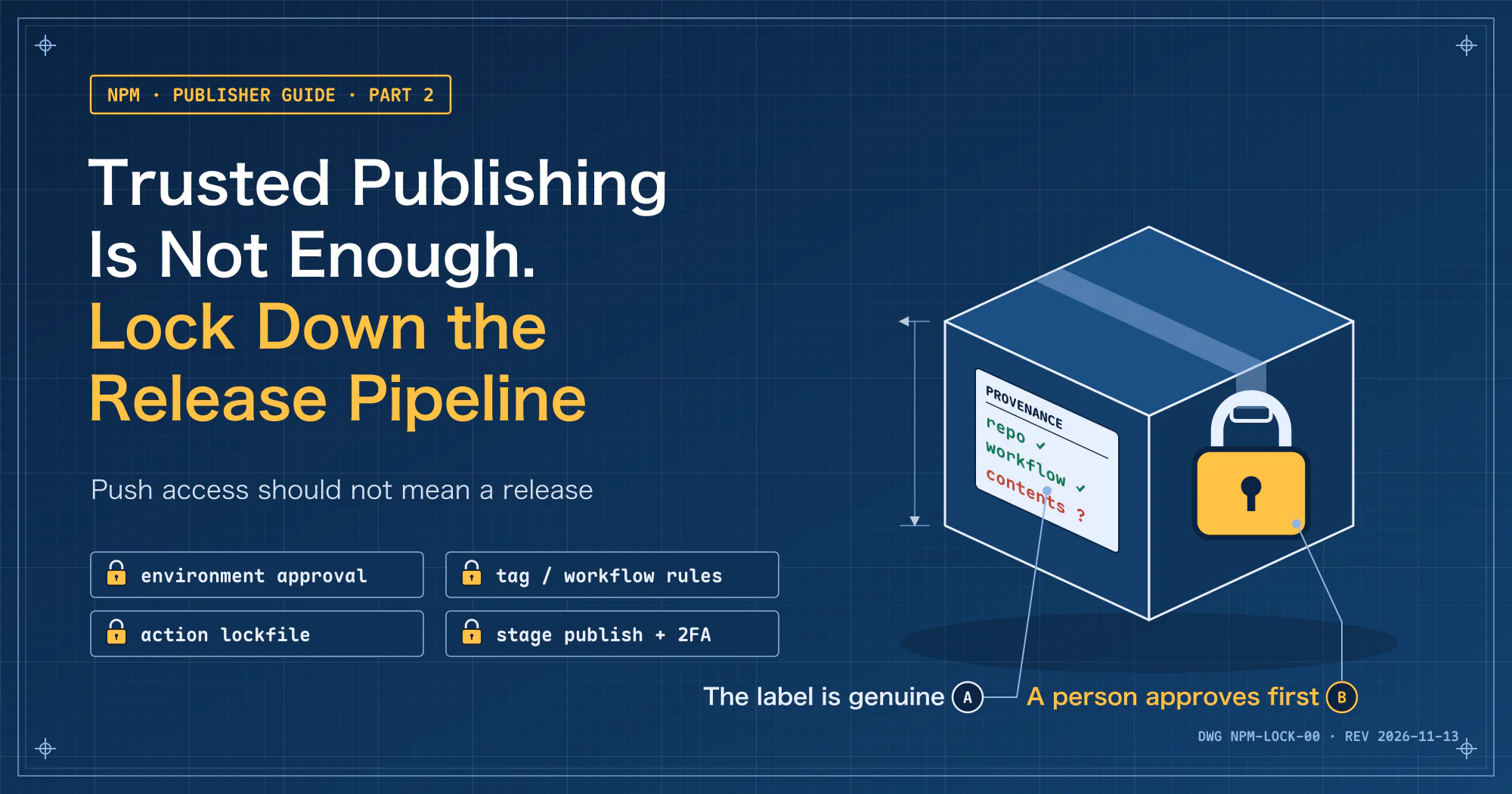
Trusted publishing removes the long-lived publishing token from CI, but it does not review your code. My concern is that an attacker who can change the contents used for a release and trigger an authorized workflow may be able to use your pipeline to publish malware with genuine provenance.
In my view, reducing that risk takes more than changing authentication. You also need to check four things:
- Who can merge code.
- Who can create release tags.
- Which job can obtain publishing permissions.
- Whether anyone reviews the package before it goes public.
This post connects those checkpoints, ending with a CI workflow that can only stage a version for a maintainer to approve on npm. The steps come from the official docs.
This follows my earlier post, npm Trusted Publishing With GitHub Actions: A Setup Guide. I covered the basic OIDC and id-token: write setup there, so I won’t repeat it here. Start there if you have not configured trusted publishing yet.
A few terms first:
- Provenance: a record connecting a package version to its source repository, build workflow, and related commit. It is not a code safety certification.
- Tag: a version marker pointing to a commit, such as
v1.2.3. The previous post’s workflow publishes onv*tags. - GitHub environment: deployment rules for a job, such as required reviewers and allowed branches or tags. The job must pass those rules before it starts.
- Ruleset: repository rules governing how branches and tags can be created, updated, or deleted.
- Staged publishing: submitting a package to a staging area first; the version becomes public only after a maintainer reviews it and approves with 2FA.
- 2FA (two-factor authentication): requiring a second authentication factor for sign-in or a sensitive operation. It is not limited to entering a verification code.
Based on GitHub’s environment docs and ruleset docs, and npm’s Trusted publishing and Staged publishing docs, as of 2026-11-13. Check the relevant official docs for plans, interfaces, and version requirements.
A Real Case: Genuine Provenance, Malicious Contents
On October 8, 2026, the npm package tensorlake received a malicious release, 0.5.144. According to tensorlake’s official security advisory:
- An attacker used a compromised maintainer account to push malicious code to the repository.
- The version went through the project’s own release workflow and carried valid npm provenance.
- At installation, the malware stole GitHub, npm, cloud, and other credentials, then used those permissions to spread to other packages and repositories.
- The version was on npm for about 1 hour 40 minutes, from 01:12 to 02:54 UTC that day.
A legitimate build source can produce malicious contents. That is what I take from this case, and it shows why checking which workflow published a package is not enough.
The advisory does not describe every authentication or protection setting in place. So I would not use provenance alone to conclude that trusted publishing was used, and I cannot tell which protection was bypassed.
What Provenance Does and Does Not Prove
I think of provenance as a shipping document: it traces a shipment back to its factory and production line, but it tells you nothing about whether any part was tampered with.
The npm provenance docs make the same point: provenance does not guarantee that a package is free of malicious code. It makes the source easier to verify; the contents still need review.
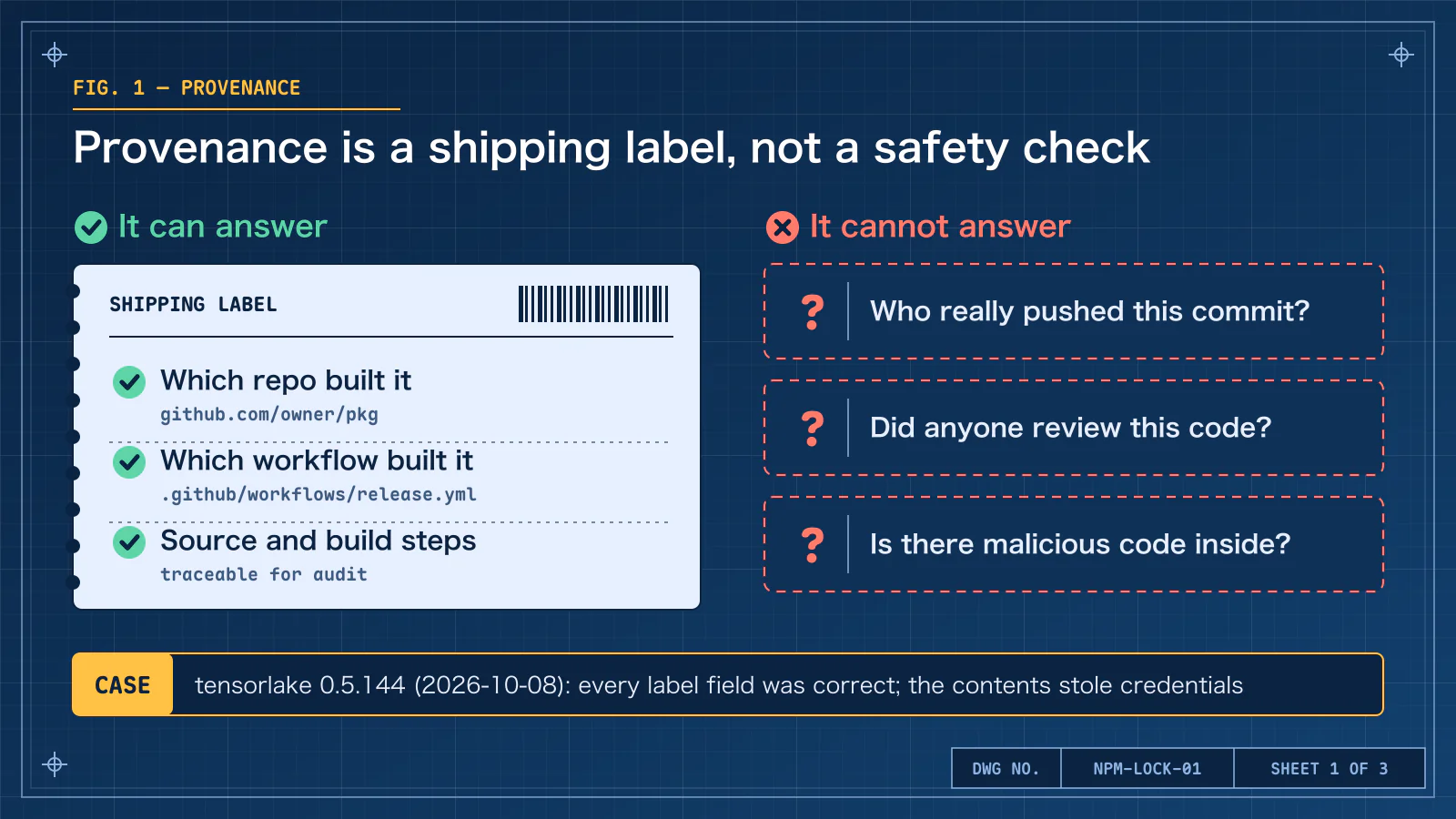 A genuine shipping document does not make the contents safe. The tensorlake advisory confirms that the malicious version went through the project’s own release workflow and carried valid provenance.
Four Checkpoints in the Release Pipeline
For the tag-based release flow used here, I split the path to a public version into these four stages:
| Stage | What to check | Controls |
|---|---|---|
| Code and workflows enter the release source | Were the changes reviewed? | Branch ruleset and CODEOWNERS |
| A release tag is created | Who can create it, and which commit does it point to? | Tag rulesets and a source-commit check |
| The publishing job runs | Was it approved, and are its permissions appropriate? | Environment and job permissions |
| The npm version becomes public | Does the staged package match the intended release? | Stage-only publisher and human 2FA approval |
I don’t set these up in the table’s order; I start with human approval for the publishing job. Outside the table, I also pin third-party action versions (step 3), so the executed code cannot change while your workflow stays the same.
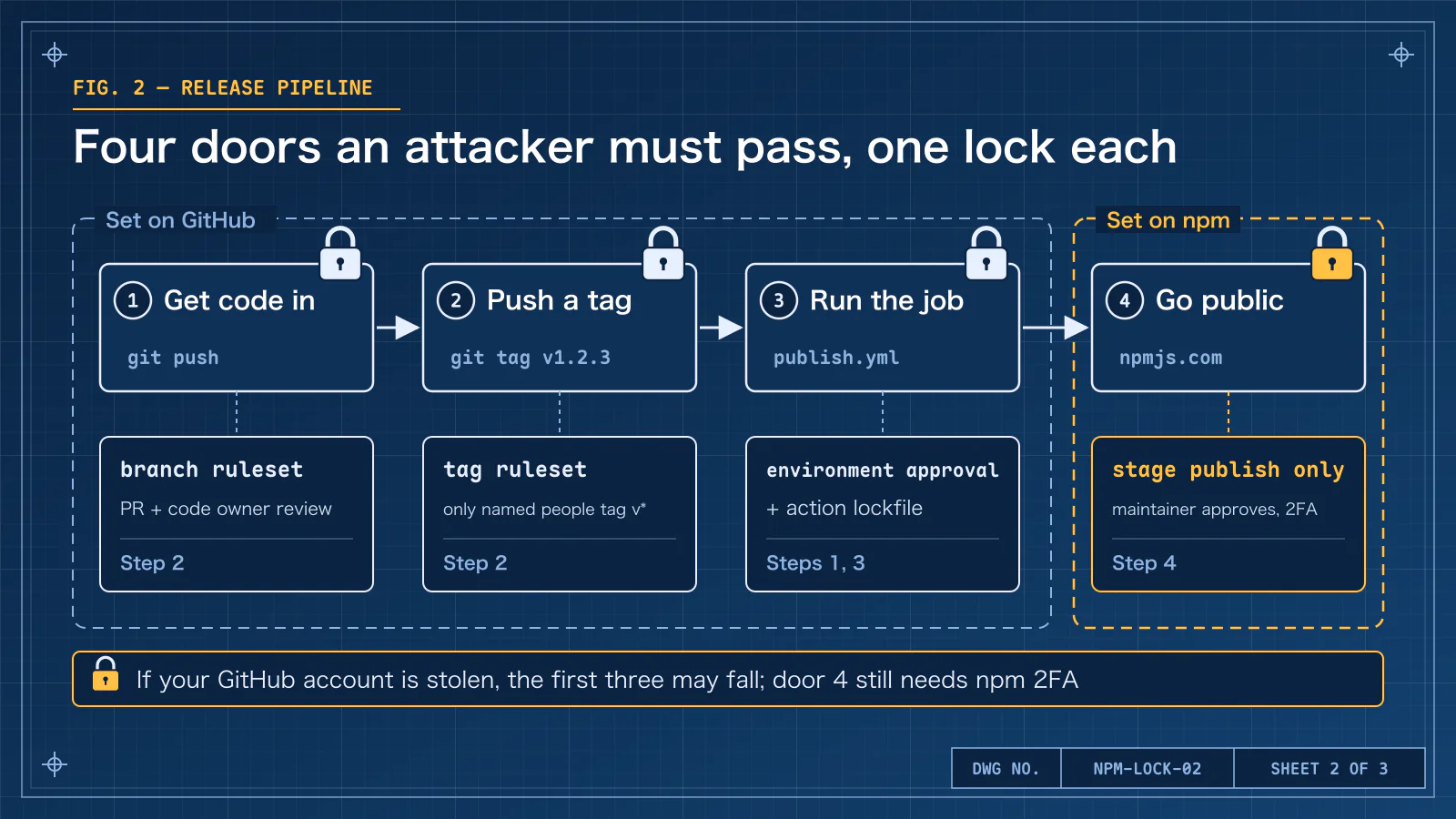 Consider these controls together. GitHub and npm are separate authorization boundaries, so protect the accounts, sessions, and authentication devices on each side.
Step 1: Require Environment Approval Before Publishing
Start with a human checkpoint for the publishing job. The GitHub docs limit required reviewers on Free, Pro, and Team plans to public repositories. Check plan support for a private repository first.
Configuring it requires repository admin access:
- Open Settings → Environments → New environment and create
npm-publish. - Add people or teams under Required reviewers, up to six. Approval from any one of them releases the job; not everyone has to agree.
- Enable Prevent self-review when another reviewer is available, so the person triggering the release cannot approve it. With only one maintainer, this can block releases.
- Disable Allow administrators to bypass configured protection rules, so administrators cannot skip approval on a pending deployment.
- Under Deployment branches and tags, choose Selected branches and tags and add a Tag rule for
v*. - Save the protection settings.
Name the same environment in the publishing job:
1
2
3
4
5
jobs:
  publish:
    runs-on: ubuntu-latest
    environment: npm-publish
    # See the complete example below for the remaining settings
Set the same name on npmjs.com too. In the trusted publisher configuration, set Environment name to npm-publish. Adding only the workflow line and leaving the npm field empty drops the npm-side restriction.
npm provides this field for projects that use environment protection, and GitHub’s OIDC reference explains that tokens can carry environment information. But setting the field does not make arbitrary workflow changes safe, so next I’ll cover protecting the workflow itself.
Prepare the workflow and reviewers before changing the npm side. According to npm’s Multiple trusted publishers documentation, existing connections cannot be edited directly, so you delete and recreate them. The new connection must then complete its first successful publish within two days. If you still have the Single interface, follow that version of the docs.
Once triggered, the job waits for approval. On the workflow run page, the reviewer selects Review deployments, checks the tag, commit, and changes, then chooses Approve and deploy. The final package has not been built yet at this checkpoint, so inspect it in step 4.
Disabling administrator bypass does not prevent an administrator from editing or deleting the environment. An attacker with repository administration rights may still change the rules. For a solo maintainer, self-approval can prevent an accidental release, but cannot distinguish the maintainer from someone using the same compromised account.
Step 2: Protect the Release Source and Tags
2-1: Separate Tag Creation From Tag Changes
Go to Settings → Rules → Rulesets → New tag ruleset to create a ruleset. Target v* and set Enforcement status: Active. I recommend two rulesets:
| Ruleset | Enable | Bypass list |
|---|---|---|
release-tags-create | Restrict creations | Only the smallest group responsible for releases |
release-tags-immutable | Restrict updates and Restrict deletions | Empty, so release publishers cannot freely move or delete existing tags either |
Separate them because bypass exempts an actor from all three restrictions at once. The rules documentation explains that only actors with bypass permission get past these restrictions. Put all three in one ruleset and exempt the release team, and that team can create, rewrite, and delete tags, so the release tags are no longer immutable.
The bypass list is not an arbitrary username list. The ruleset creation docs list roles, teams, and GitHub Apps among the options.
An organization repository can use a dedicated release team, while a personal repository is limited to the roles its interface offers. Allowing the entire Write or Maintain role exempts everyone with that role.
Administrators may still change these rules, so I think administration rights and rule changes need oversight too.
2-2: Review Code as Well as Workflows
Protecting .github/ alone is insufficient. An attacker might also change:
- Package source.
- Publishing scripts in
package.json. - Files used during the build.
Here is a CODEOWNERS example I wrote. It covers all files, then gives the release team ownership of .github/:
1
2
* @your-org/package-reviewers
/.github/ @your-org/release-reviewers
Replace the example teams with real users or teams. In CODEOWNERS, later matching patterns override earlier ones, so release-reviewers alone own .github/ here; approval from both teams is not required.
The CODEOWNERS docs require owners to have repository write access. Teams also need the appropriate visibility and permissions.
Create an Active branch ruleset for the release source, main in this example:
- Enable Require a pull request before merging and require at least one approving review.
- Enable Require review from Code Owners, so changes need approval from the matching code owners.
- Enable Dismiss stale pull request approvals when new commits are pushed, so reviewed contents cannot simply be replaced.
- You can also enable Require approval of the most recent reviewable push, requiring someone other than the last pusher to approve the latest reviewable changes.
- Enable Block force pushes, and keep the bypass list as small as possible.
- Make essential tests required status checks.
CODEOWNERS does not block merging on its own. It needs a rule requiring code-owner review. A solo maintainer also does not gain independent review simply by listing their own account as the owner.
2-3: Verify That the Tag Points to Reviewed Code
v* matches a tag name. It does not prove that the commit has been merged into main. Environment tag rules also match the run’s ref; they do not check the source branch for you.
The release publisher and environment reviewer need to verify that the tagged commit comes from the reviewed release branch. I also added a step to the workflow below that checks whether the current commit is in origin/main’s history, catching tags accidentally created from other branches.
That check assumes that main really enforces review and that the workflow has not been tampered with. It does not replace tag permissions, workflow review, or the final npm checkpoint.
Step 3: Pin Actions and Protect the Lockfile
In uses: actions/checkout@v6, v6 is a movable tag. Pin a directly referenced action to a full commit SHA that you have verified and reviewed. I use this approach in the complete example below.
The announcement and the docs disagree on which plans support workflow lockfiles. GitHub’s October 28, 2026 GA announcement introduced them for plans including Free, Team, and Enterprise Cloud. However, the setup guide still listed availability as Enterprise Cloud when I checked.
Check actual support in your repository rather than assuming the plan name means the feature is enabled. For a supported repository, follow the docs:
1
2
gh extension install github/gh-actions-lock
gh actions-lock .github/workflows/publish.yml
Review and commit the generated workflow changes and .github/workflows/actions.lock together.
Onboarding one workflow does not cover the entire repository. This lockfile also does not pin these:
- A reusable workflow in another repository, which needs its source repository’s own lockfile.
- npm dependencies.
- Programs downloaded by scripts.
Dependabot updates matching lockfile entries for onboarded workflows, but those updates still need review. If available, use the Require lockfile policy to enforce adoption.
Protect the lockfile and policy themselves too. Otherwise someone can delete them and the pinning quietly disappears. Pinning also only preserves which code runs; it does not establish that the code is safe.
Step 4: Let CI Stage Versions and npm Approve Publication
This step separates submitting a package from making it public. The npm docs say that operations such as npm stage approve cannot use the CI OIDC token. The staged publishing docs require a maintainer’s 2FA approval before publication.
Do not give the same publishing pipeline npm account credentials, sessions, or authentication methods capable of approval. The OIDC token cannot approve, but that separation holds only if CI has no other npm credentials. Keeping GitHub and npm authorization separate means a compromise on one side does not automatically defeat the other checkpoint.
I plan the transition in this order:
- Confirm npm CLI 11.15.0 or later, Node.js 22.14.0 or later, and an npm account with publishing access and 2FA enabled to approve releases.
- Check every trusted publisher for the package on npmjs.com. Allow only
npm stage publishon the target connection and disablenpm publish. Leave unnecessarynpm dist-tagpermissions off too. - Change the workflow’s last step to
npm stage publish. If recreating a publisher is necessary, prepare the workflow first and account for the new connection’s validation deadline. - Once the new route works, finish the migration described in the previous post. Go to Settings → Publishing access and select Require two-factor authentication and disallow tokens. Then revoke unused publishing tokens.
Stage-only covers just one route. If any of these other routes remain, a version can still go public without staging:
flowchart LR
  A[Stage-only publisher] -->|staged, then 2FA approval| P[Version goes public]
  B[Direct-publish publisher] --> P
  T[Traditional publishing token] --> P
  M[Manual publish by account] --> P
Checking every publisher in item 2 is what closes the direct-publish publisher route. The Publishing access setting in item 4 restricts only traditional tokens. It neither disables OIDC publishers nor makes each publisher stage-only automatically.
The July 8, 2026 npm announcement schedules further restrictions on direct publishing with 2FA-bypass granular tokens around January 2027. That date is only an announcement, and I see no reason to wait for it before tightening permissions.
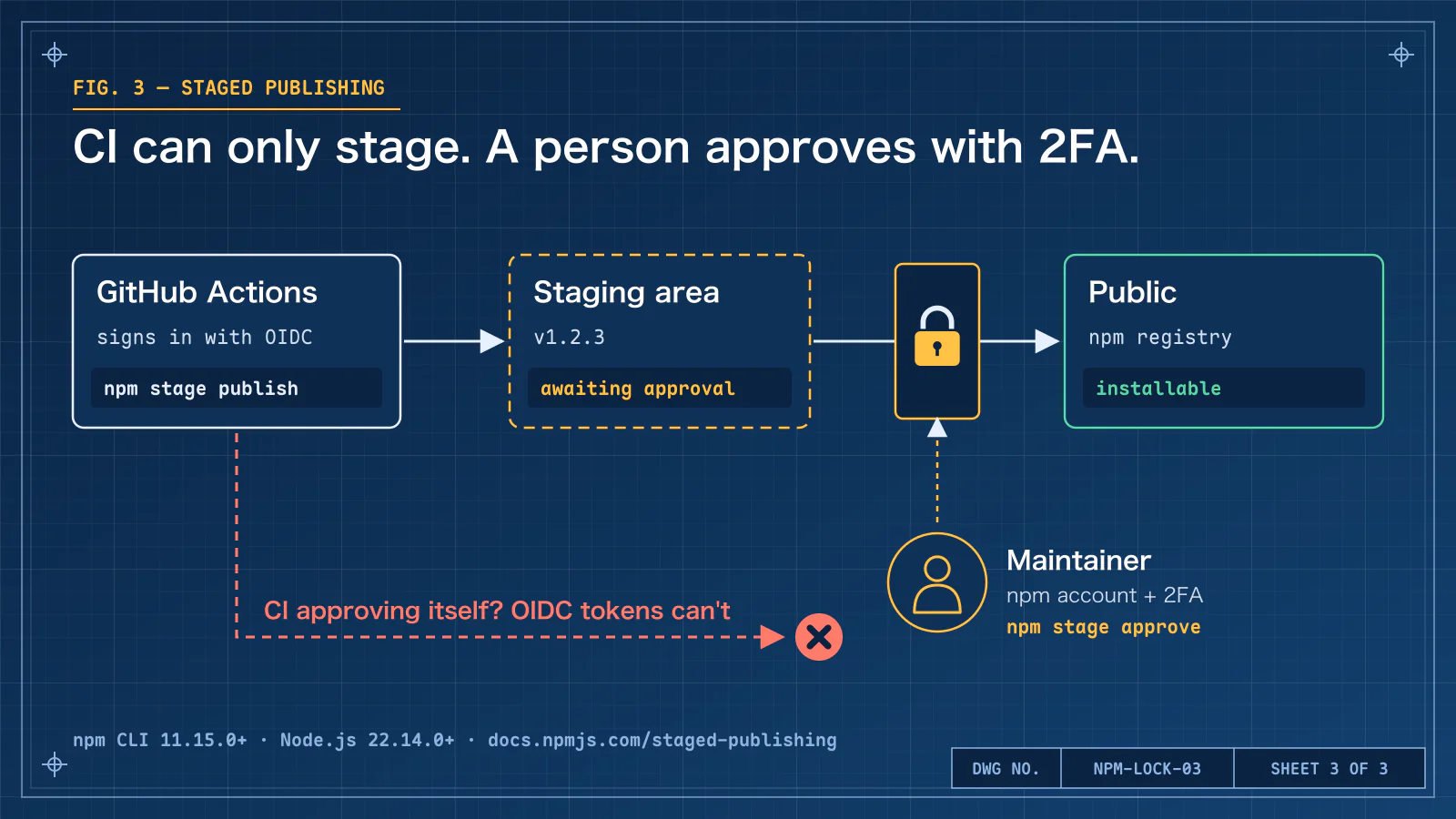 This division of permissions assumes a stage-only publisher. If direct-publish publishers or other publishing credentials remain, not every route necessarily goes through staging.
Example Workflow
I wrote this example with three assumptions:
- Releases come from
main. - The
npm-publishenvironment exists. - npm is configured for stage-only publishing.
The action SHAs are the commits behind the official v6 tags when I checked. Verify them upstream and review them for your project before adopting them, then use PRs for future updates:
1
2
3
4
5
6
7
8
9
10
11
12
13
14
15
16
17
18
19
20
21
22
23
24
25
26
27
28
29
30
31
32
33
34
35
name: Stage Package

on:
  push:
    tags:
      - 'v*'

permissions:
  contents: read

jobs:
  publish:
    runs-on: ubuntu-latest
    environment: npm-publish
    permissions:
      contents: read
      id-token: write
    steps:
      - uses: actions/checkout@d23441a48e516b6c34aea4fa41551a30e30af803 # v6
        with:
          fetch-depth: 0
          persist-credentials: false
      - name: Check release commit
        run: |
          git merge-base --is-ancestor HEAD refs/remotes/origin/main
      - uses: actions/setup-node@249970729cb0ef3589644e2896645e5dc5ba9c38 # v6
        with:
          node-version: '24'
          registry-url: 'https://registry.npmjs.org'
          package-manager-cache: false
      - run: npm --version
      - run: npm ci
      - run: npm run build --if-present
      - run: npm test
      - run: npm stage publish
As described in the checkout docs, fetch-depth: 0 retrieves full history and branches for the origin/main ancestry check. Change the branch name if yours is different.
Grant id-token: write only to the job that needs to publish, but every step in that job can use the permission. Installation, builds, and tests also execute code, so review publishing scripts and dependencies too.
With npm 12, prepare the necessary install-script approvals. Do not allow every script just to make a release succeed.
What to Review Before Approving
After the workflow finishes, open Staged Packages in your npmjs.com account settings, or use the CLI on your own trusted computer.
Replace the placeholder package name and stage ID below with real values, keeping the quotes:
1
2
3
4
5
npm stage list '@your-org/your-package'
npm stage view 'YOUR_STAGE_ID'
npm stage download 'YOUR_STAGE_ID'
# Approve only after review; this makes the version public
npm stage approve 'YOUR_STAGE_ID'
At minimum, I check:
- The package name, version, dist-tag, and submitter match the intended release.
- The workflow run and source commit correspond to reviewed changes.
- The actual downloaded tarball, especially compiled output, install scripts, and added files. A reviewed source PR does not establish that the generated files match. A SHASUM identifies contents but does not review them.
If anything is unclear, I leave it unapproved and, when appropriate, reject it with:
1
npm stage reject 'YOUR_STAGE_ID'
Do not execute a suspicious package on a computer holding production credentials to test it.
When staging a new package for the first time, npm creates a public 0.0.0-stage placeholder. The actual staged contents stay private until approval.
Batch approval is still rolling out. Even if a batch needs only one 2FA challenge, review each package in it.
Priorities for Different Maintenance Setups
| Situation | Recommendation |
|---|---|
| Solo maintainer | Start with stage-only publishing, an audit of other publishing routes, and npm account security; self-approval is not independent review |
| Two or more maintainers | Add independent PR review and Prevent self-review, with someone available to approve |
| Private repository without required reviewers | Use branch and tag controls your plan supports, and keep the npm content review |
| Frequent releases | Use automated tests, diff reports, and package inventories to support review; do not reduce approval to a button press |
| Multiple publishers already configured | Check each one’s direct-publish and dist-tag permissions, and remove unused connections |
Still publishing with NPM_TOKEN | Follow the previous post to migrate before removing the old route |
Common Problems and Limits
- The job keeps waiting: check whether it needs environment approval. Prevent self-review can leave a solo maintainer unable to approve.
- The environment name is wrong: GitHub may create an unprotected environment automatically. Check both GitHub and npm settings; a job starting is not proof of a successful configuration.
- The tag matches
v*but bypasses review onmain: a name check is not a source-commit check. Verify both. - Direct publishing still works after switching to staging: inspect Allowed actions for all publishers, plus tokens, accounts, and manual publishing rights. Changing one workflow line does not remove other routes.
- Administrators can still change the rules: bypassing a pending deployment and changing protection settings are different powers. Repository and npm administrators remain sensitive identities to protect.
- Does 2FA establish content safety? It authenticates the person acting; it does not review the package for them. Compromised npm accounts, sessions, or authentication devices can still defeat the last checkpoint.
- Runner limits: this post covers GitHub-hosted runners. npm does not currently support trusted publishing on self-hosted runners.
Approving a Commit Is Not Approving the Package
Approving a source commit and approving the resulting package are separate checks, and neither can be skipped. That is the point I most want to stress. In practice, I start by identifying all publishing routes, then add suitable controls for source review, tags, jobs, and publication.
Further Reading
- npm Trusted Publishing guide: start here if OIDC is not set up yet.
- npm 12 Blocks Install Scripts by Default: Review Scripts and Add a 7-Day Cooldown: blocking install scripts on the side that installs packages.
- Automating PR Review With GitHub Actions and an AI Agent: automated workflow reviews.
- OWASP Agentic Top 10 Checklist: workflow risks more broadly.